How to Track Actions and Ensure Follow-up with Teamspective
Last updated: September 29, 2026
The Actions module is Teamspective’s follow-through system for survey findings. Users can turn an engagement result into an assigned action, track its progress, and return to later survey results to see how the associated metric moved.
From survey result to action
Engagement results can show AI-generated Suggested Actions on both the overview and individual metric pages. When a user chooses Generate action, Teamspective opens a prefilled action and connects it to the relevant metric. If the action is generated from a specific survey round, that round is connected as well.
If a suggested action has already been converted, the suggestion links to the existing action. The UI can also flag highly similar existing actions so users do not accidentally create duplicate follow-up work.
This flow depends on Actions being enabled and on the user having the required results access and planning eligibility.
How users can keep track of engagement survey actions
1. Use the Actions views
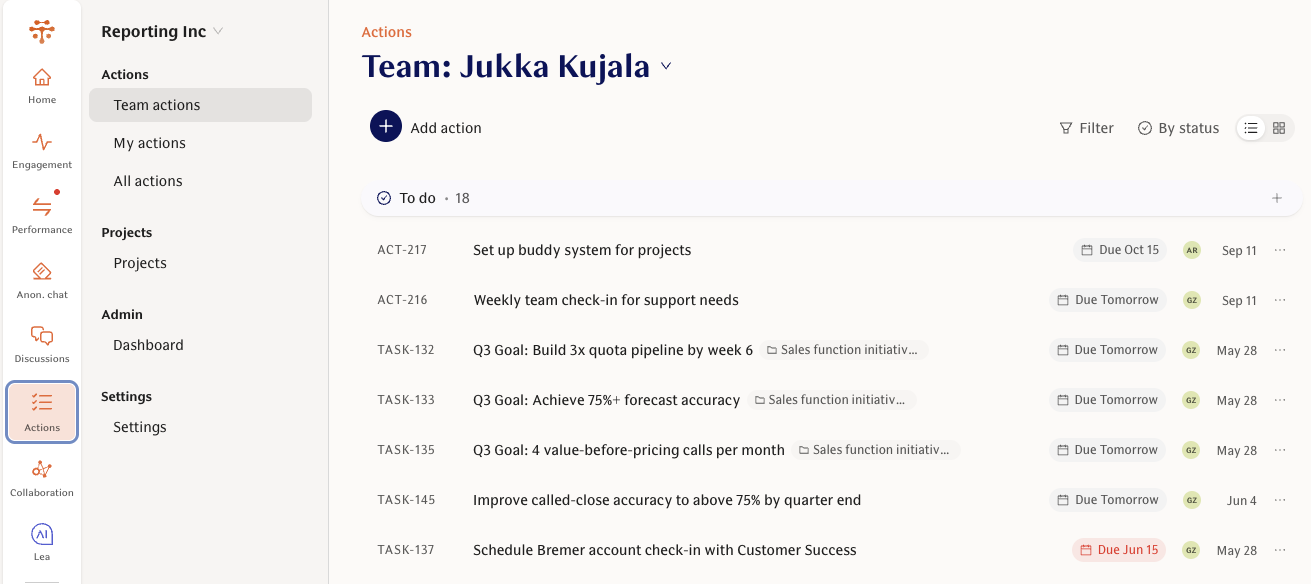
Users can go to Actions and use views such as My actions, Team actions, or All actions.
The Actions list and board support grouping and filtering by fields such as:
Status
Due date
Assignee
Team segment
Project
There is no dedicated survey filter in the ordinary Actions list, so users should rely on connected metrics, naming, projects, ownership, or dashboard views when they need to follow survey-related actions specifically.
2. Keep action details up to date
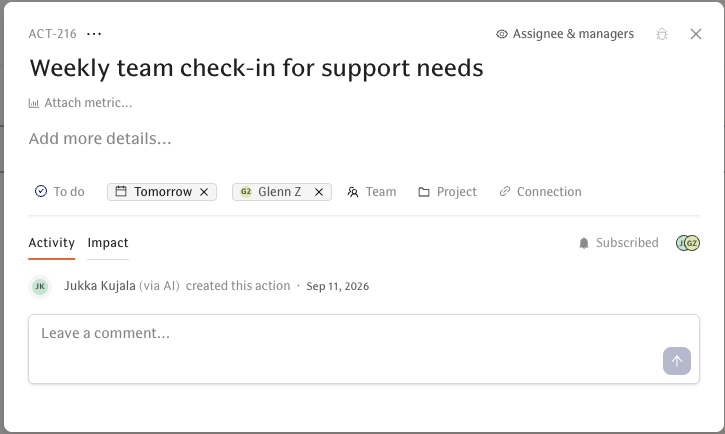
Each action can include an assignee, status, due date, description, connections, activity, and an Impact view.
The available statuses are:
Draft
To do
Active
Done
Canceled
Keeping status, ownership, and due dates up to date is the main way to make follow-up visible and manageable.
3. Connect the action to the relevant survey metric
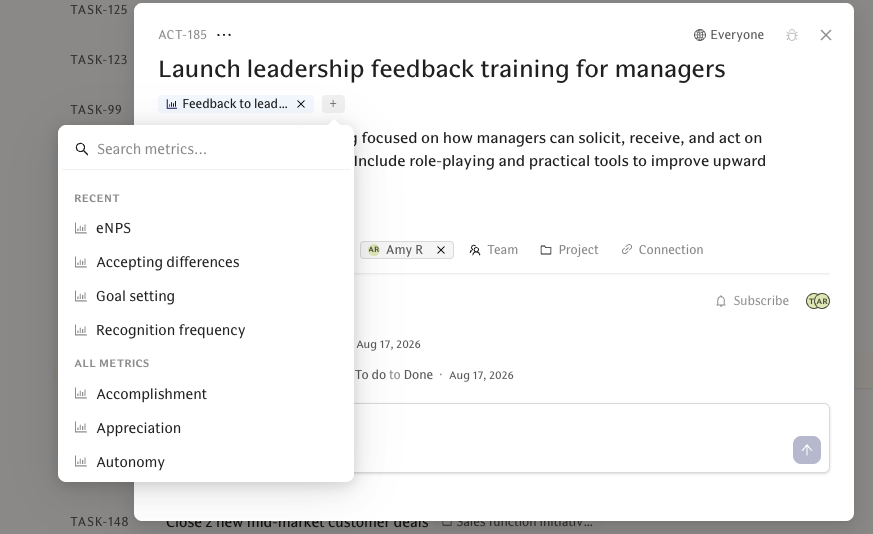
To make an engagement action traceable from survey results, connect it to the relevant survey metric. When appropriate, connect the survey round as well.
Metric-detail results can display connected, visible actions. Draft and canceled actions are excluded from that results view.
This connection is important because it lets users move from a survey result to the follow-up work attached to it, and from the action back to the survey context.
4. Use Impact to follow score movement
The Impact view shows the connected metric’s scores across survey rounds together with action timeline markers, such as:
Creation date
Start date
Completion date
Due date
For a completed action, the reported change compares the first score at or after completion with the latest distinct survey round. For an incomplete action, the comparison starts from the action’s creation. If there are too few survey rounds, Teamspective cannot calculate a meaningful change.
The Impact view shows score movement associated with the timing of the action. It should be interpreted as a follow-up and learning tool, not as proof that the action caused the score change.
5. Follow progress through activity, comments, notifications, and reminders
Users can track action progress through the action’s activity and comments. Relevant changes are batched into notifications, depending on recipient preferences and whether the recipient still has access.
Teamspective also supports due-date reminders and manual reminders. Manual reminders require the action to have an assignee and have a 24-hour cooldown.
Organization-level tracking
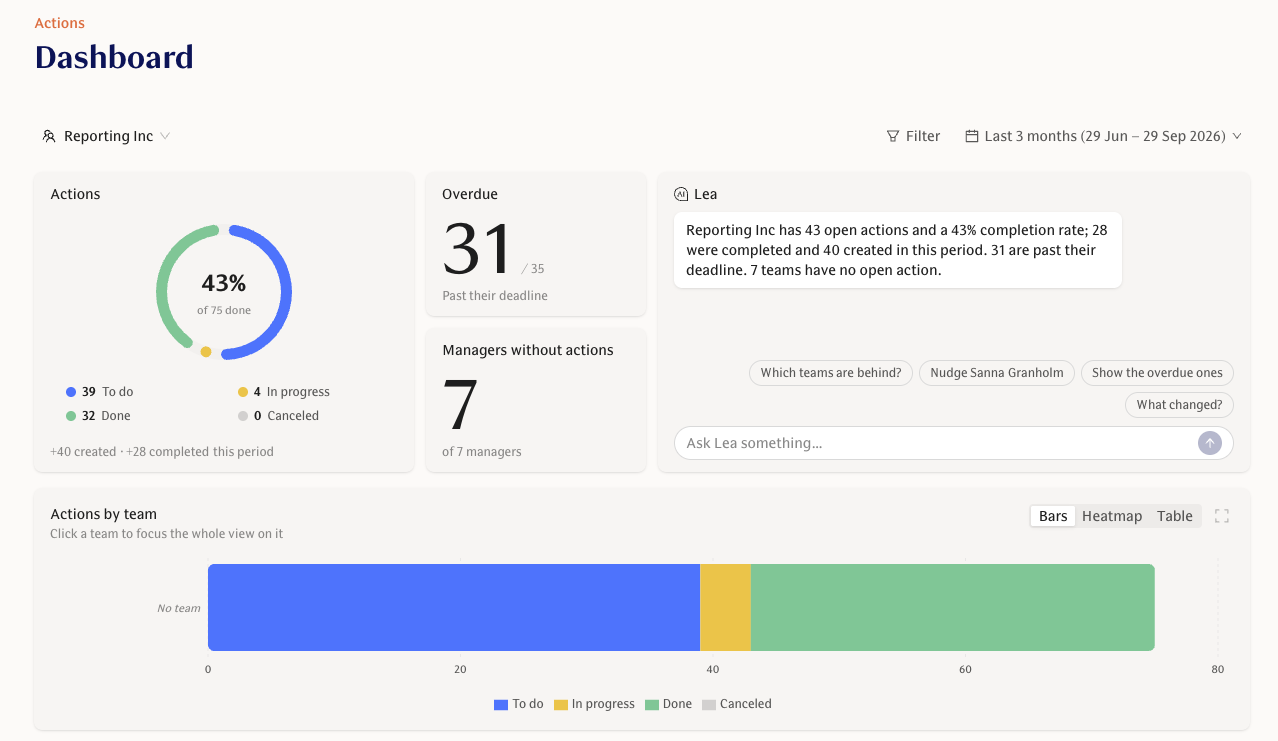
For an organization-level view, admins can use the Dashboard. The dashboard brings together information such as:
Action status and completion trends
Score movement
Impact rankings
Low-scoring questions with few linked actions
Managers without open actions
Recent action activity
The dashboard can filter by survey, but its aggregates include only public, non-draft actions. Private or otherwise restricted work will not produce a complete organization-wide count.
Recommended workflow
Review engagement survey results.
Use a suggested action or create a new action from the relevant result.
Make sure the action is connected to the right metric, and to the survey round when relevant.
Assign an owner, set a due date, and move the action out of draft when ready.
Track progress in the Actions views.
Use the Impact view to review how the connected metric changes over later survey rounds.
Use the dashboard for organization-level follow-up and accountability.