How to use Dynamic Engagement Cohorts in Teamspective?
Last updated: October 24, 2025
Quick Summary
Dynamic Engagement Cohorts automatically group employees based on how they respond to engagement surveys (e.g., Promoters, Passives, Detractors from eNPS).
The feature is already available for all customers and can be accessed directly from the Heatmaps page — no setup required.
Steps
1. Go to Engagement → Heatmaps.
2. Open the Columns filter in the top bar.
3. Under Engagement answers, select a KPI (e.g. eNPS) or Theme (e.g. Motivation).
4. Teamspective automatically pivots your results based on the dynamically created cohort.
5. Compare engagement patterns, sentiment, or feedback across cohorts to spot trends and improvement areas.
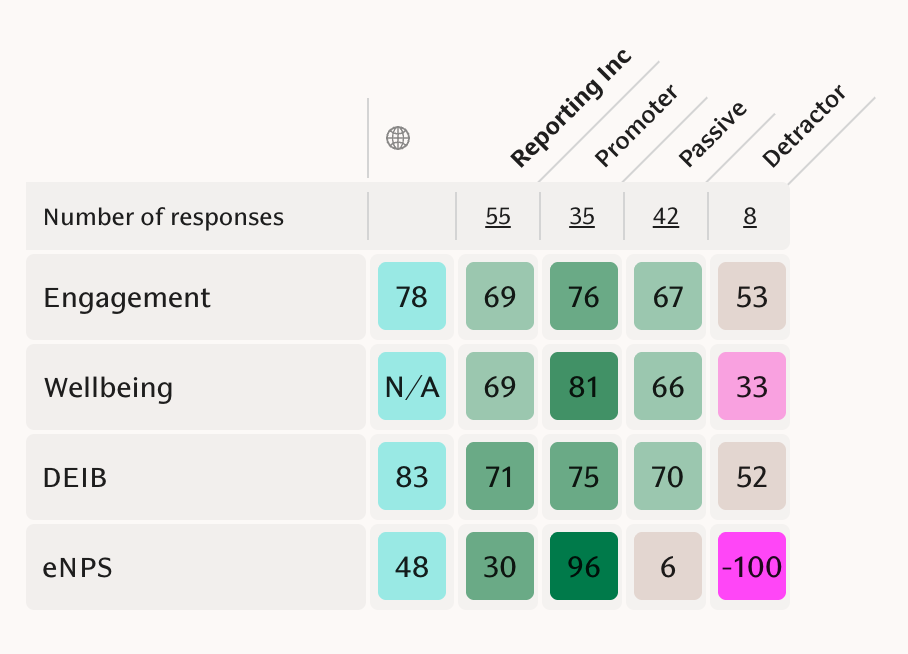
Tip: Use cohort comparisons to understand, for example, what drives engagement among Promoters and what challenges Detractors might be facing.
Common Issue
If no cohorts appear when selecting a KPI or Theme:
-> Check that the Heatmap includes recent survey data.
-> Ensure the KPI or Theme you select has responses available for that period.
Fix: Adjust your date range or filters to include the most recent survey rounds — the cohorts update automatically.
FAQ
Q: Do I need to enable Dynamic Engagement Cohorts?
A: No — the feature is automatically available for all customers.
Q: Can I create custom cohort rules?
A: Not yet. Currently, cohorts follow the same classification logic as the eNPS and engagement metrics shown in Heatmaps.
Need help? Contact support@teamspective.com.