How to Use the Calibration feature in Performance?
Last updated: February 18, 2026
Quick Summary
Calibration allows Workspace Admins and Managers to review, adjust, and align structured feedback results before they are published to employees.
Enable calibration in a Performance template, collect feedback, and then calibrate results directly from the Results table or grid view.
Table of Contents
What this feature does
Prerequisites
Step-by-step guide
Troubleshooting
FAQs
Pro tips
Related resources
1. What this feature does
After structured feedback has been collected, reviewers can open each employee’s results, adjust ratings or comments as needed, and then publish only the calibrated version.
Calibration ensures fairness and consistency across performance reviews by allowing leadership and managers to align review scores before sharing them with employees and using for compensation / promotion decisions.
Read our more extensive guide on Calibration in Performance Management:
📄 What Is Calibration in Performance Management?
2. Prerequisites
You must be a Workspace Admin or Manager to calibrate results.
Calibration must be enabled in the template before feedback is collected.
Only unpublished results can be calibrated.
Only feedback from templates with calibration enabled will appear in the Calibration view.
3. Step-by-step guide
Go to Performance → Templates & Questions.
Select Edit on an existing template or create a new one.
Enable calibration using the Enable calibration toggle.
Run the review cycle as usual and collect feedback with this template.
After feedback has been collected, go to Performance → Results.
Open the table or grid view and select Calibrate.
Teamspective automatically applies filters to show only unpublished feedback from calibration-enabled templates.
Adjust filters if needed to ensure you are seeing the correct set of employees.
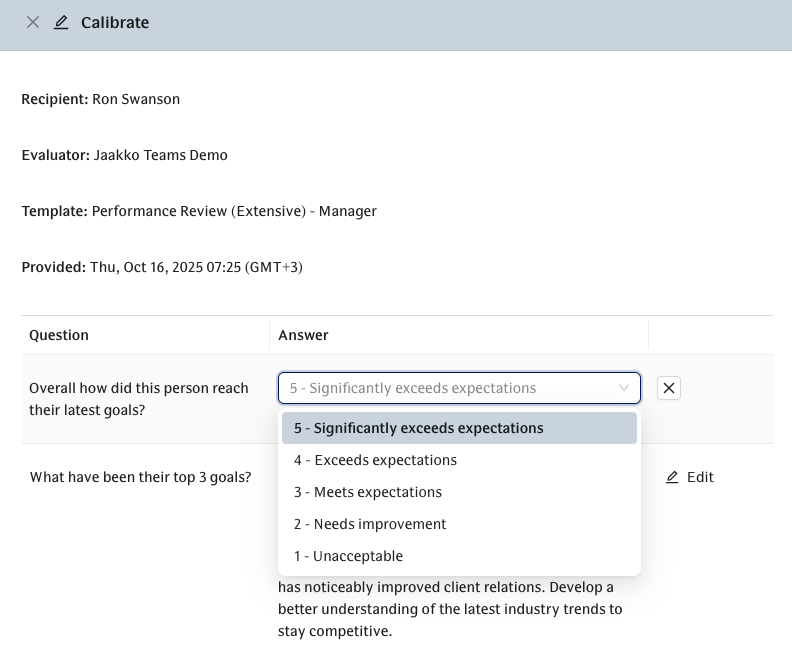
Click an employee’s name to open the calibration side panel.
Review and edit any structured feedback the employee has received.
When finished, click Stop calibrating.
Publish results as normal—employees will only see the calibrated versions of their feedback.
4. Troubleshooting
Issue: A review does not appear in the calibration view
Possible causes:
The template used does not have calibration enabled.
The feedback has already been published.
Filters in Results are hiding the employee.
Solution:
Check the template settings for calibration, confirm results are still unpublished, and review applied filters.
Problem | Likely Cause | Solution |
Employee missing from calibration list | Filters too narrow | Broaden filters in the Results view |
Cannot edit feedback | Feedback already published | Unpublish (if allowed) or wait for next cycle |
Calibration option missing | Template not configured | Enable calibration in the Template settings |
5. FAQs
Q: Can I calibrate feedback after publishing?
A: No. Calibration is only available for unpublished feedback.
Q: Do employees see the original feedback?
A: No. After calibration, employees only see the final calibrated version once the feedback is published.
Q: Can I calibrate feedback across multiple templates?
A: Yes, as long as each template has calibration enabled and feedback remains unpublished.
6. Pro tips
Set expectations with reviewers early so they understand when calibration will occur.
Use consistent rating scales across templates to make cross-team calibration easier.
Calibrate in batches by team or specific org level for a smoother workflow.
Use the calibration mode in calibration meetings with relevant decision makers to align on what good looks like and immediately adjust review scores where necessary.
Read our more extensive guide on Calibration in Performance Management:
📄 What Is Calibration in Performance Management?
7. Related resources
📄 Structured Feedback implementation guide
📄 Performance guide for team leads
📄 Principles behind measuring Performance
Need more help?
Contact support@teamspective.com