Structured Feedback implementation guide
Last updated: September 5, 2025
Steps to implement Performance module
These simple steps get you started. The actual setup work only takes 5-20 minutes depending on the size of your organization.
This guide covers the whole Performance module – first Growth Feedback features where feedback collection is more employee-driven, then Structured Feedback where admins control the question templates or even feedback collection.
Remember to invite users and manage your groups before starting to use this module.
Feedback
Our user controlled Feedback features are available as soon as users have been added to the workspace. We also strongly encourage setting up the Slack / Teams integration to create the best possible user experience.
Read more about Asking for feedback from our quick start guide.
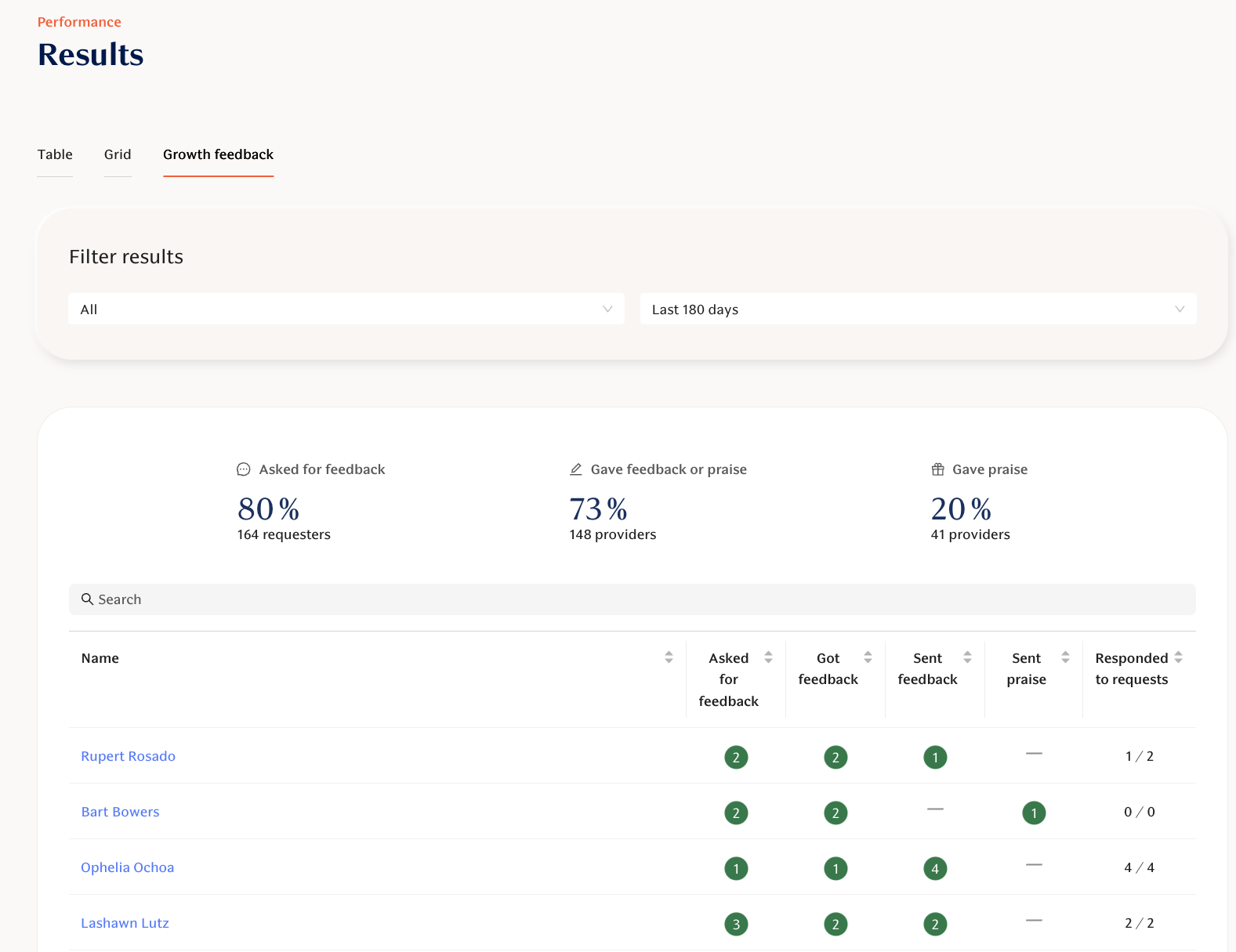
Feedback Stats
Workspace Admins, Observers and Group Admins (for their groups) can track how employees are asking for and giving feedback. This view can be found in Results -> Personal feedback:
Feedback Activation
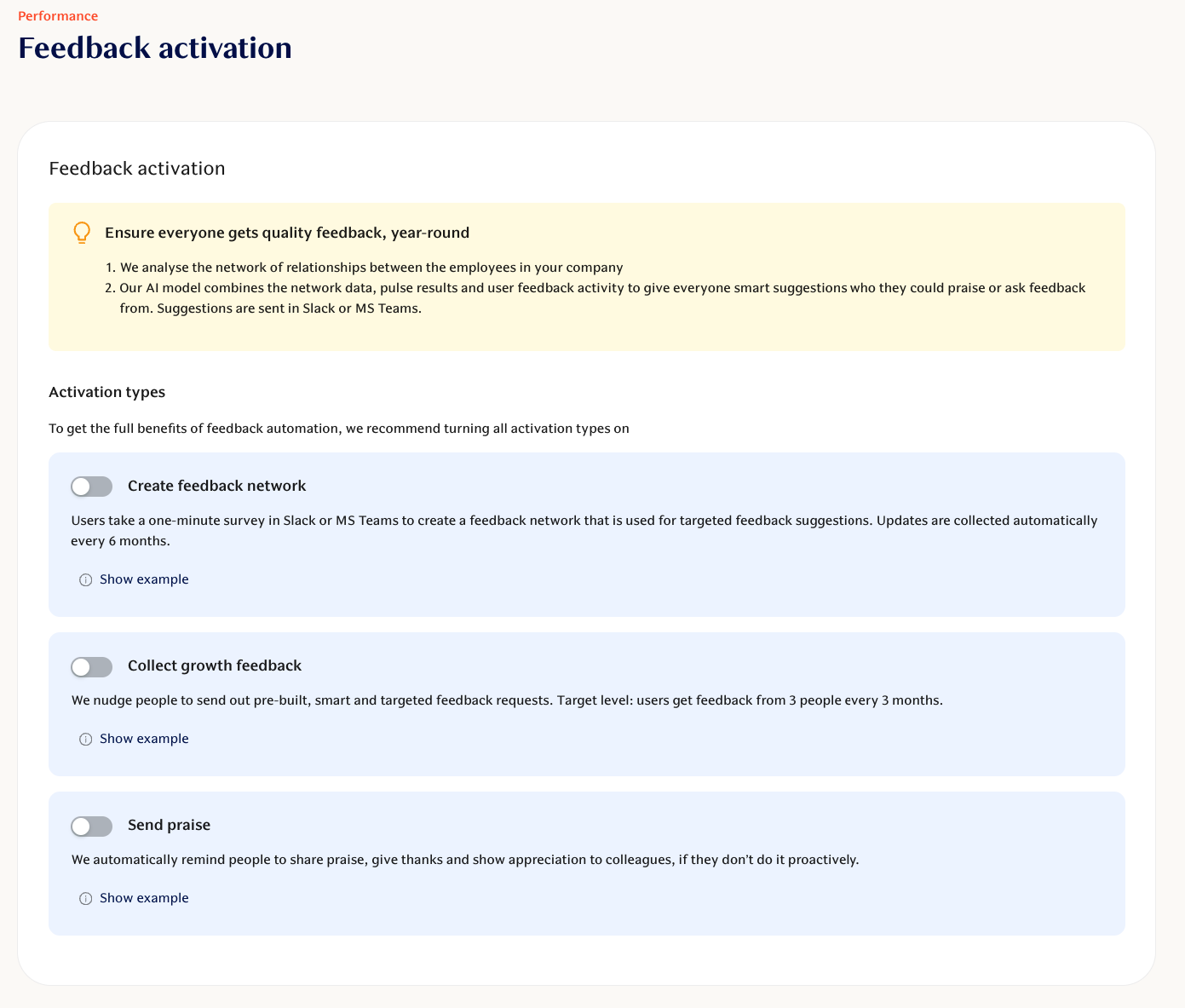
Teamspective comes with powerful feedback activation features. This means that you can set up automatic, personalized nudges for your employees to request for feedback and give praise to their colleagues.
Activation options found from 360 Feedback -> Feedback activation:
1. Feedback Network
We build a relational network based on the results collected via a mini survey every 6 months. This ensures that employees always received as personalized suggestions as possible.
2. Personal Feedback nudge
Teamspective sends a personalized nudge to encourage the employee to request for feedback. We list 3 close colleagues to make the requesting as easy and relevant as possible. The nudge is sent every 14 - 30 days.
3.Praise nudge
Teamspective sends a personalized nudge to encourage the employee to send praise. We list 3 close colleagues to make the requesting as easy and relevant as possible. The nudge is sent every 14 - 30 days.
Structured Feedback templates
The Structured Feedback feature is where HR or team leads control what feedback is requested, when and from who.
Through customizable question templates you have the possibility to run:
performance reviews
skills reviews
talent reviews
360 or 180 degree feedback
personal development feedback
trial period feedback
Assigning Permissions
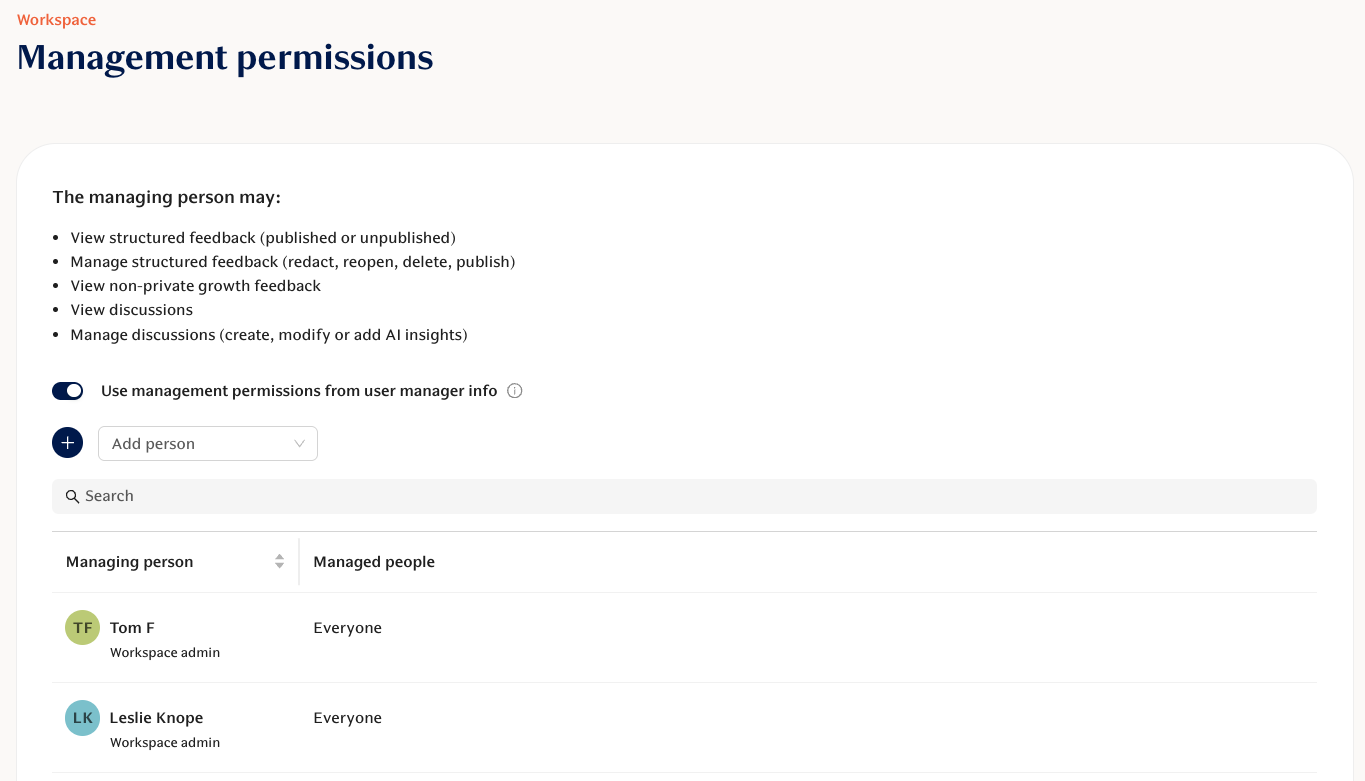
Permission to request, view, moderate and publish feedback for a specific individual can be managed in Management Permissions.
In the left-hand column, select the user who should have increased access.
Usually this is a team lead.
Workspace admins and observers automatically have access to every users Feedback & Discussions.
In the right-hand column, select the user whose Feedback and Discussions should be made visible.
Usually these are the team members who the team lead is managing.
Setting up Questions and Templates
You can set up your questions and templates on the Customize Surveys page.
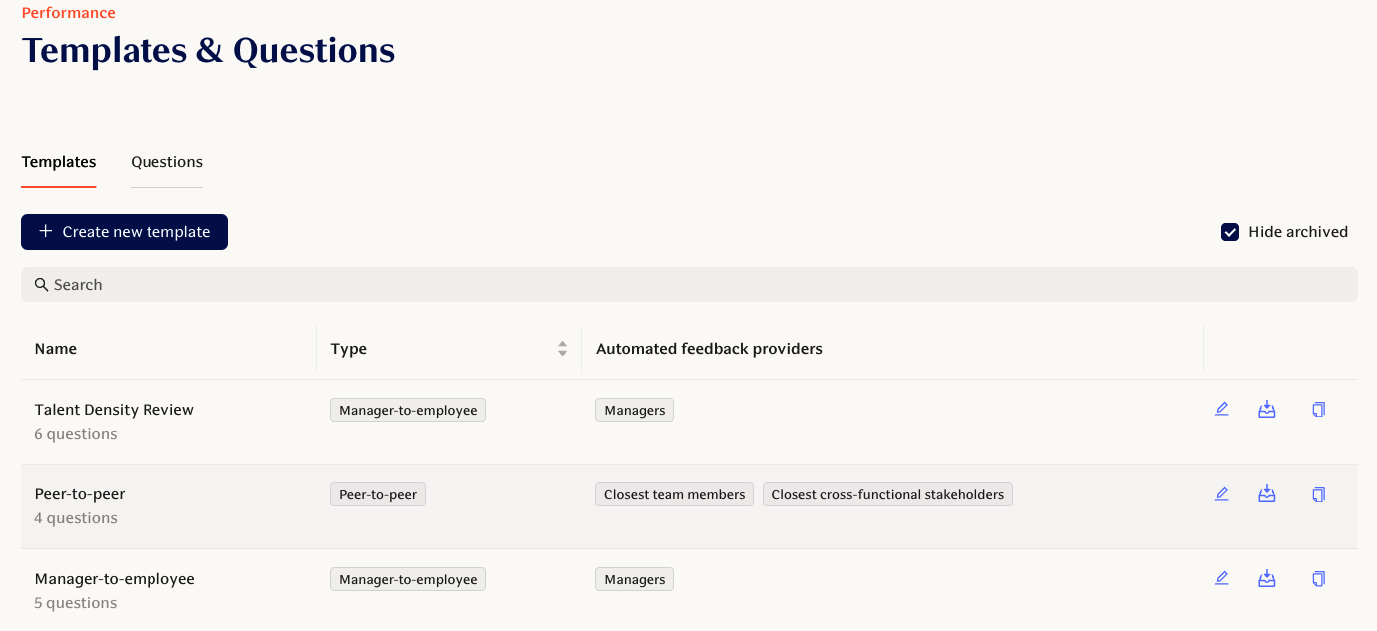
Templates can be managed and created under Templates.
New questions can be created into the questions library under Questions.
ℹ Our default questions and templates have been selected based on the research by Deloitte and Gallup. Using scale questions that challenge the evaluator help in surfacing real intentions and keeping the reviews lean for the responders.
If you need to create new questions you can do so in Questions:
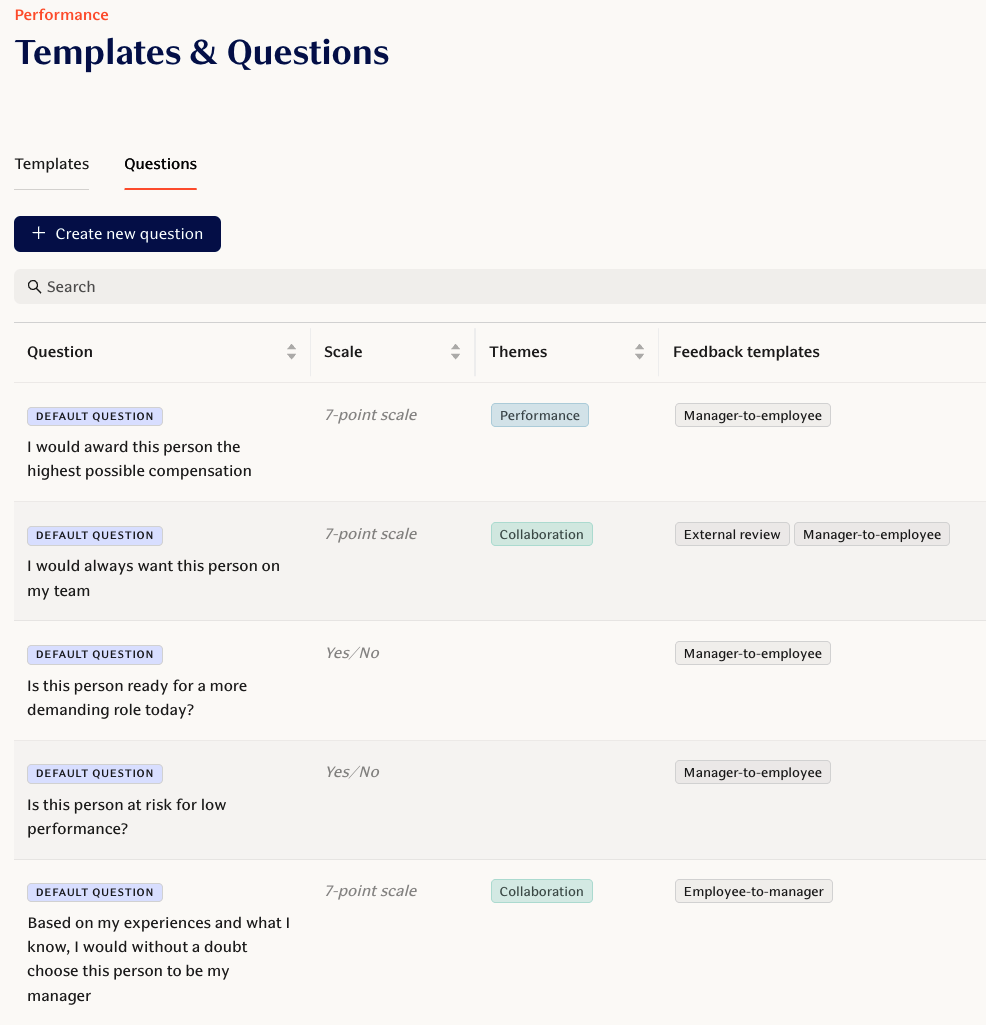
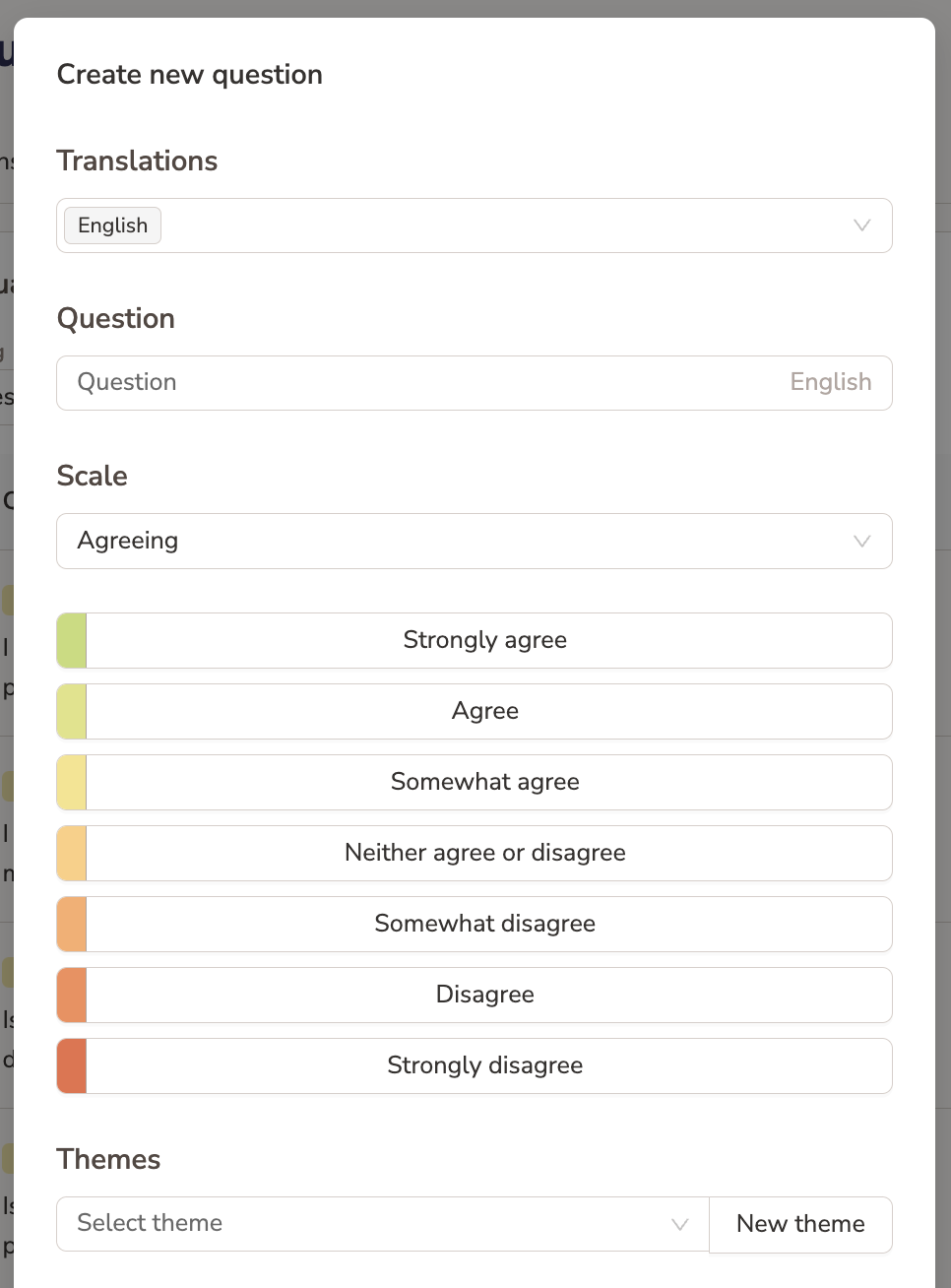
When creating new questions you have these extensive options:
you can create different translations based on your needs
multiple answer types:
scales
binary (yes / no)
written (open)
themes to combine the numeric results under similar topics
Structured Feedback Settings
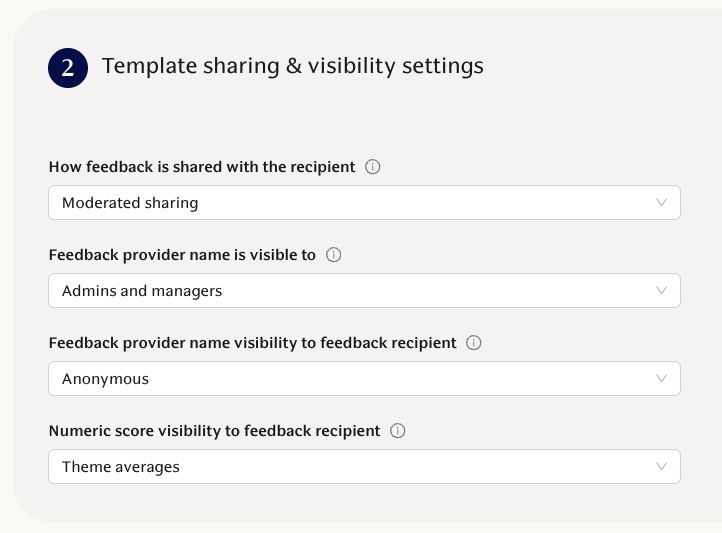
Visibility settings
All Structured Feedback settings related to visibility are toggled by editing the specific templates -> Teamplates & Questions. Each template can have their own settings, and those can be edited by clicking the pen icon on the right of each template.
Settings can be configured in the Template sharing & visibility settings section.
General settings
All other settings related to Growth Feedback and Structured Feedback can be accessed on the Settings menu.
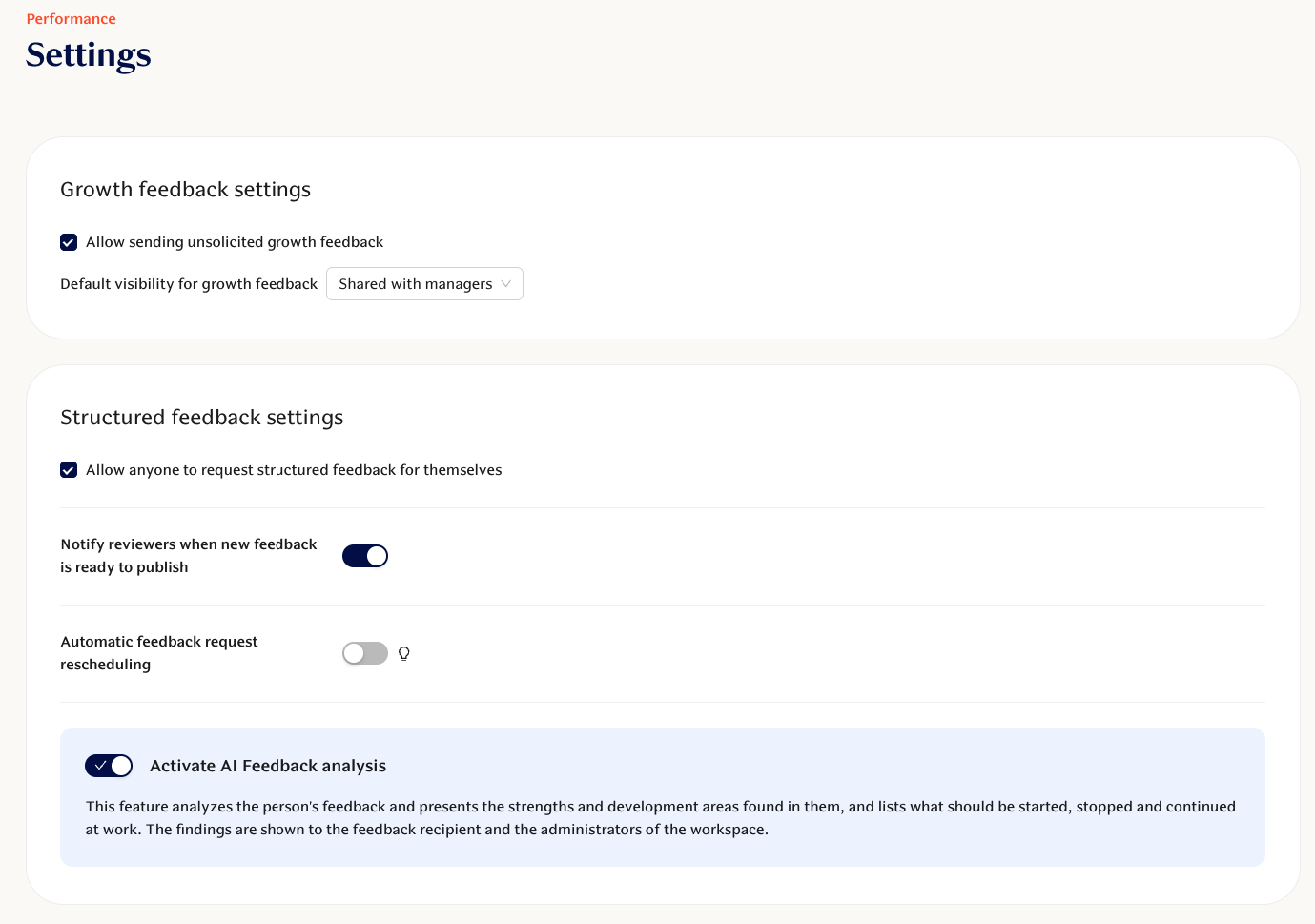
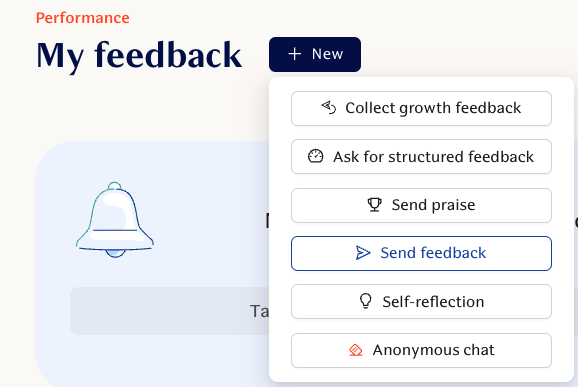
1. Sending unsolicited growth feedback
This setting allows users to send redirecting feedback to each other without the person asking for it. By default users are only allowed to send praise without receiving a request first.
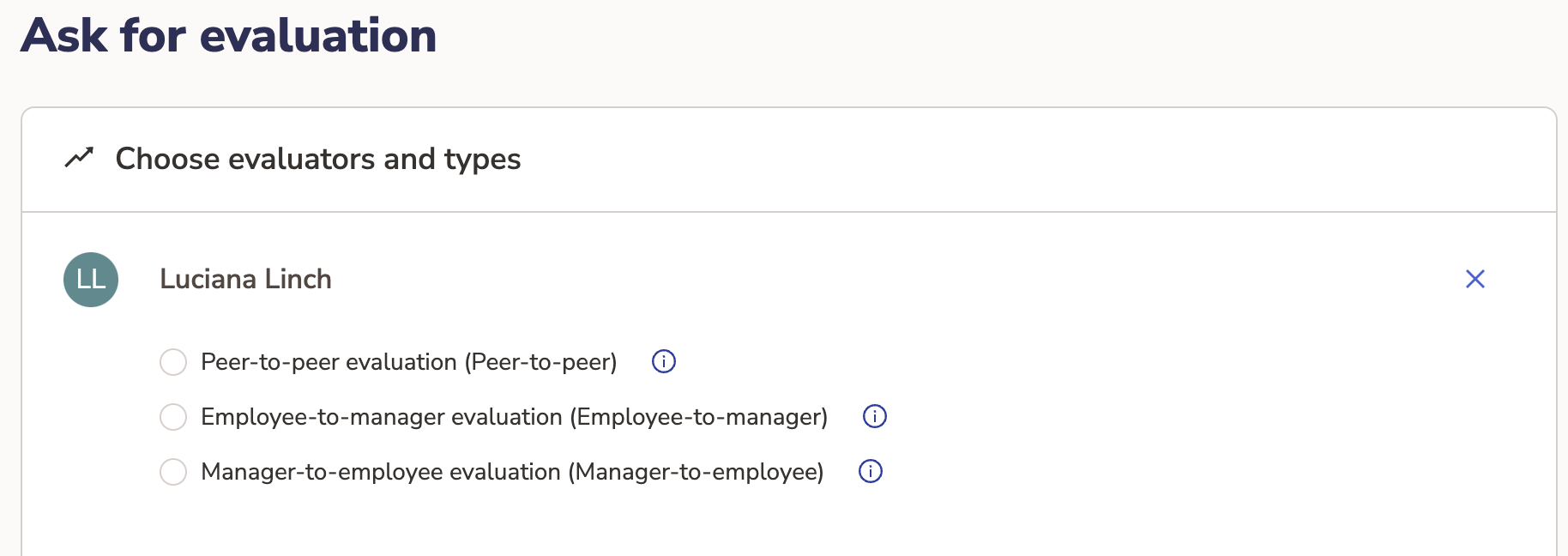
2. Allow individuals to request structured feedback for themselves
This allows any user to submit an evaluation request on their part by choosing a responder and a question template that has been made available. This allows the decentralizing of sending out requests and not creating a bottleneck out of HR managers.
3. Automatic feedback request scheduling
Add automatic extension for expired feedback requests. Notification of the new response time is sent when it starts and a reminder 6 hours before it ends, but only during office hours (from 8 a.m. to 4 p.m).
Activate AI Feedback analysis
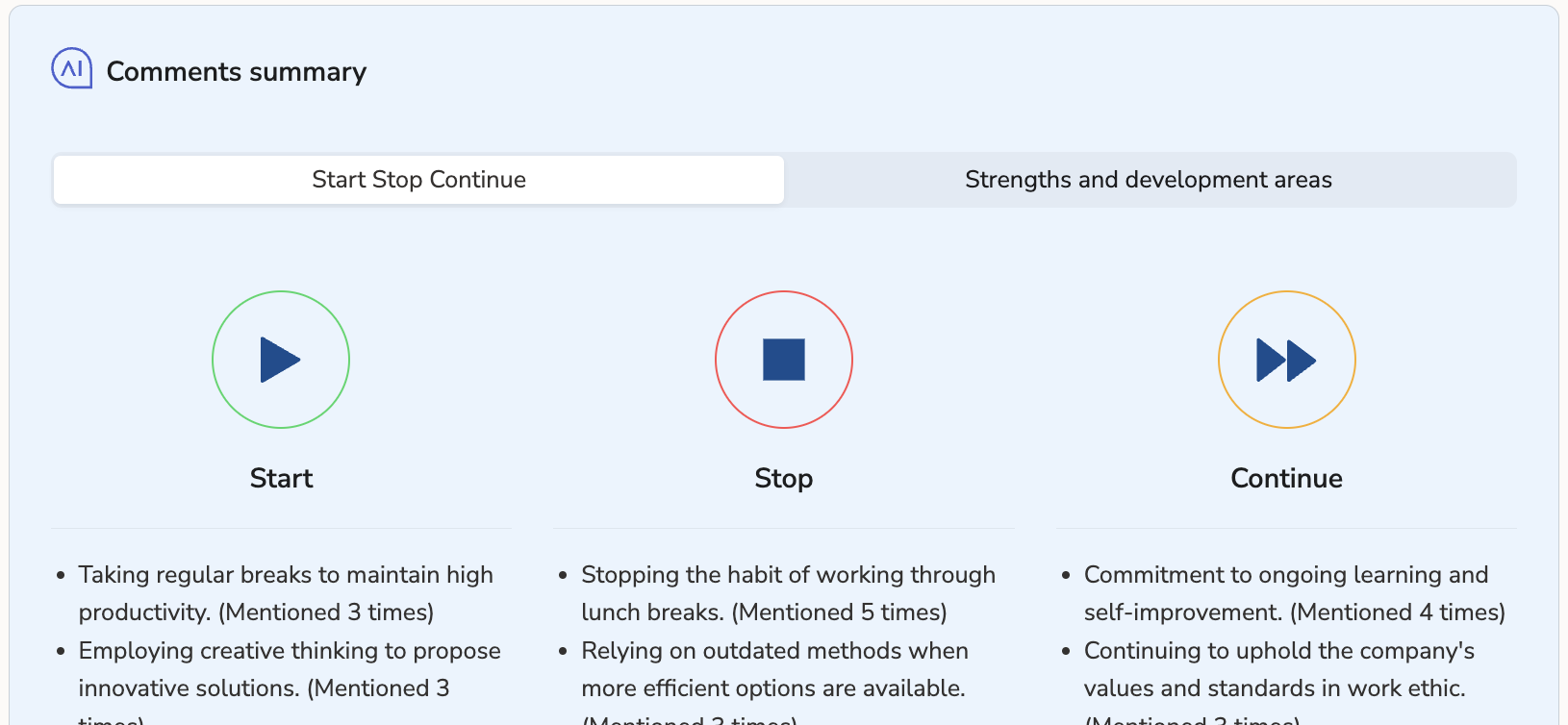
You are able to activate / deactivate Teamspective's AI Feedback Summaries from this setting. Read more about these summaries below.
Sending Structured Feedback Requests
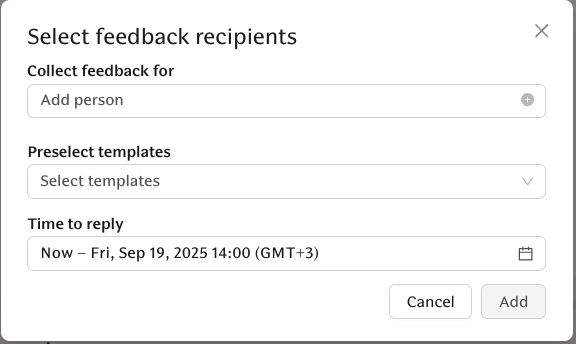
You can send structured feedback requests from the Feedback requests page by clicking Select people under Create new requests:
First select which people should be getting feedback and what templates you want to use:
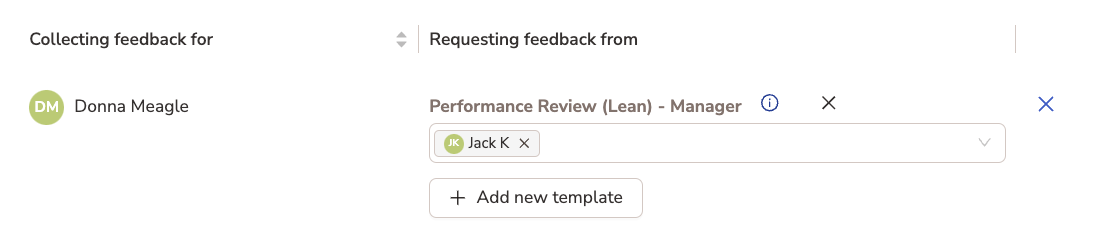
Next, assign who should receive the feedback request:
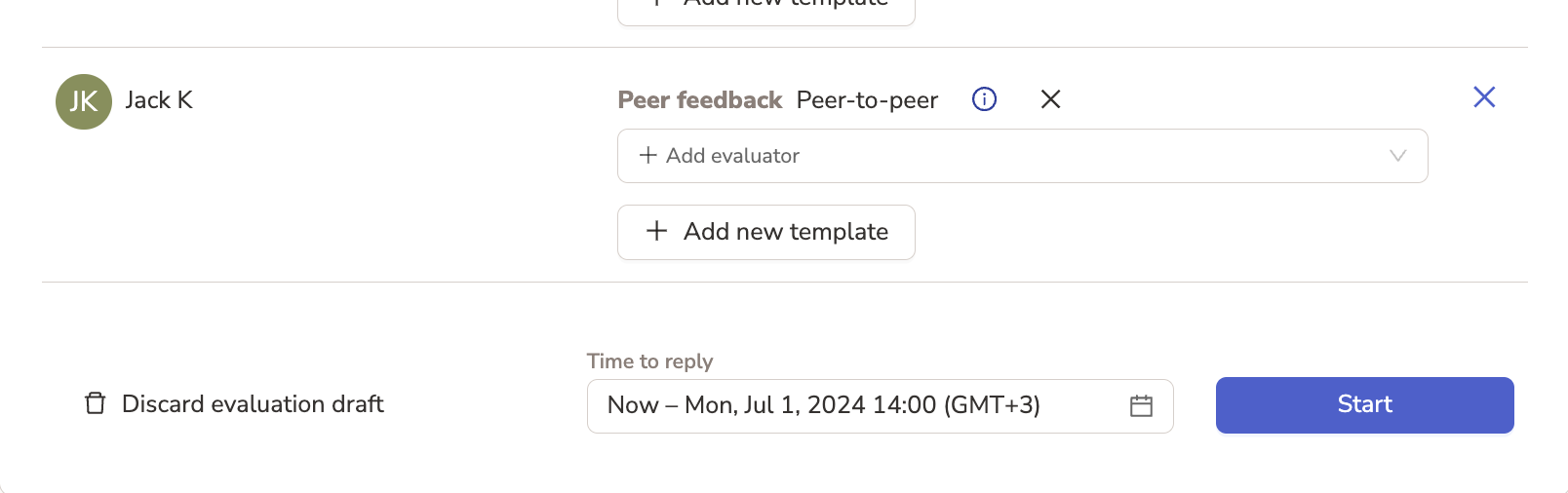
Finally, set a deadline and click start:
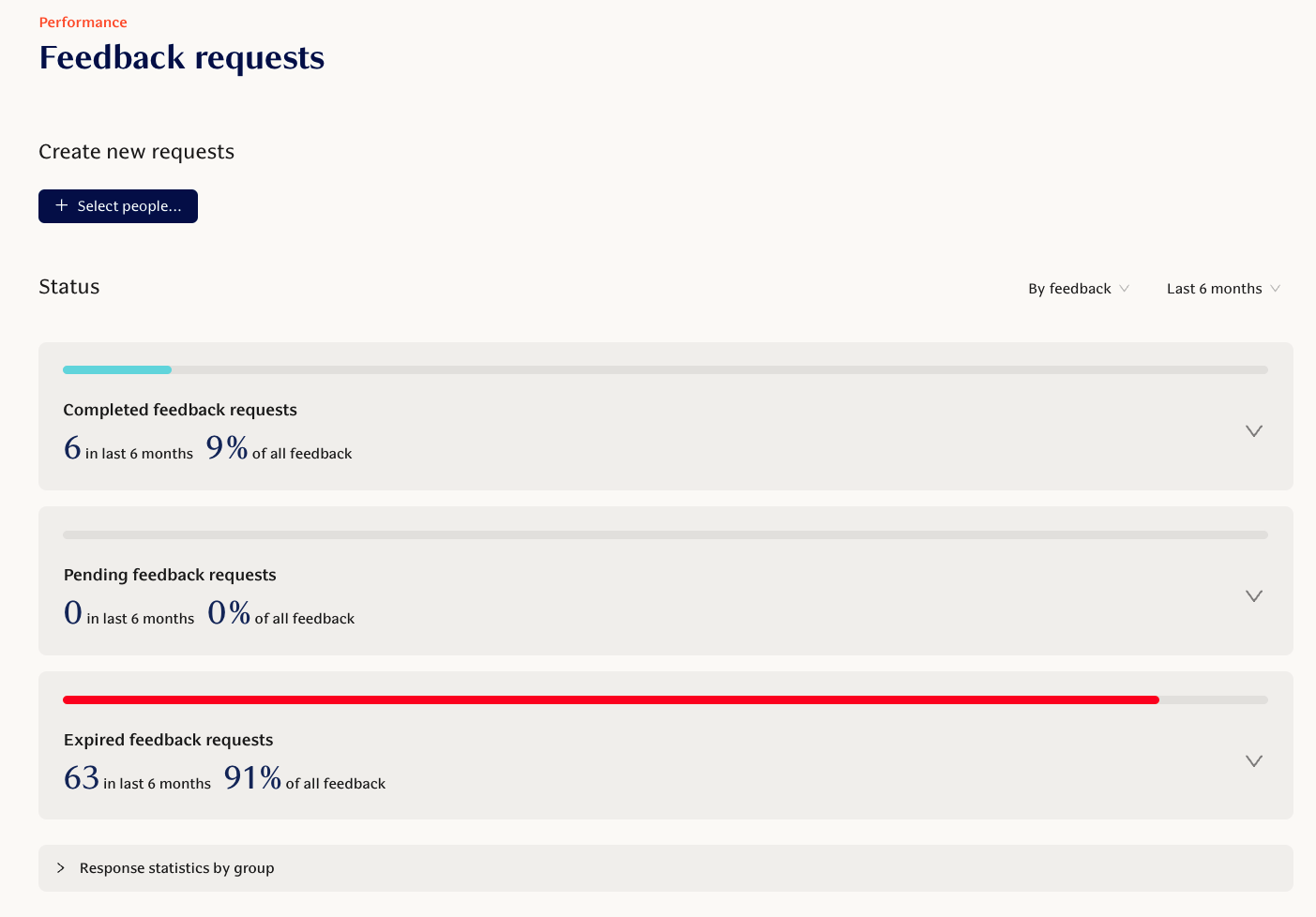
Tracking the Status of Requests
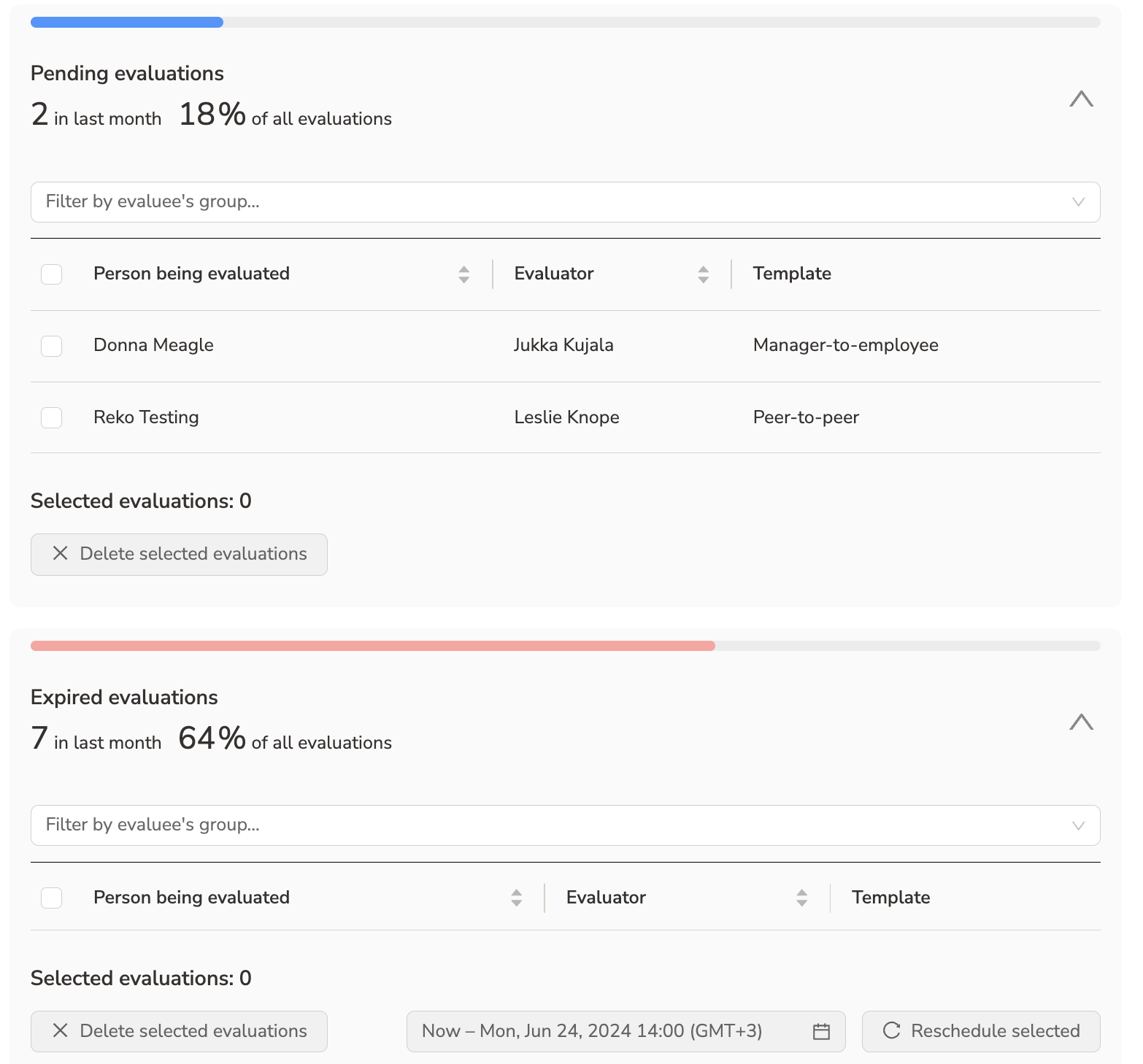
You are able to track the Status of requests from the Feedback requests page:
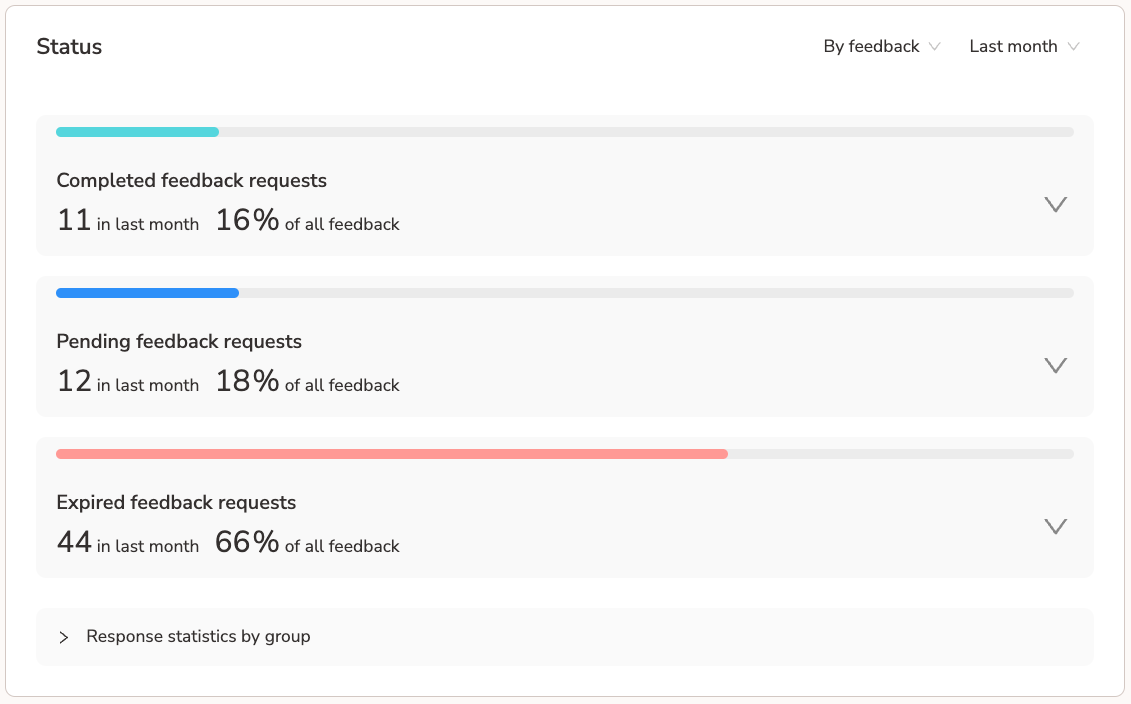
From this status view you are also able to Delete requests or Reschedule expired requests:
Reopening submitted requests
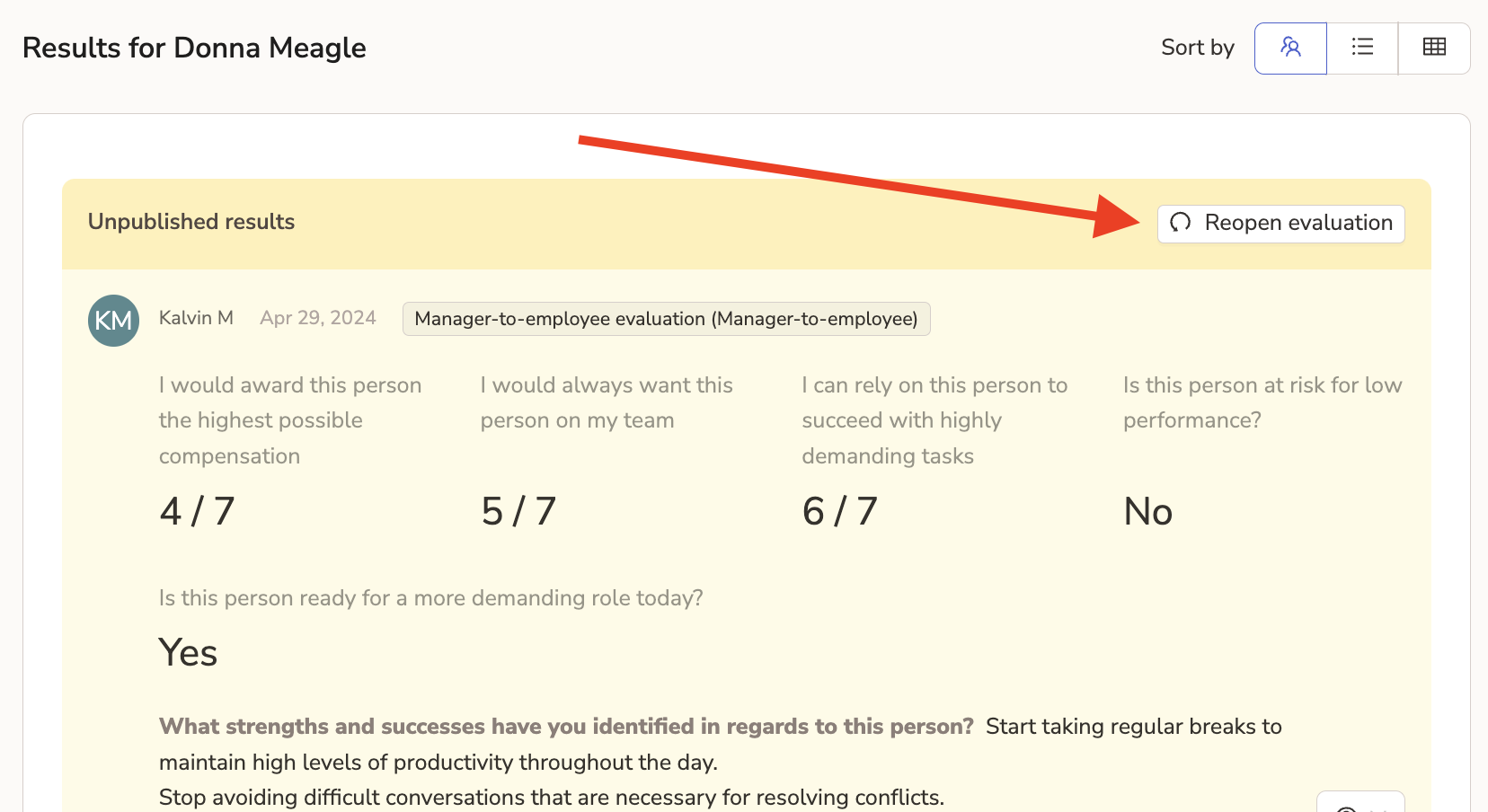
If an already submitted request requires editing, you are able to reopen the submitted request from the Evaluee's results page.
This will allow the Evaluator to edit their responses and re-submit the request. They can do this in Slack/Teams (if integrated) and the web app.
Reading Feedback results
👁 An individual employee can view published structured feedback on their My Feedback page. Read more on reviewing and publishing structured feedback to individuals.
Feedback results are displayed on the Results pages for individuals with Management Permissions. This page has 2 views:
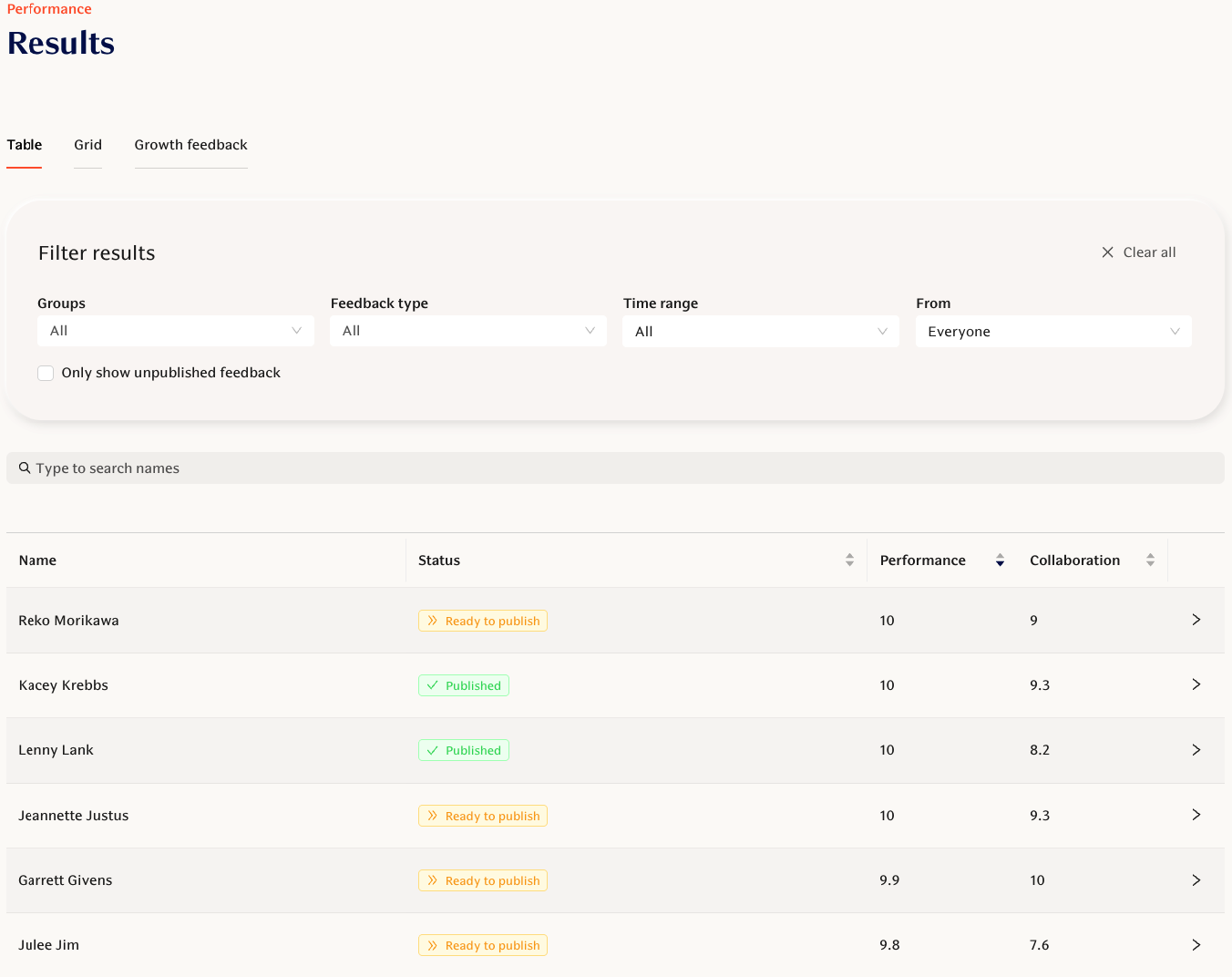
Table offers a table view which can be sorted based on the theme scores and shows the status of requests per person.
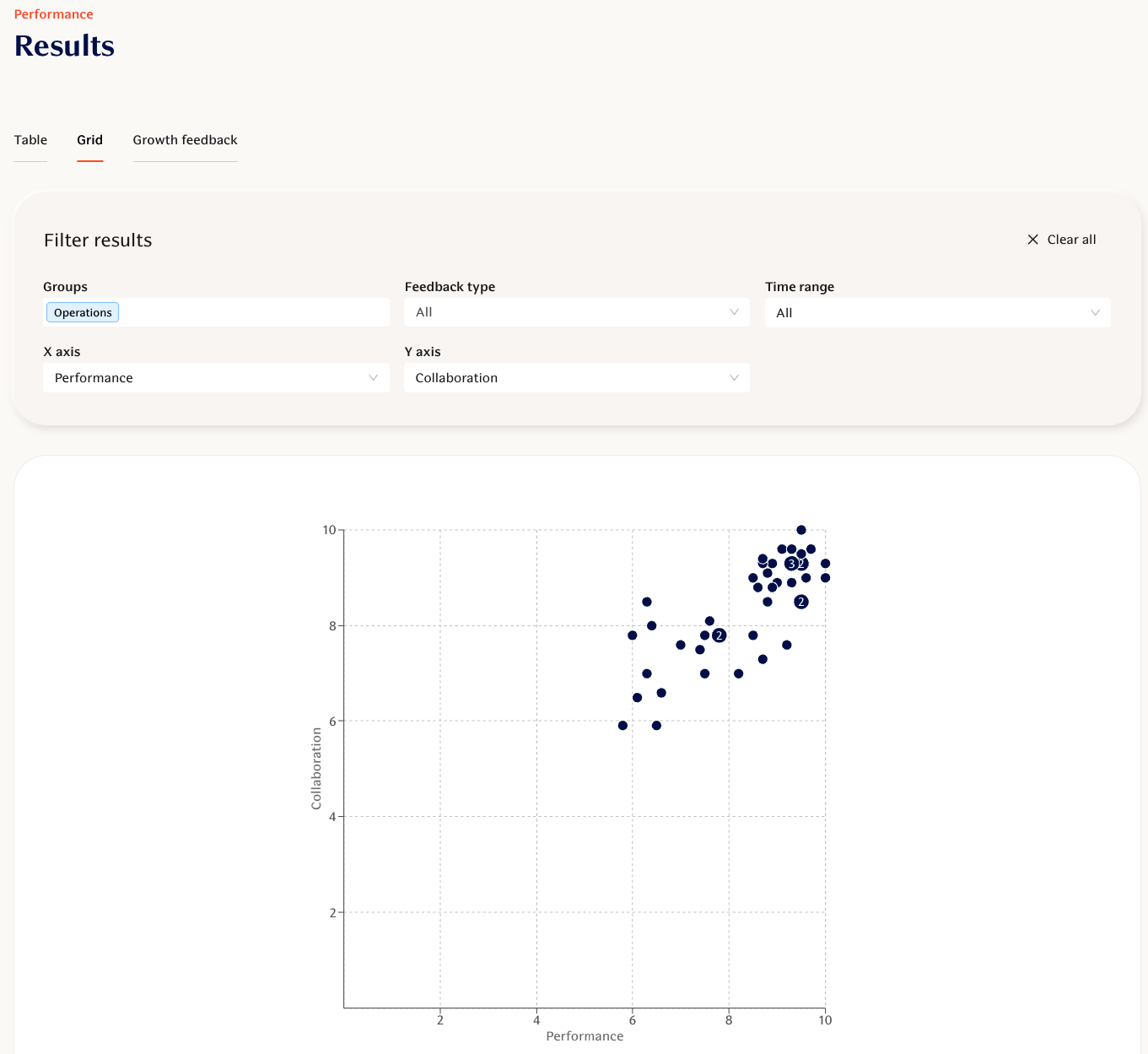
Grid offers a grid view for numeric results based on 2 themes on an X/Y axis.
Below is an example of the Table view. You can view an individual's profile by clicking the person's name in the first column of the table.
Below is an example of Theme scores on the Grid page for Performance and Collaboration themes:
How are Theme scores calculated?
You are able to aggregate results from individual questions to higher level Themes. The Theme is assigned to a question in the Questions library. If the question is a scale question, the system takes this score into account when calculating the average score for the selected Theme.
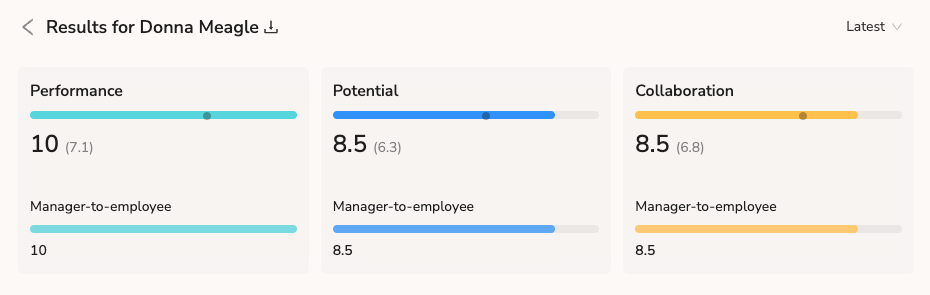
The scale of all Theme scores is 1-10 and all individual question level scores are standardized to this scale with the following algorithm before calculating the average:
const mapRange = function (
  input: [number, number],
  output: [number, number],
  value: number
) {
  return output[0] + ((value - input[0]) * (output[1] - output[0])) / (input[1] - input[0])
}
This allows multiple different point scales to be used for different questions belonging to the same Theme.
Example:
User has responded to 3 scale questions which all belong to the same Theme, Performance.
Results are as follows for each question:
Q1: 3 / 5 (5-point scale)
Q2: 6 / 7 (7-point scale)
Q3: 3 / 4 (4-point scale)
This is how the algo transforms each score to the 10-point scale:
Q1: 1 + ((3 - 1) * (10 - 1)) / (5 - 1) = 5,5
Q2: 1 + ((6 - 1) * (10 - 1)) / (7 - 1) = 8,5
Q3: 1 + ((3 - 1) * (10 - 1)) / (4 - 1) = 7
The average score for Performance will thus be avg(5,5;8,5;7) = 7
AI Feedback Summaries
Teamspective's AI will automatically generate summaries from the open (text format) feedback published to individuals.
This is especially useful when an individual starts to have a lot of feedback and it gets hard for them and their manager to understand how to benefit from it.
This feature uses 2 frameworks to create the summaries:
Start, Stop, Continue
Strengths and Development areas
Additionally there is a summary paragraph in the beginning which outlines all the main points from the 2 summaries.
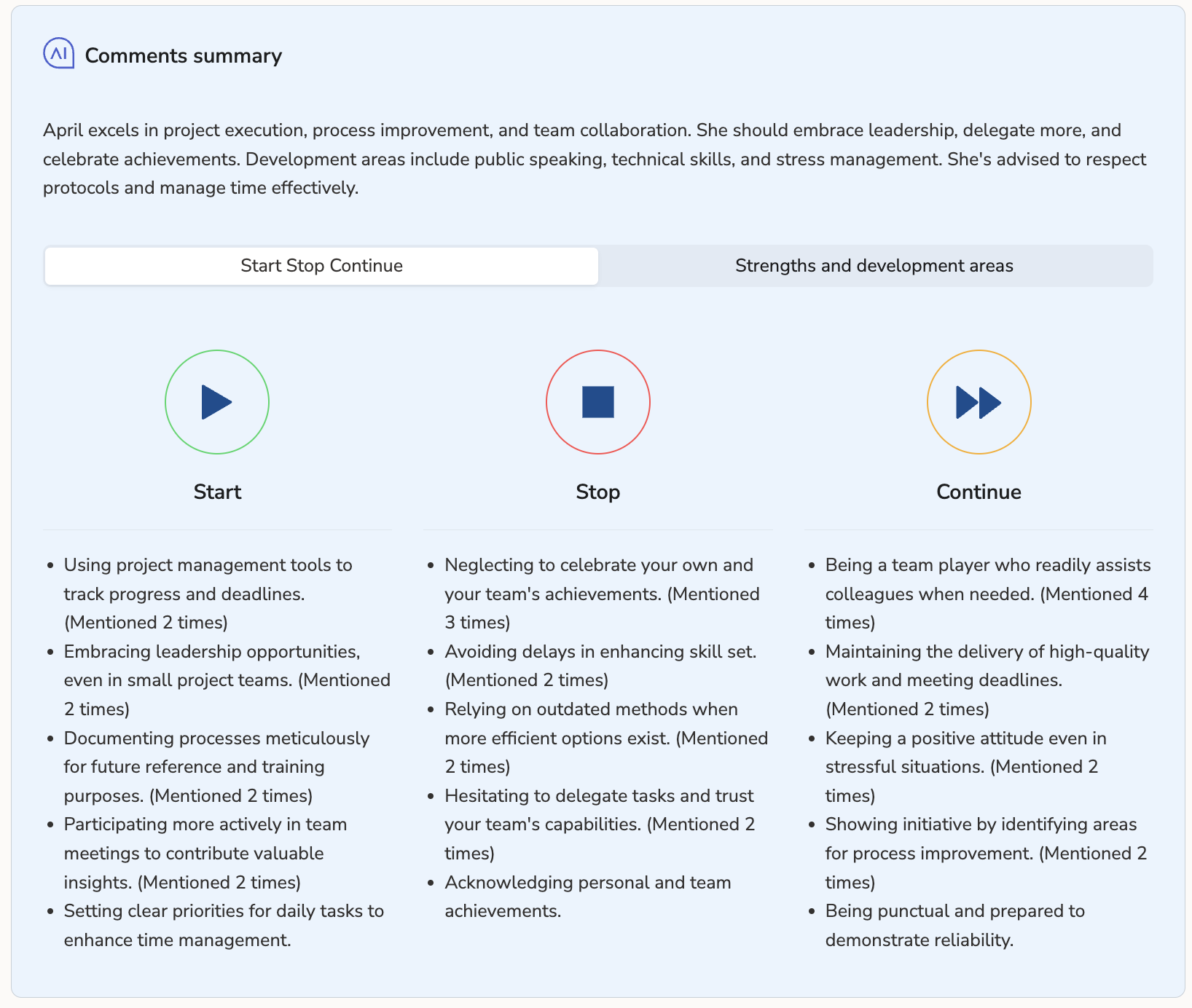
The automatically generated summary can be deactivated from Feedback settings.
What feedback does the AI summary use?
The AI summary only uses open feedback which has been published to the individual. It also takes into account the selected time frame when viewing the feedback on the individual's page.
How does the AI model use our data?
By activating and using this feature, you have accepted our Data Processing Agreement.
The results of this feature or customer data, combined or otherwise, are not shared with other customers or third parties – only processors strictly necessary to provide this service to the Customer. Teamspective may use the results of this feature to improve the product.
Teamspective uses Microsoft's Azure OpenAI to create this feature. The data is not available to other customers or OpenAI. It is not used to improve OpenAI models. It is not used to improve any Microsoft or 3rd party products or services. It is not used for improving Azure OpenAI models. The service does not interact with any services operated by OpenAI. For full details, please read our Data Processing Agreement.