Recurring survey implementation guide
Last updated: January 14, 2026
This guide helps workspace admins implement the automated surveys.
Steps to implement Recurring surveys
These simple steps get you started. The actual setup work only takes 5-20 minutes depending on the size of your organization.
❗Remember to invite users and manage your groups before the pulse survey is launched.
This article only covers the setting up and editing of Recurring surveys. Click below to find our other Engagement articles:
Set up or edit the Recurring survey
Navigate to Engagement -> Surveys -> New Survey
Then from the pop-up choose Schedule recurring survey.
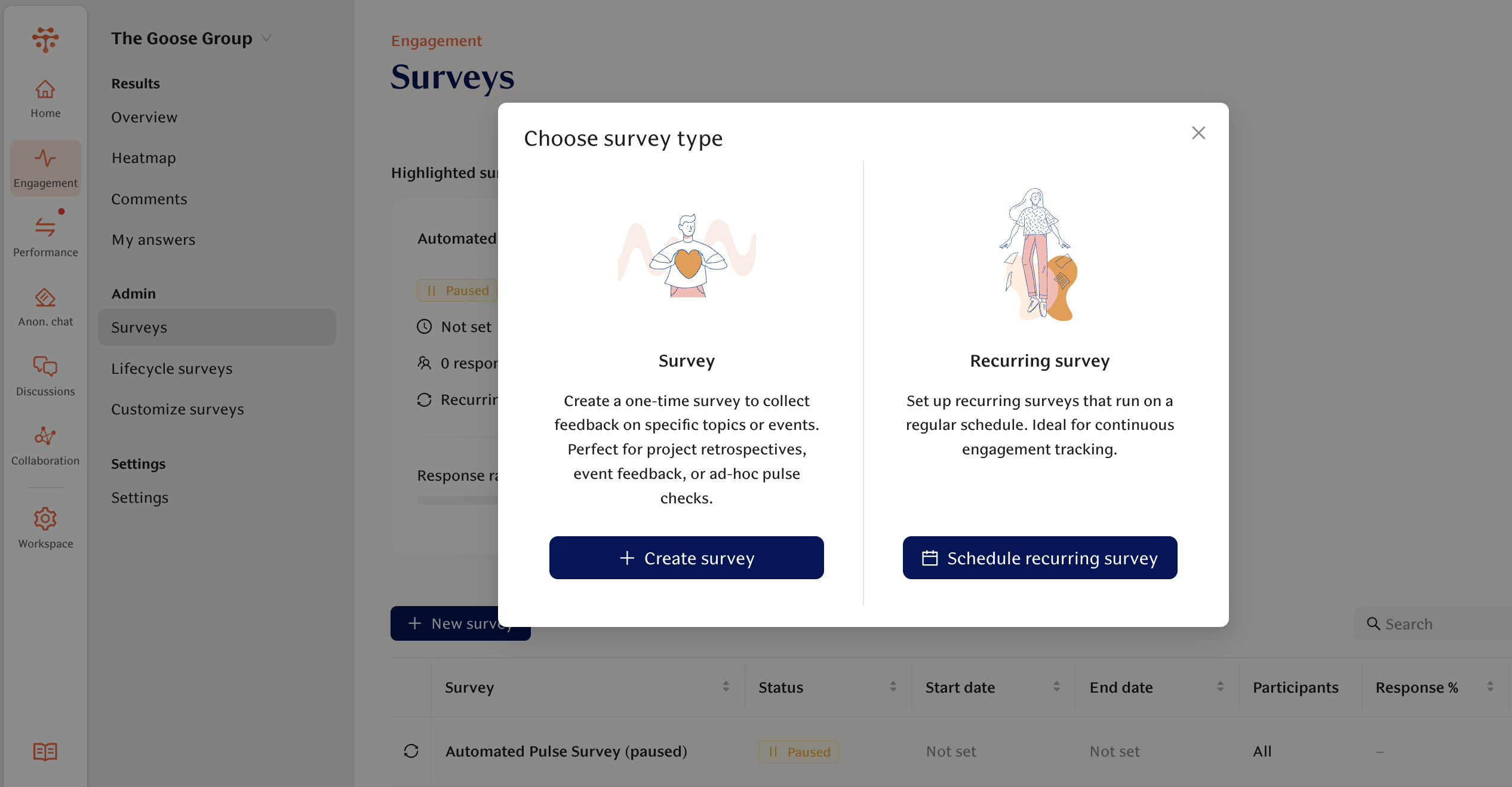
This opens the Schedule page for configuring the recurring survey:
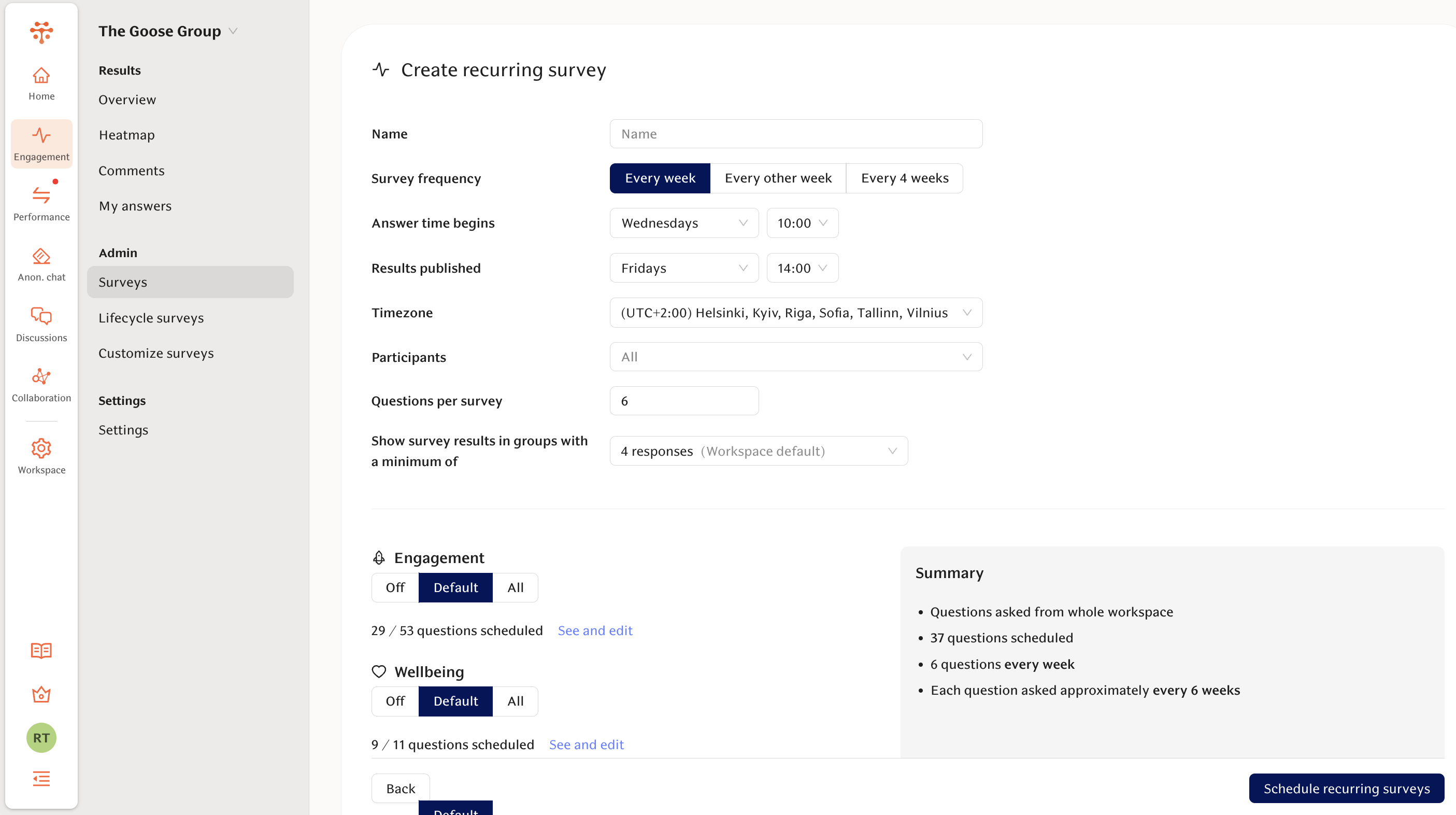
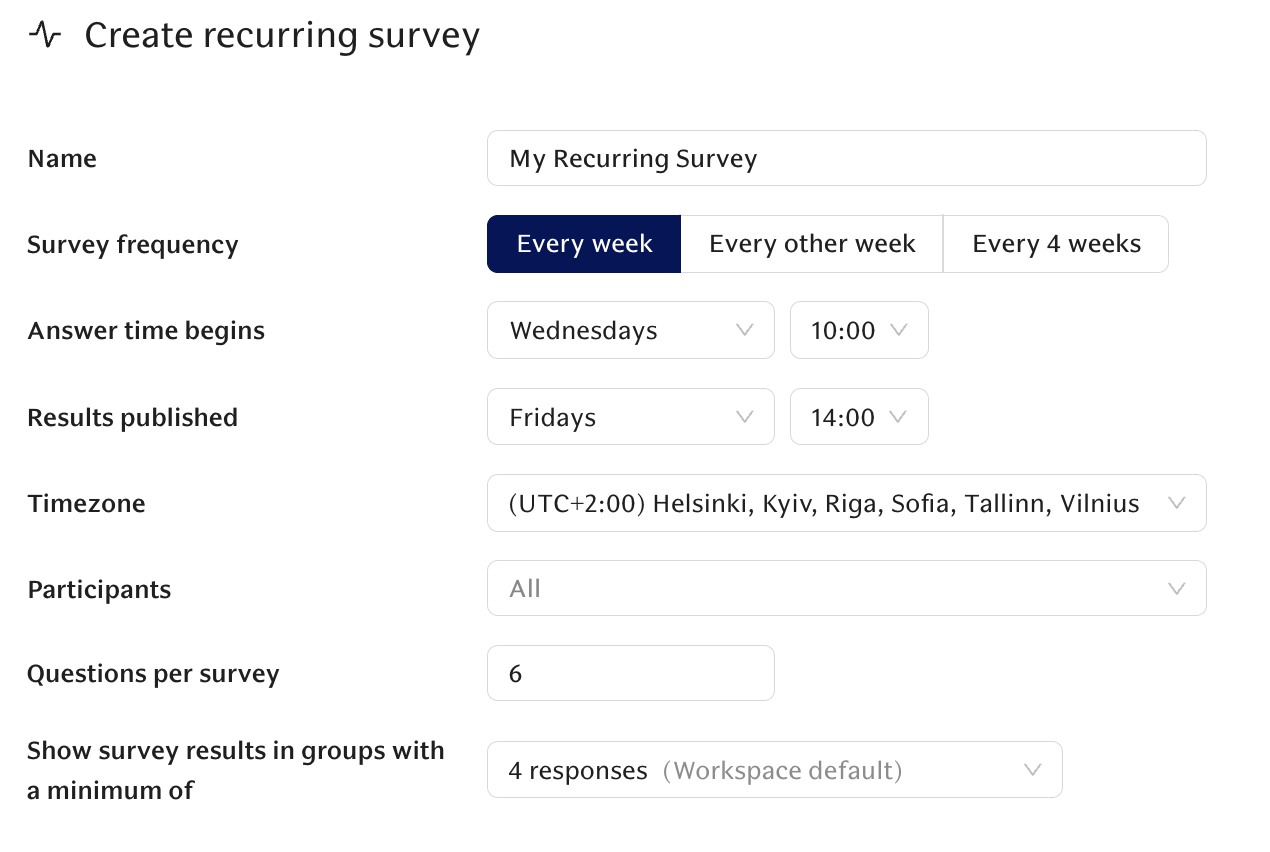
On the Schedule page you can configure the following four aspects of the automated pulse survey:
1. Choose the frequency of pulse surveys: weekly, bi-weekly or every 4 weeks. Surveys are designed for quick answering (25 seconds on average) to encourage a routine of answering every 1-2 weeks. Our customers consistently get 70-90% response rates even to weekly surveys.
2. Choose the start and end times of each survey. The default settings are based on our learnings: people are more likely to respond towards the end of the week, and it’s recommended to close the survey before the end of the week to create a concrete deadline which cannot be postponed over the weekend.
3. Optional: Tailor the survey. You can choose to target the survey only to a part of your organization, adjust the number of questions per survey, and set a different anonymity threshold.
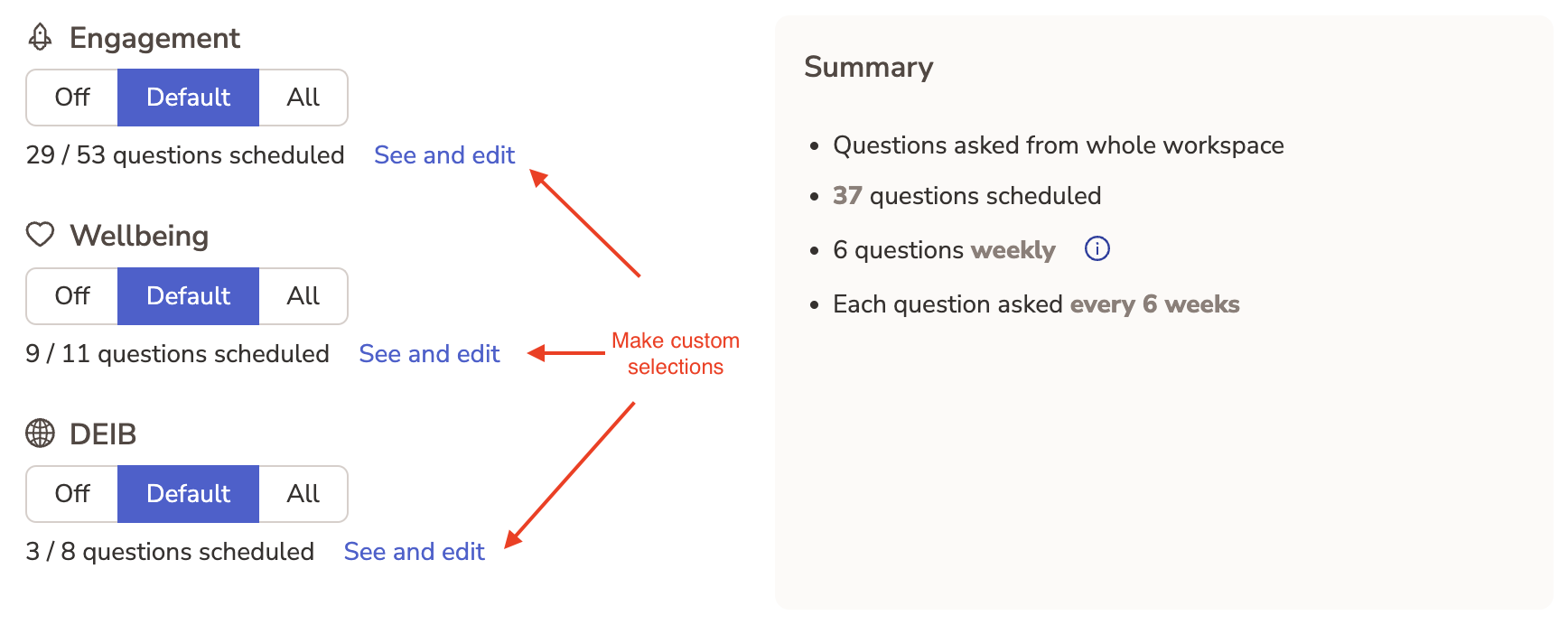
4. Choose which questions are included in your surveys. We always suggest starting with the default questions because these have been extensively researched and we continuously validate them against statistical analysis with a 3rd party.
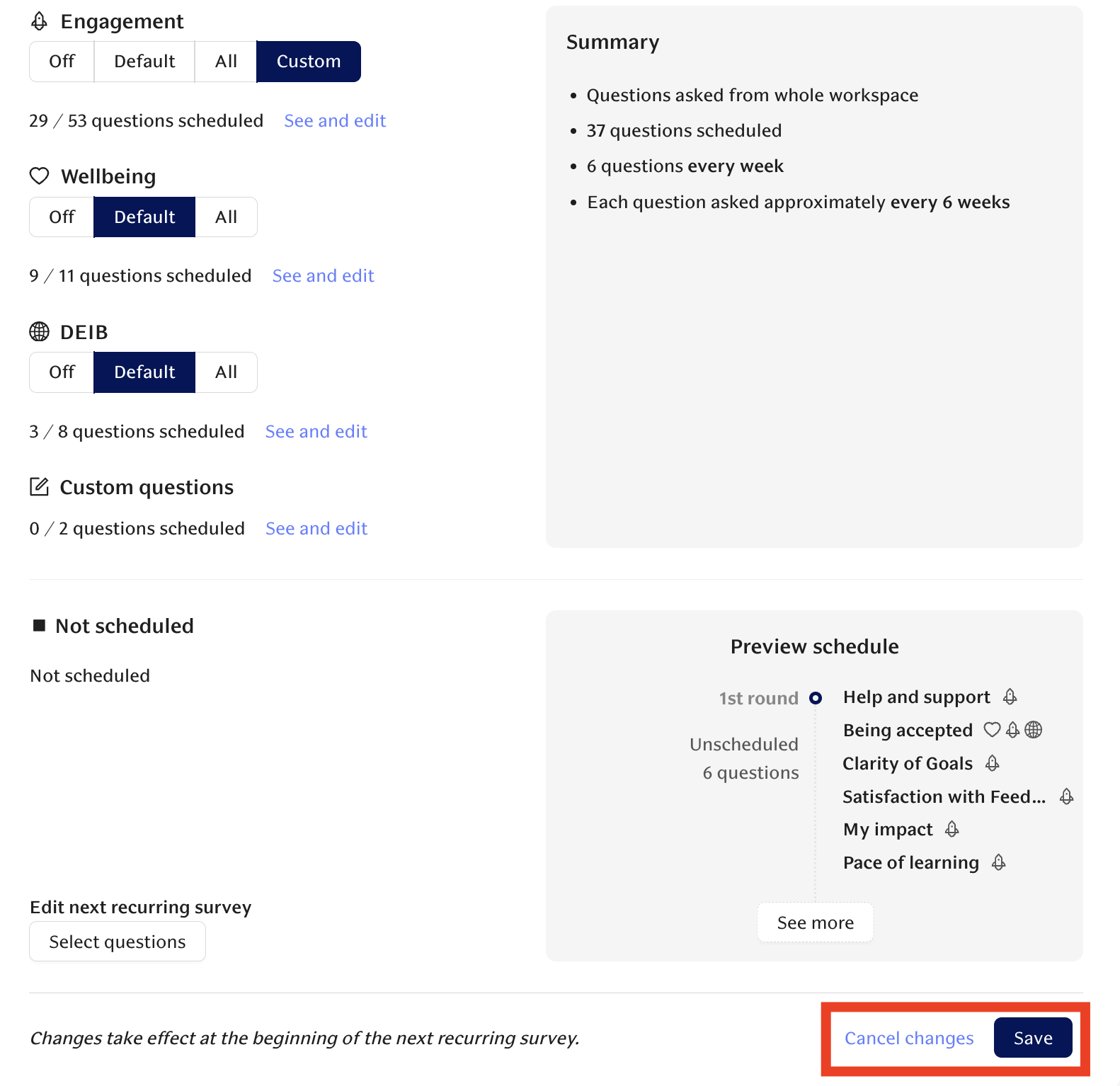
Review the summary which describes how the surveys will operate with the settings you selected. In our example surveys are done every week, with 6 questions per survey and a total of 41 questions covered at least once every 7 weeks.
4. Preview how the first few recurring survey rounds will look like. If everything looks as planned, you can click Schedule at the bottom right of the page.
❗ You can manually edit the next pulse survey round by clicking Select questions underneath "Edit next pulse survey".
When making any changes afterwards, remember to save the changes!
Custom schedule for select survey questions
We encourage to review the automated questionnaire on a regular basis to deliver maximum value for your company. If you need to focus on specific topics and this requires you to ask certain questions at set intervals, you can customize the schedule for 4 selected questions.
You can access the Custom Schedule selection via the See and edit button in Recurring survey scheduling:
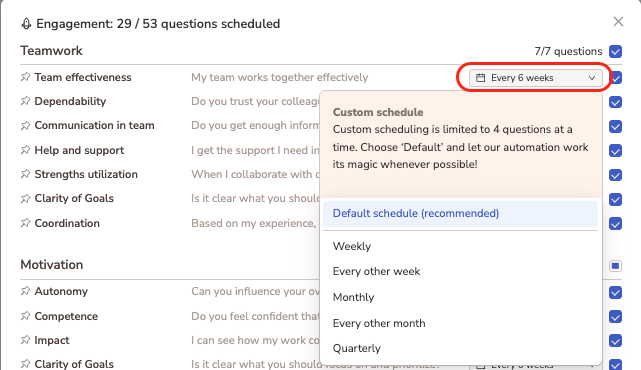
Here are two common use cases for custom schedule:
1. The company has promised to report eNPS scores to the board and owners once a month, to keep them up to date about the overall employee sentiments and engagement level.

2. The company is expecting an intense working period and wants to monitor the workload regularly.

Creating custom survey questions
If you cannot find everything from the list of standard questions, you can always create Custom Questions in Customize surveys:
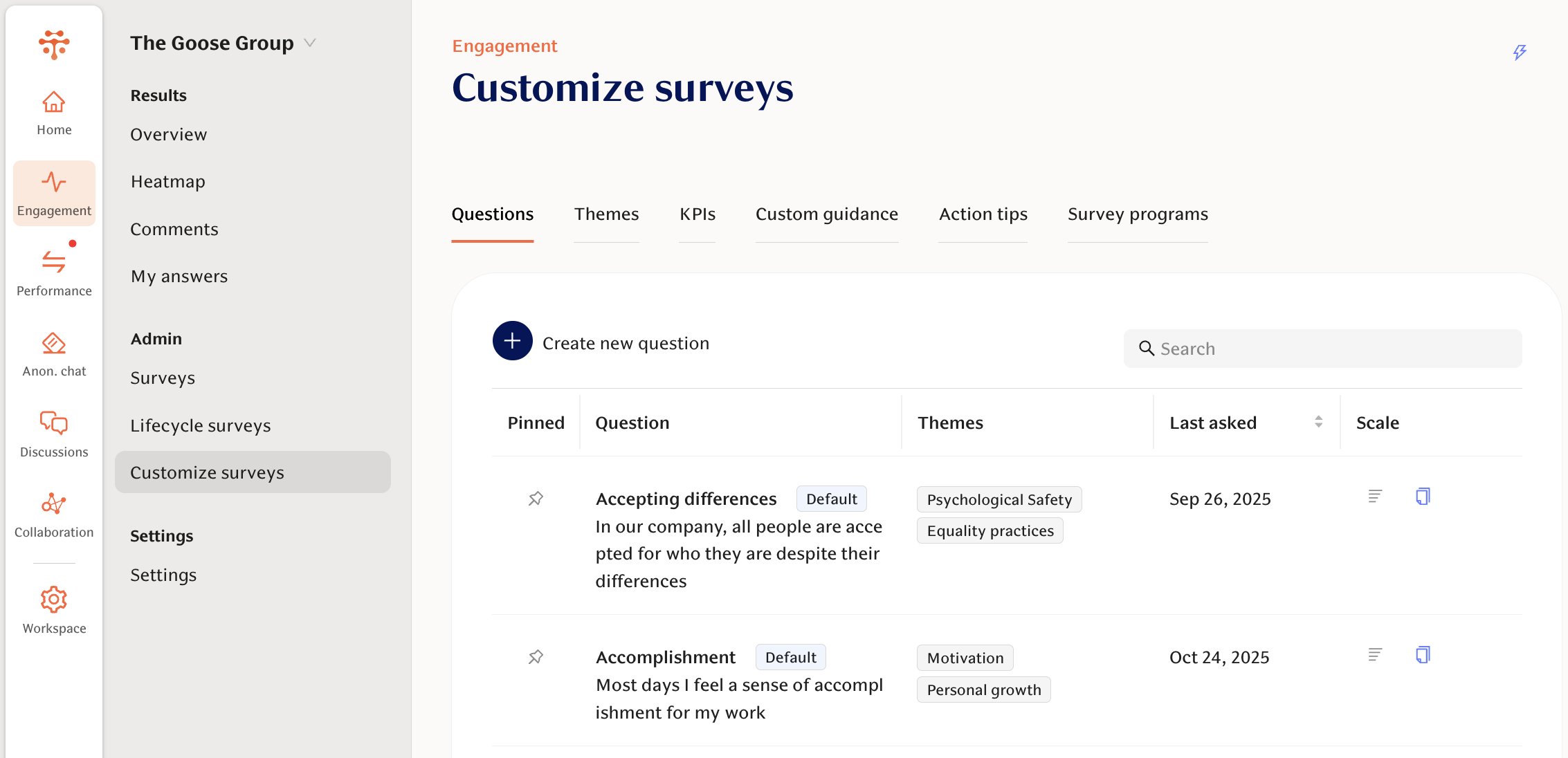
This offers great flexibility, but comes at the cost of not having benchmark data and not being able to include the question in the default Theme and KPI scores as those are based on Teamspective's data analysis and modelling.
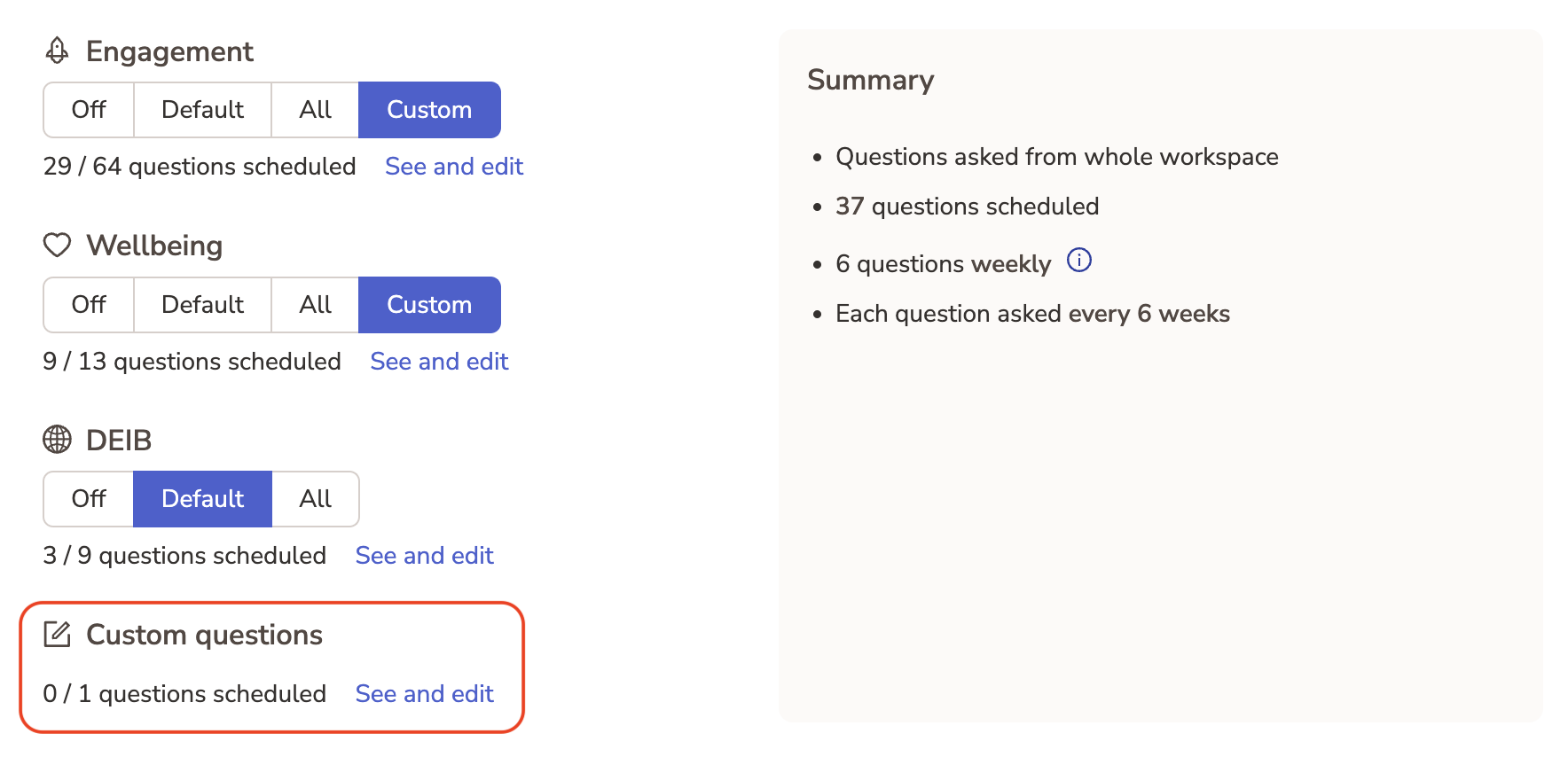
Once a custom question is added to the question library, it can be added to the automated pulse survey schedule:
Custom Themes
Every organization is different and might require very specific metrics to help get the most out of their engagement data. This means combining a unique set of engagement questions to produce a score that can be used to track improvement.
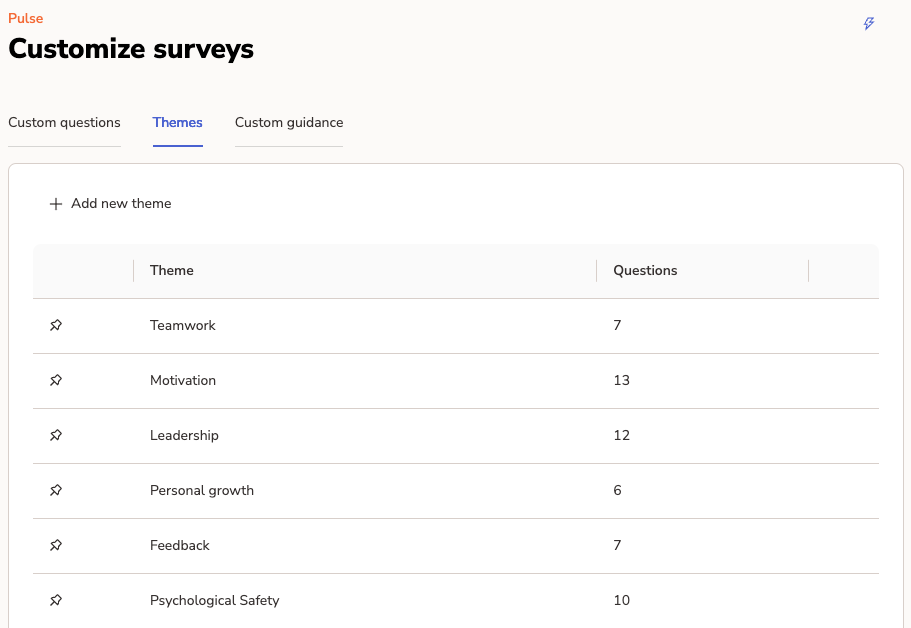
Using Custom Themes you can create any amount of custom themes and select which engagement questions are calculated into that theme's score. Custom questions can also be included into a custom theme which allows you to build fully customized surveys and reporting. Once you create a custom theme, Teamspective automatically calculates the new score based on your historical survey data.
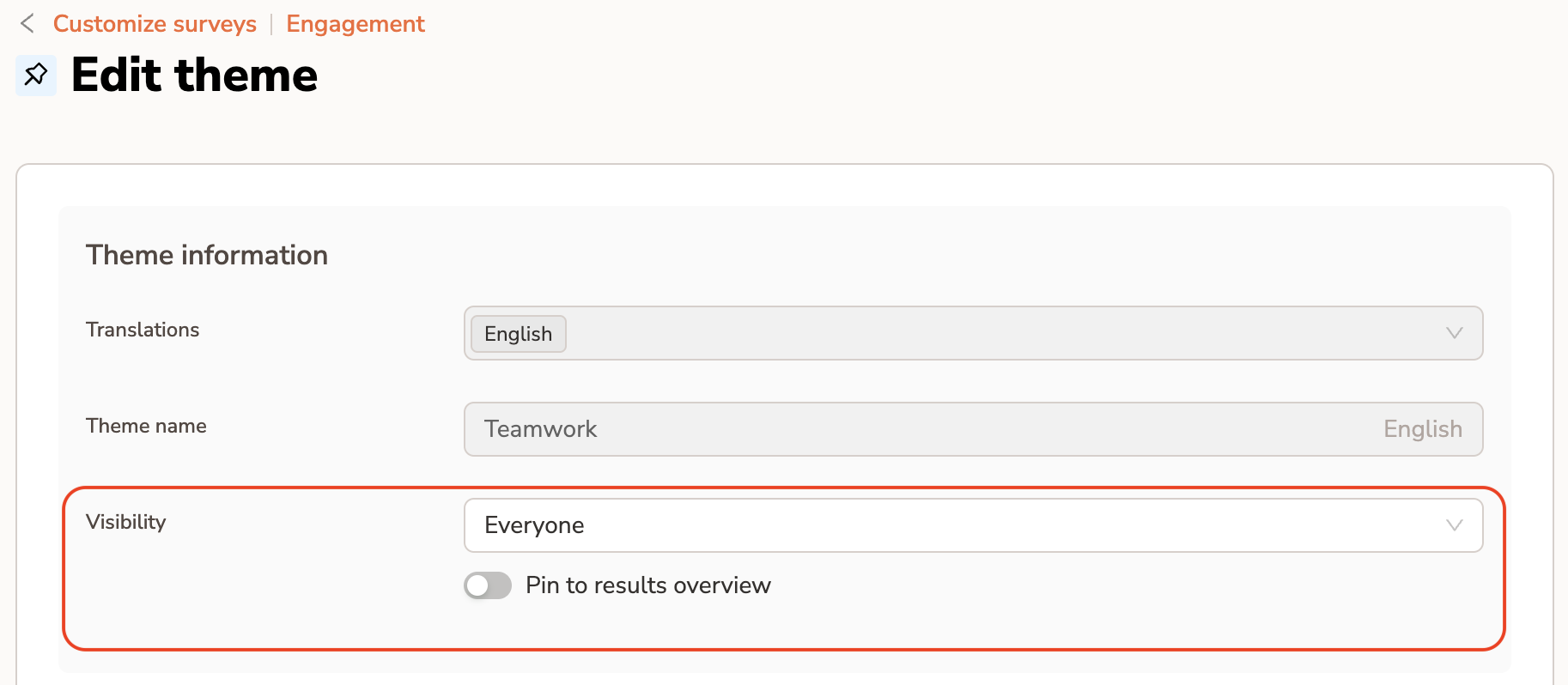
Visibility of Custom Theme and pinning to Overview page
You can adjust the visibility of any Theme (or KPI). This will make the Theme score visible to only the selected group of users.
Additionally, you can pin any Theme to the Overview page to truly customize your reporting.
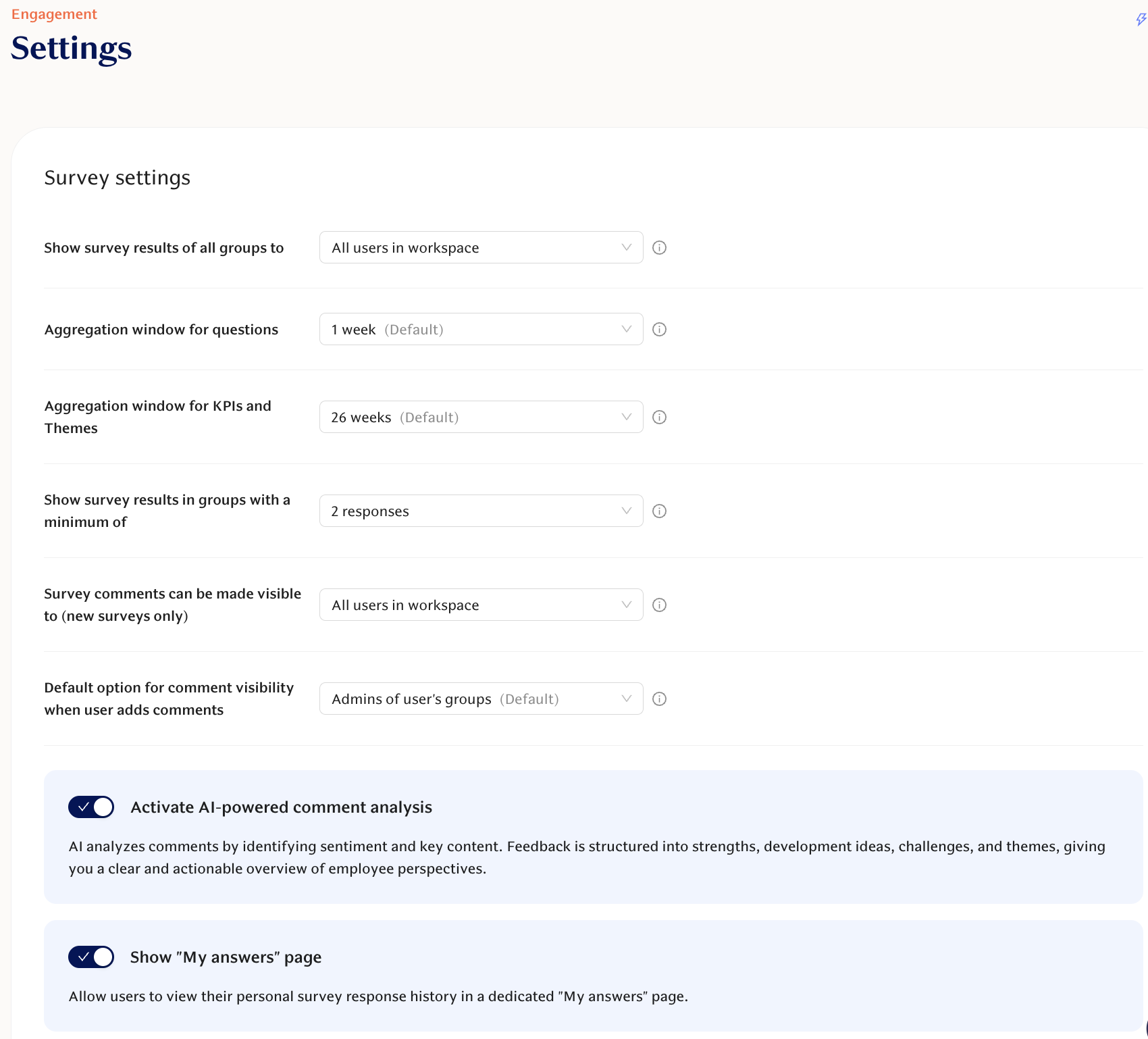
Adjusting Survey Settings
At Engagement -> Settings you can find all the visibility settings for pulse results and comments. We suggest to stick with the defaults to get started and then move to tweaking your visibility based on what seems good for your organization.
The Settings include:
(1) Show survey results of all groups to:
This setting allows to make all survey results visible to everyone.
We strongly suggest starting with the default selection, which limits result visibility and only allows workspace admins, observers and analysts to have access to all the results.
(2) Aggregation windows
These settings allow you to customize the aggregation windows of questions and KPIS & themes separately
We suggest starting with the default selection
For more detailed guide on aggregation windows, see this article.
(3) Hide survey results in groups with:
Survey results are hidden for a participant group if the amount of responses to a question remain small.
You can adjust the threshold with this setting.
The default option requires at least 4 responses per question from the participant group.
(4) Survey comments can be made visible to:
Limit the extent of which comments can be made visible.
The default allows responders to share their comments with both admins and regular members of groups.
(5) Default option for pulse comment visibility when user adds comments:
This setting allows you to define the default option which will be displayed for responders when they are leaving comments.
Note that the responder can choose to change the selection based on how they wish to share the comment.
This option is limited by setting (3)
(6) Enable / disable the AI sentiment analysis for Comments
(7) Enable / disable the possibility for employees to see their own answers
Communicate internally
No matter if you are just initially testing Teamspective with a smaller team or if you are already planning a full launch to your whole organization, communication is key!
Roll-out of any new tool or process can only be successful if everyone gets a clear understanding of:
Why is this change happening?
What is the expected benefit?
What is an individual expected to do and by when?
Optional but often good practice is to also mention what other approaches/solutions/benefits were considered but not prioritised.
We have created templates to help you prepare the communication:
Communication assets & templates