Tasks: How to Track Actions and Ensure Follow-up with Teamspective
Last updated: March 10, 2026
Quick Summary
The Tasks module helps teams turn insights from engagement surveys, feedback, and discussions into clear follow-up actions. Tasks can be created from across Teamspective or suggested automatically by AI when reviewing engagement survey results.
Steps
Join the Tasks Alpha program
The Tasks module is currently in Alpha development. To enable it for your workspace, contact your Customer Success Manager.
Open the Tasks module
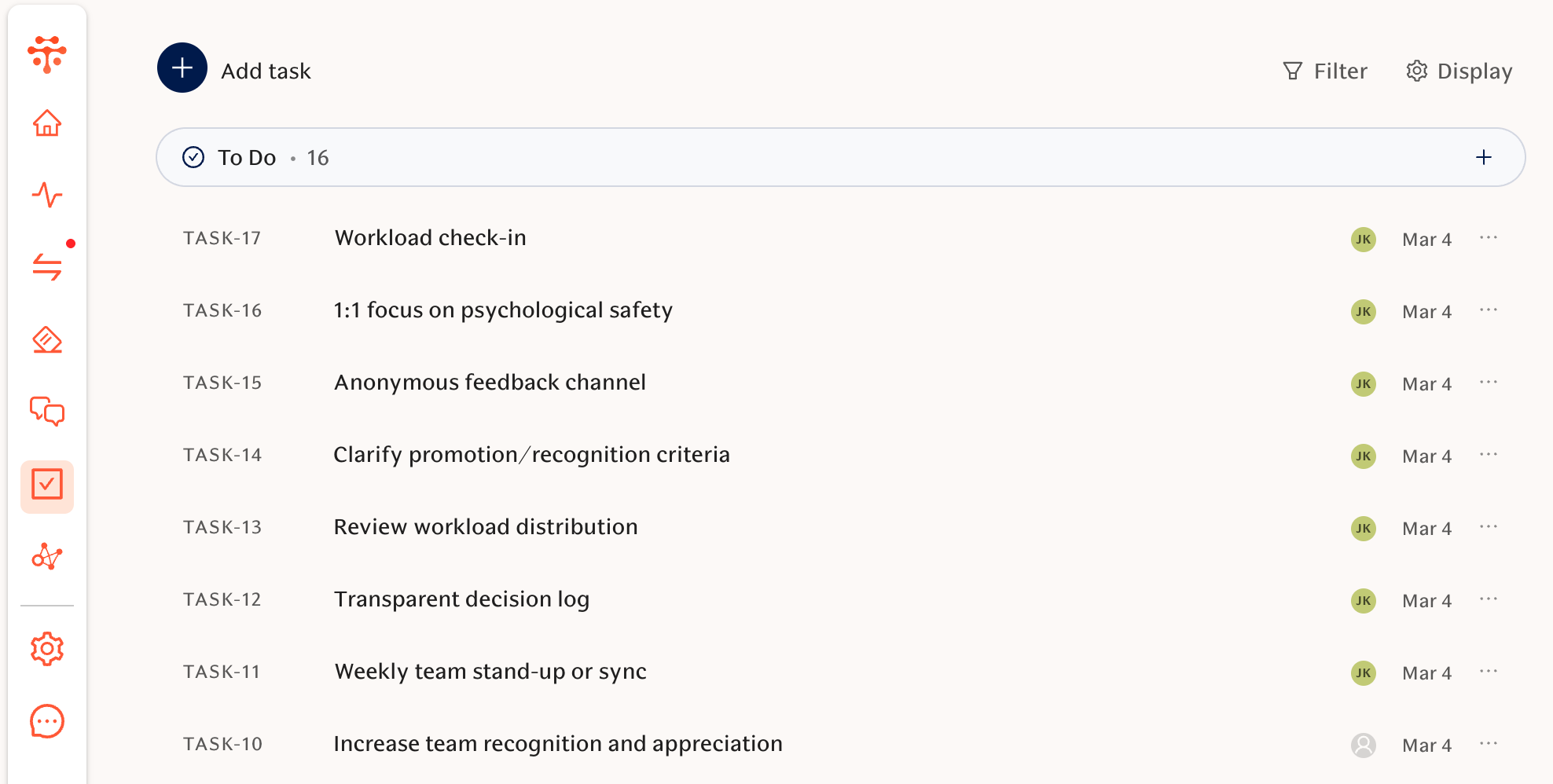
Once enabled, navigate to Tasks in the left-hand navigation to view and manage all tasks.
Create a new task
Tasks can be created from multiple places in Teamspective, including:
Engagement survey action tips and AI suggestions
Feedback results and comments
AI Chat conversations
The Tasks page directly by clicking + New task
Use AI-powered task suggestions
When viewing engagement survey results, Teamspective AI analyzes the data and displays recommended actions in the Suggested Actions section.
Click Generate task on any suggestion to create a task with a pre-filled title and description.
Manage and track tasks
Use the Tasks module to track progress, assign responsibilities, and ensure actions are completed.
Tip: When creating a task from AI suggestions, the title and description are automatically generated based on the survey insight.
Task Properties
Status
Draft — Work in progress, not yet ready
To Do — Ready to be worked on
In Progress — Currently being worked on
Done — Completed
Canceled — No longer needed
Visibility
Public — Visible to all workspace members
Private — Only visible to you and assigned team members
Additional fields
Assignee — Team member responsible for the task
Deadline — Due date for completion
Team — Assign the task to a specific sub-team
Task Views
List view
See all tasks in a compact list format.
Board view
View tasks in a Kanban-style board, grouped by status, assignee, or other criteria.
Filtering
Filter tasks by status, assignee, or team, or search tasks by title.
AI-Powered Task Suggestions
When reviewing engagement survey results, Teamspective AI analyzes the data and recommends actions that may improve engagement.
Suggestions appear in the Suggested Actions section and are generated based on:
Survey areas scoring below benchmarks
Negative trends in engagement results
High variance in responses
Alignment with your organization’s company values or strategy documents (if configured in Settings)
Each suggestion includes a confidence score indicating the potential impact of the action.
If a suggested task is similar to an existing one, a “Similar: TASK-123” badge will appear. This helps prevent duplicate work and allows you to review related tasks before creating a new one.
To generate new recommendations based on updated data, click Refresh suggestions.
Common Issue
If you don’t see the Tasks module in the navigation, check:
Your organization may not yet be enrolled in the Tasks Alpha
The feature may not yet be enabled for your workspace
Fix: Contact your Customer Success Manager to request access to the Tasks Alpha program.
FAQ
Q: Who can create tasks in Teamspective?
A: Both employees and managers can create tasks to track follow-up actions and improvements.
Q: Can AI create tasks automatically?
A: Yes. Teamspective AI suggests tasks when reviewing engagement survey results, and Teamspective AI Chat can also create tasks based on your conversations.
Q: How can I avoid creating duplicate tasks?
A: When a suggestion is similar to an existing task, Teamspective shows a “Similar: TASK-123” badge so you can review related tasks before creating a new one.
Need more help?
Contact support@teamspective.com