Access rights and user roles
Last updated: August 14, 2025
Using Teamspective usually impacts your whole organization, and produces data that may be personal and sensitive, for example engagement results and personal feedback.
While we advocate for maximal transparency to build trust between people, there are reasons to restrict user's visibility and access in certain situations. Moreover, it's common practice to limit the control within an application according to the principle of least privilege, which maintains that a user or entity should only have access to the specific data, resources and applications needed to complete a required task.
User Roles in Teamspective
Teamspective has 4 main user roles and 1 group related role:
👑 Workspace admin
The super admin users who have visibility and control of everything in Teamspective.
👁 Workspace observer
This role has extensive visibility into Engagement, 360 Feedback, Collaboration and Discussions. They do not have access to user management or any settings. They are able to launch 360 feedback requests for all users. This is a perfect role for a HR Business Partner.
🔍 Workspace analyst
Has extensive access to Engagement results and comments, and Collaboration results. Doesn't have access to 360 Feedback by default. They do not have access to user management or any settings. This role is perfect for a management team member or HR Analyst.
👱 Workspace member
All users who have not been given additional rights are by default Workspace members. They have access to their Groups' engagement results and comments that have been shared to Group members. They have access to their own 360 Feedback. They have access to their Network Profile if they take part in the Collboration network survey.
👕 Group admin
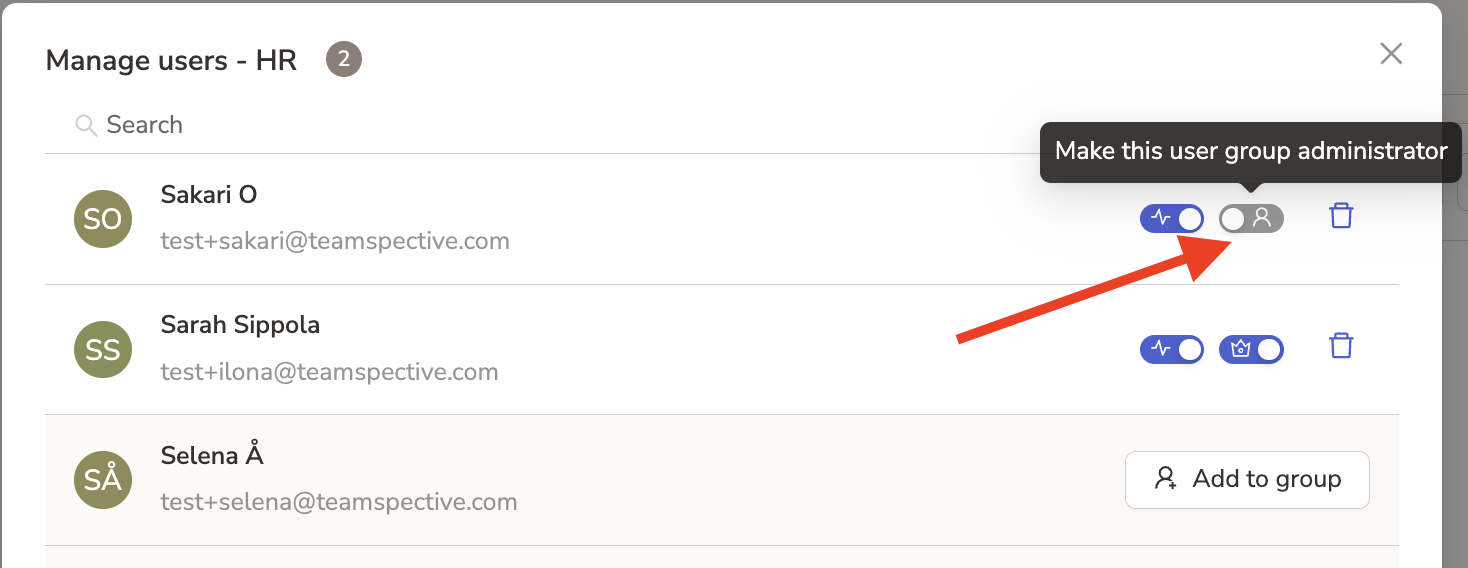
This role grants a Workspace member extended visibility and control, but limited to selected Groups only. They can manage group members and create new groups. They have visibility to all sub-group engagement results, and comments that have been shared to group admin or group members. They do not have visibility to 360 Feedback or Discussions. This visibility is managed via Management Permissions. This is a good role for team leads and function heads.
Overview of User Rights
Area | 👑 Workspace admin | 👁 Workspace observer | 🔎 Workspaceanalyst | 👔 Group admin | 👨💼 Workspace member |
User control | Full access. | No access | No access | Can create and manage groups. Can manage pulse participation. | No access |
Workspace settings | Full access. | Only personal settings. | Only personal settings. | Only personal settings. | Only personal settings. |
Engagement results & comments | Full access. | Full access. | Full access. | All and Group + sub-group results. Comments that are shared to group admin or group members. | All and Group results. Comments that are shared to group memebers. |
Personal Feedback | Full access - except can only view Feedback which has been shared with them. | Full access - except can only view Feedback which has been shared with them. | Can request, view and share Feedback which they have received. | Can request, view and share Feedback which they have received. May see feedback statistics page for group. | Can request, view and share Feedback which they have received. |
360 Feedback | Full access - except for their own unpublished 360 feedback. | Full access - except for their own unpublished 360 feedback. | 360 feedback that has been published to them. Additional rights when given permission. | 360 feedback that has been published to them. Additional rights when given permission. | 360 feedback that has been published to them. Additional rights when given permission. |
Collaboration | Full access | Access to results. | Access to results. | Access to personal network profile. | Access to personal network profile. |
Managing User Roles
The main user roles can be managed in Member management:
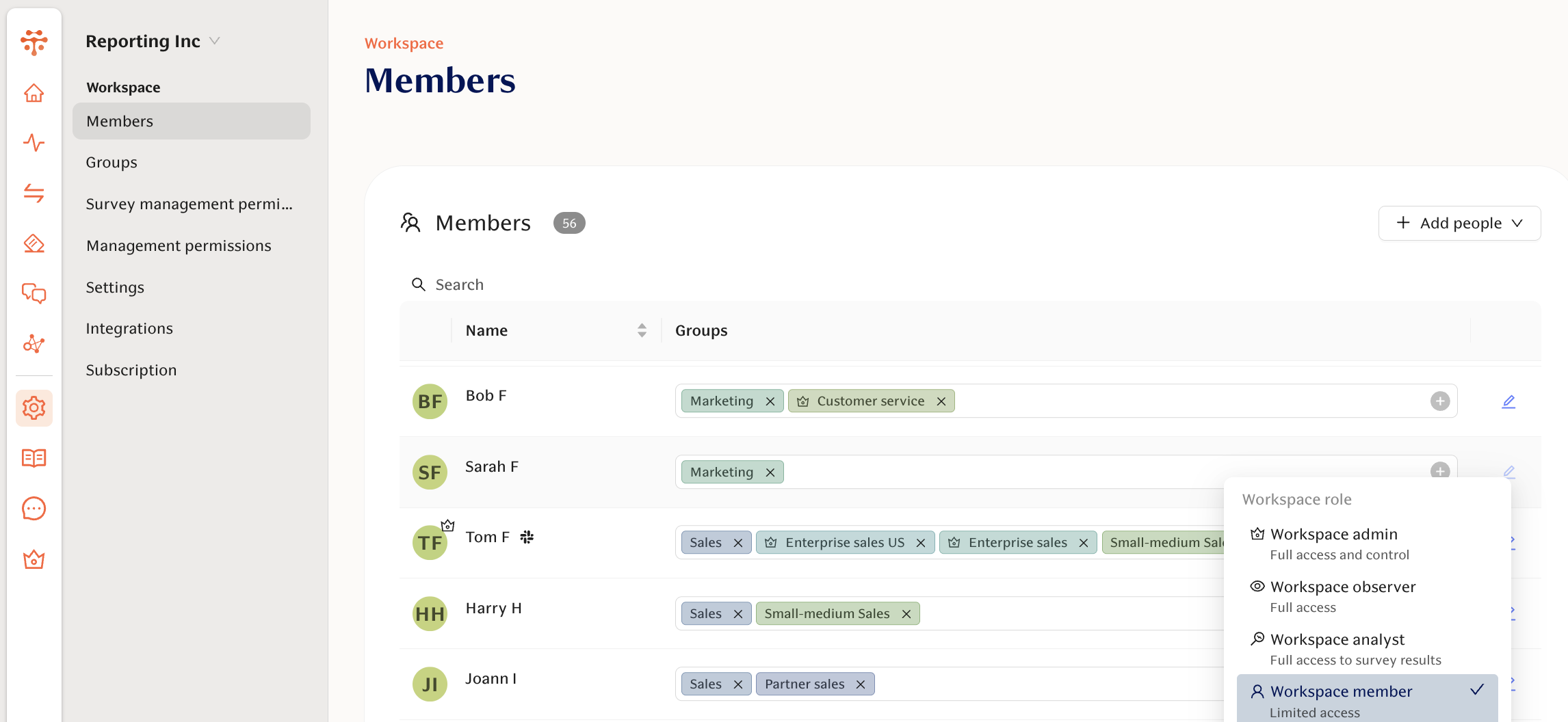
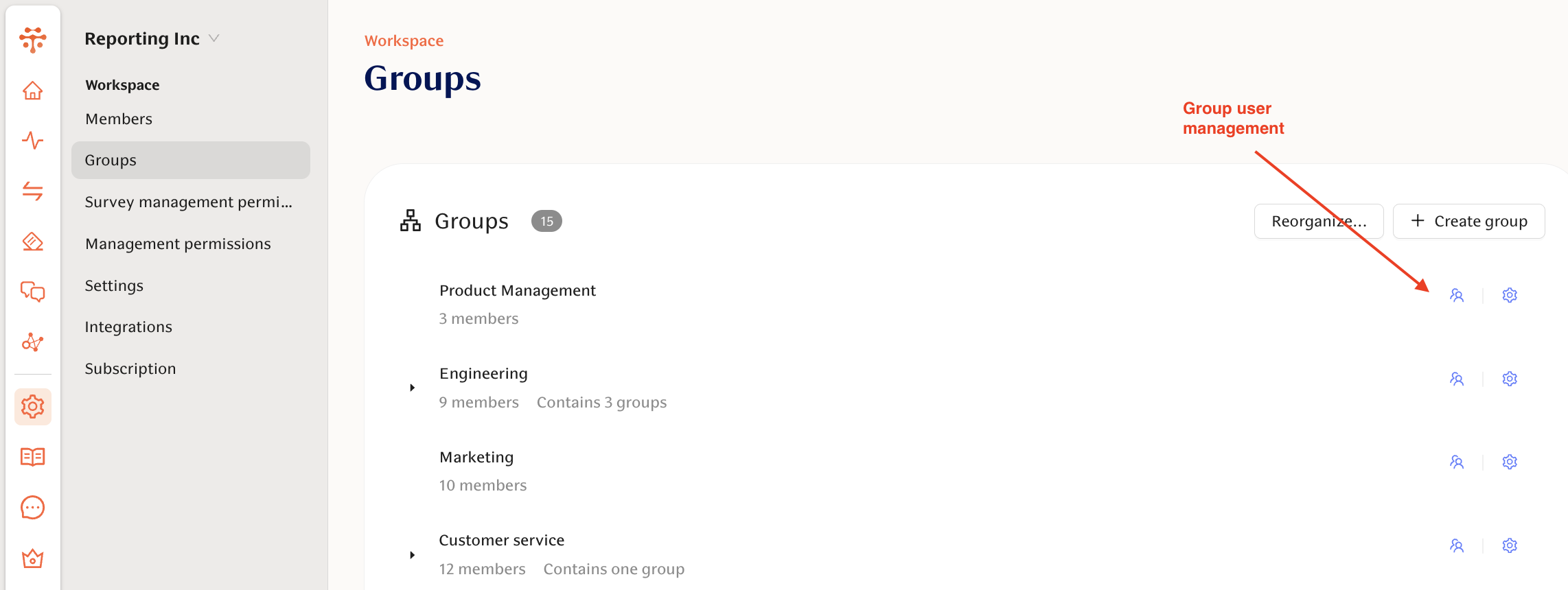
The Group admin role can be managed in Group management:
Management Permissions
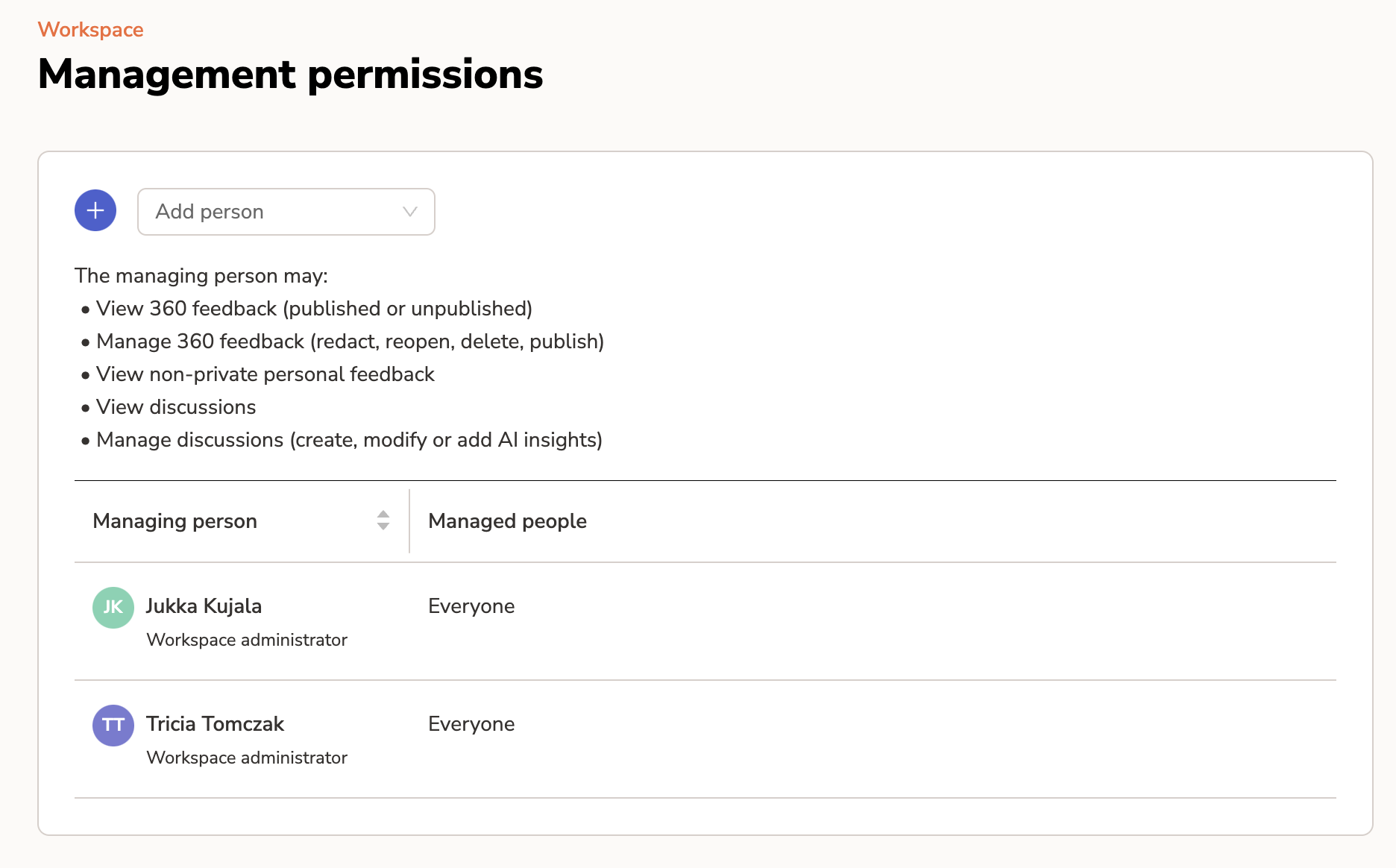
When given Permissions, the managing person may:
• View 360 feedback (published or unpublished)
• Manage 360 feedback (redact, reopen, delete, publish)
• View non-private personal feedback
• View discussions
• Manage discussions (create, modify or add AI insights)
Adding permissions can be done on the Management Permissions page where you:
select the individuals who should have extended rights (left column), and
the individuals whose information should be visible (right column).
⚠ These Permissions do NOT update automatically if someone changes Groups.