Guide to using the Network Graph analysis tool
Last updated: August 5, 2025
In this article we share how to use the Network Graph tool to analyse the Organizational Network data you have gathered from your organization.
The Network Graph analysis tool is only available for Workspace Admins and Observers.
Overview of User Interface
The user interface is divided into key sections for intuitive control to the graph:
Data filters to select what data is used for generating the graph.
Highlighting section, to help you point out the relevant insights.
Graph info box, to provide further insights about the graph. Shows also individual insights if you click on any particular node.
Styling controls, for example to toggle names on/off or change style of nodes or edges.
Clicking a single node puts that person in focus, and right-clicking opens options to quickly filter or highlight based on that person.
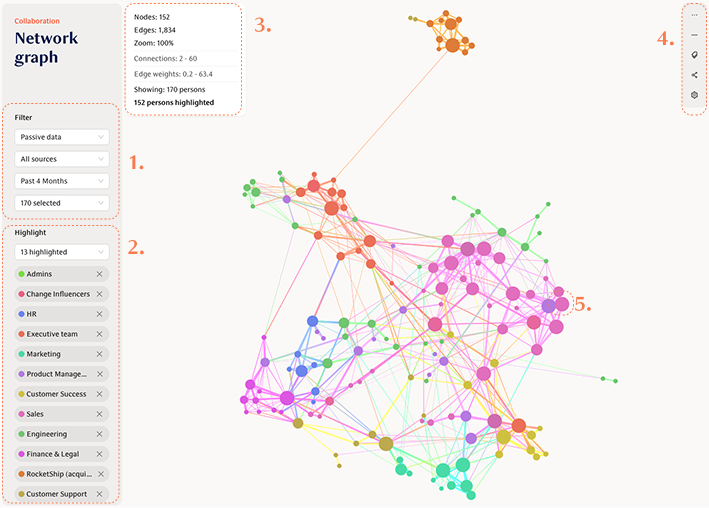
1. Filtering the dataset
The very first selection allows you to control what data the graph includes. You can select:
What data sources are used, to get the full view or compare data sources.
Select time range, to create comparisons or observe longer/shorter term behaviours.
Filter people based on their teams, titles, locations, or any other data imported to Teamspective from your HRIS.
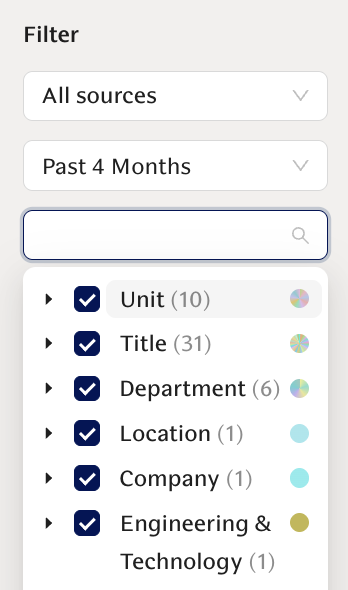
Example use cases for data filtering:
Analyze collaboration in certain countries or between countries, by using the country filter.
Understand collaboration between Product Management and Customer Success, by including only those teams or departments.
Analyze how connected VP-level employees are by including only VP titles
Compare how much certain teams connect via meetings (Outlook calendar) vs asynchronous messaging (MS Teams)
2. Highlighting most noteworthy items
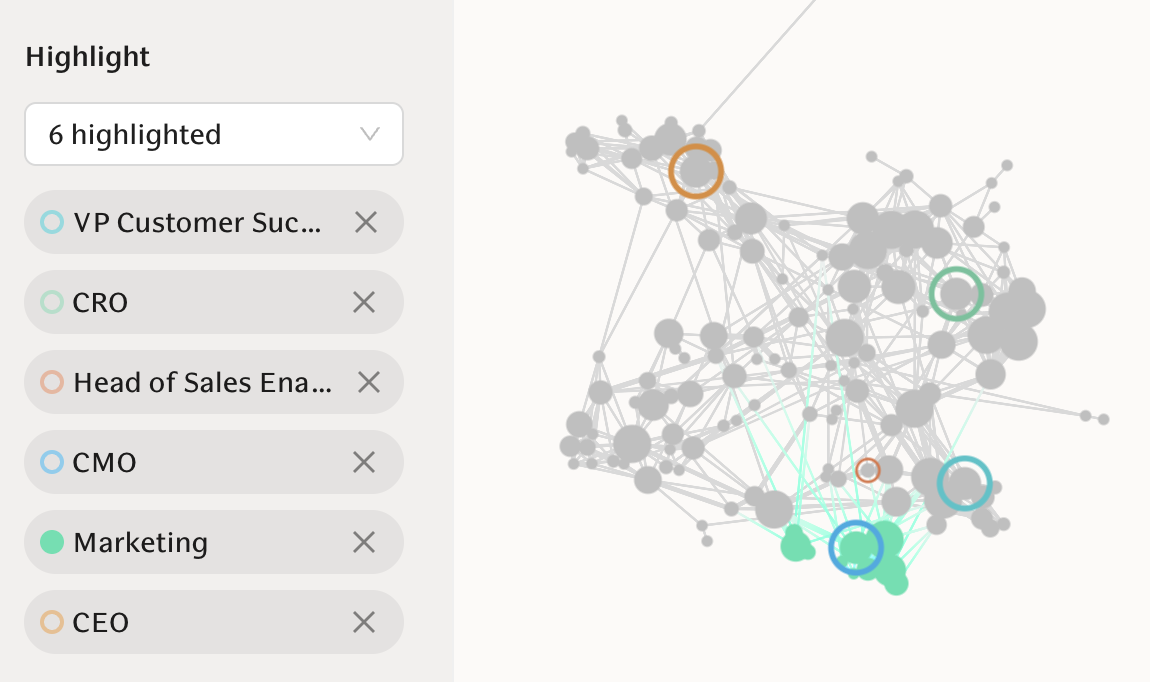
Highlights allow you to pinpoint noteworthy items, while including the broader graph and context in the image.
The example below demonstrates how one can highlight key commercial leaders (circled) and the Marketing team (colored), clearly indicating how detached the CEO and CRO are from marketing, at least compared to Customer Sucecss and Sales Enablement.
You can highlight based on any data imported from you HRIS. Groups can be colored and other information can be used to circle individuals.
Example use cases for highlighting:
Highlight where certain groups or individuals are positioned in the broader graph, to understand their centrality or detachment.
Add color to several groups to see how they are connected.
Highlight Executive team members, top performers or new employees to identify outliers and most central individuals.
3. Graph info box
This section simply indicates basic information about the data visible in your graph: how many people (nodes) are included, how many edges exist between them etc.
4. Styling controls
Styling controls allow you to finish the graph to tell a clear story of your data. Click on the icons to expand each menu section.
Node Styling
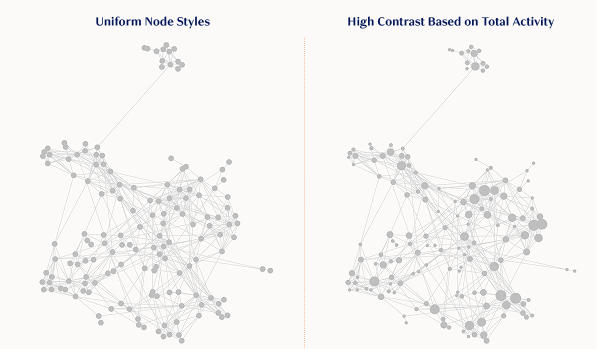
With node styling you can make the graph uniform or bring more focus to the most connected people. Below example shows how adding more contrast and sizing nodes based on their activity makes certain nodes pop up. The uniform graph is great for presenting the overall connections in a more neutral way.
Edge Styling
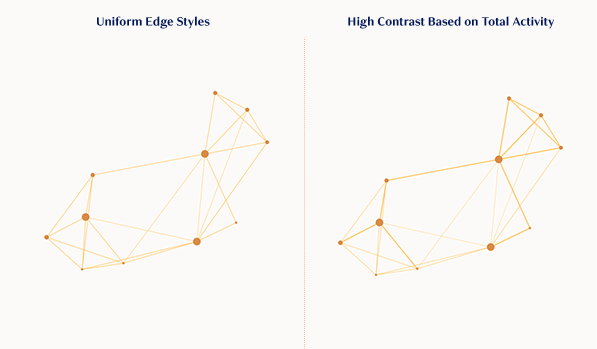
Edge styling allows you to highlight how strong connections are, adding more detail to the graph.
In the example below, adding contrast to edges clearly reveals that even the most connected nodes have varying types of connections, not all equally strong.
Labels
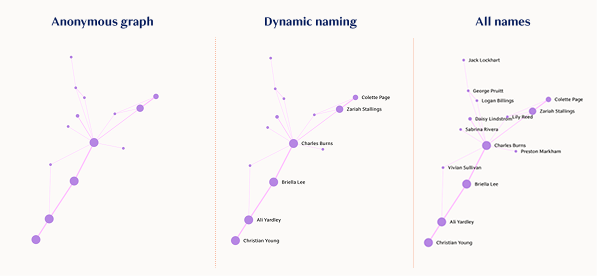
Labels allow you to anonymize the graph or add names to it, providing more detail about who are the most central or detached individuals.
Connections
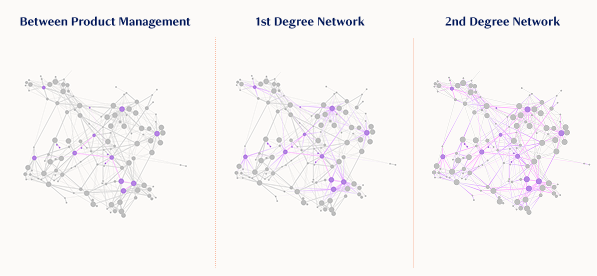
Connections selection is a handy tool for understanding how networked an individual or group is within the broader organization.
Depending on your selection, you can view connections between the people you have highlighted, their full contact network, or all the people who are within 2-step reach from them.
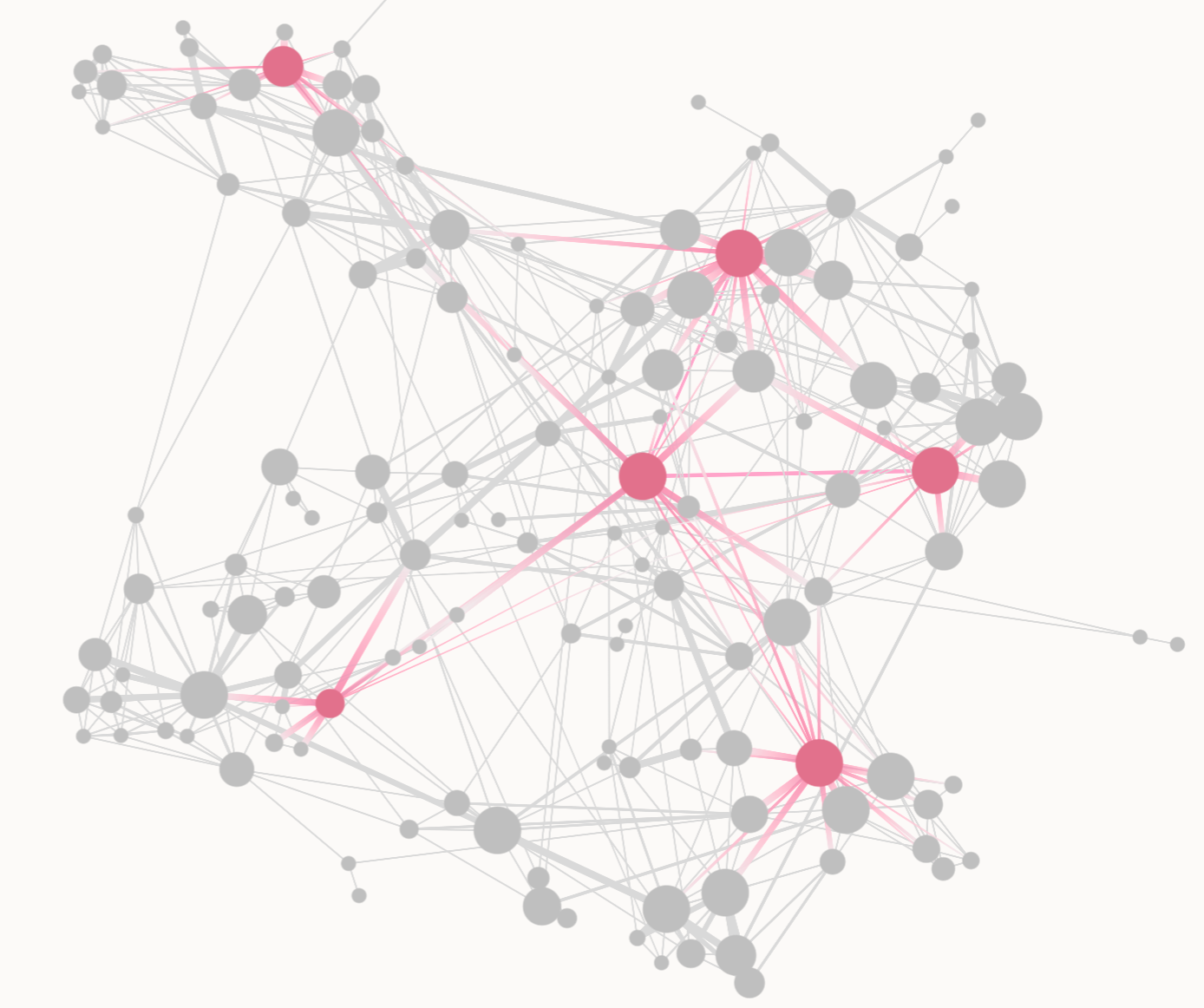
Great example use case is to look at a team or group of change agents, see how well their connections cover the organization, and where you might still have gaps in coverage.
Sensitivity
Connections between people are not on/off: there is a whole range of activity levels two individuals can have in their collaboration.
Sensitivity control allows you to adjust how "sensitive" the model is to pick up even the weakest connections.
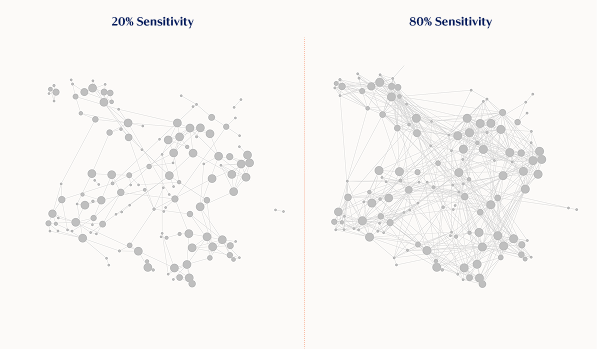
The examples below demonstrate this: 20% sensitivity only includes the strongest connections, basically the top 20% of the whole org. 80% sensitivity is much more inclusive and you can see the network full of connections. Default value is 60%.
Example Use Cases
Here are some example use cases and how to perform the specific analysis with the tool.
Collaboration within 1 team
When you want to analyse the collaboration within 1 team:
Filter just to that selected team
Add highlights to the manager or other key people if needed
Adjust styling to match your objective
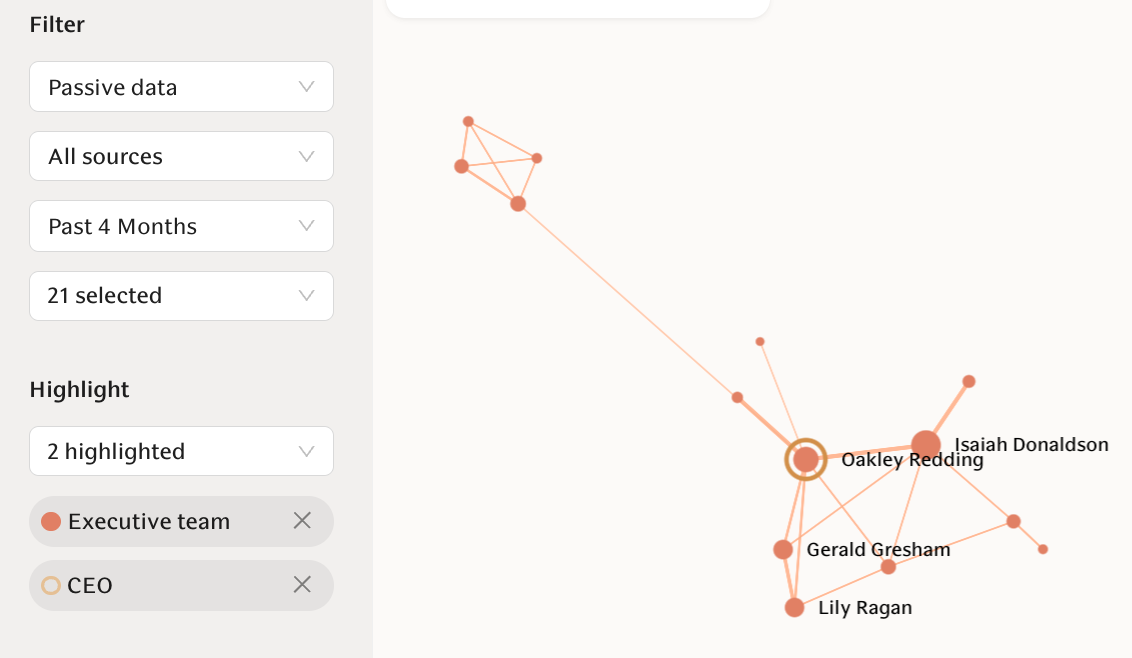
Here is an example outcome, highlighting the CEO's central role and how part of the Executive team is detached from the rest.
Recommended actions would be to plan how to integrate the 4 people to the team and evaluate whether Oakley's central role is desired or creating bottlenecks.
Collaboration between 2 teams
When you want to analyse the collaboration between 2 teams:
Filter to selected teams
Add highlights to the key people if you want
Adjust styling to match your objective
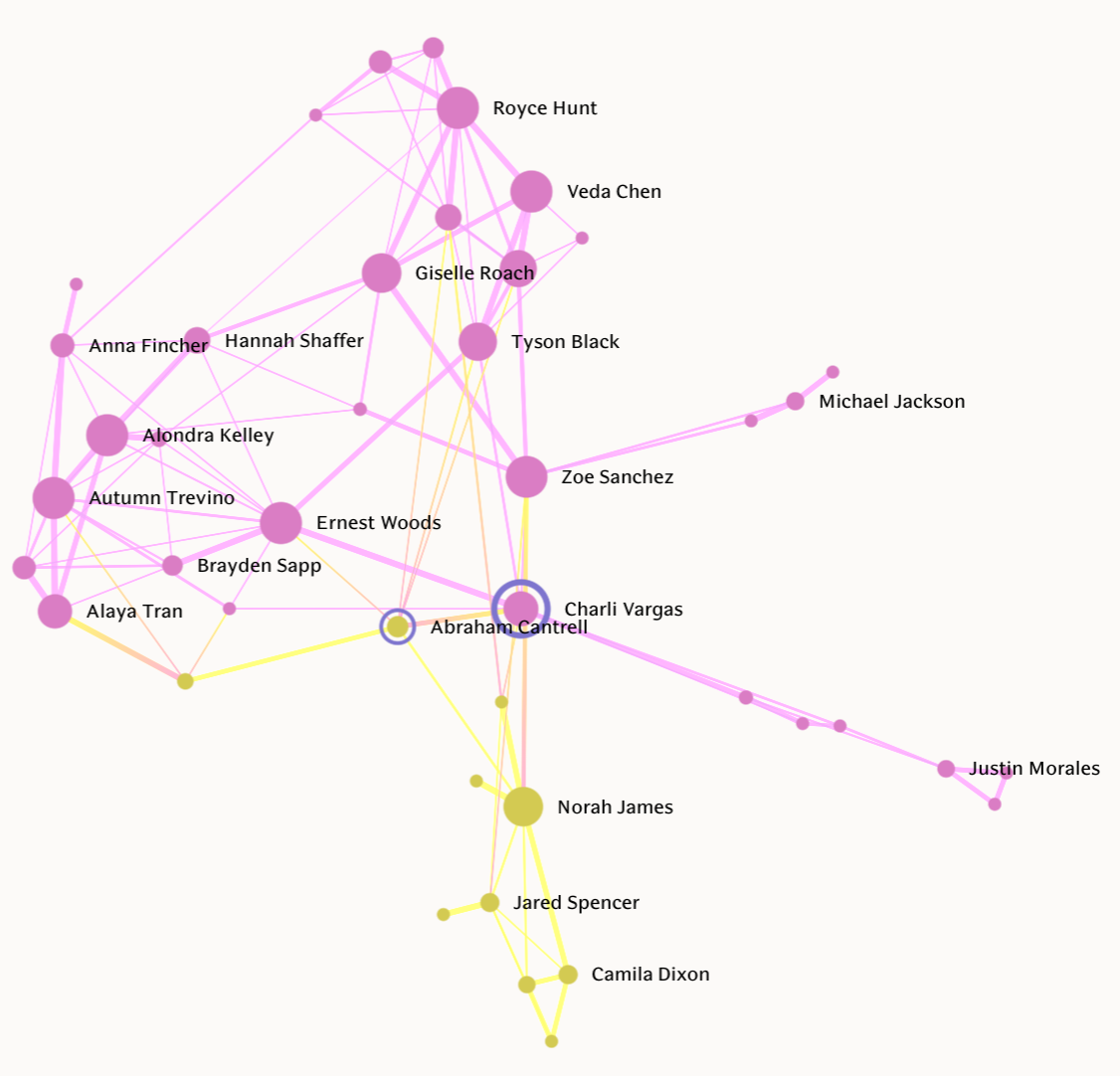
Here is an example outcome, showing how collaboration between the Sales team (pink) and Customer Success (Yellow) heavily depends on Charli and Abraham. Some single connections exist in addition to them, however overall the teams are not collaborating very closely.
Recommended actions would be to rethink the collaboration approach, share responsibilities from Charli and Abraham to others, and monitor how actively other team members start to connect across teams.
How does a team collaborate externally?
When you want to analyse how a team collaborates with others outside their team:
Filter to include the whole organization or a relevant subset
Highlight the selected team
From styling options, choose to show "1st degree connections"
The example below shows how a dedicated group of change managers are networked inside the organization. Based on this image their coverage seems solid, reaching all parts of the organization.