How do I enable the Slack AI Experience for our employees?
Last updated: April 8, 2026
This guide walks workspace admins through enabling the Teamspective AI assistant in Slack and managing its visibility for workspace members.
Prerequisites
You are a workspace admin in Teamspective
Your workspace has the AI Chat feature enabled (this is on by default)
Your workspace has a Slack integration already connected
Step 1: Re-authorize Slack in Teamspective
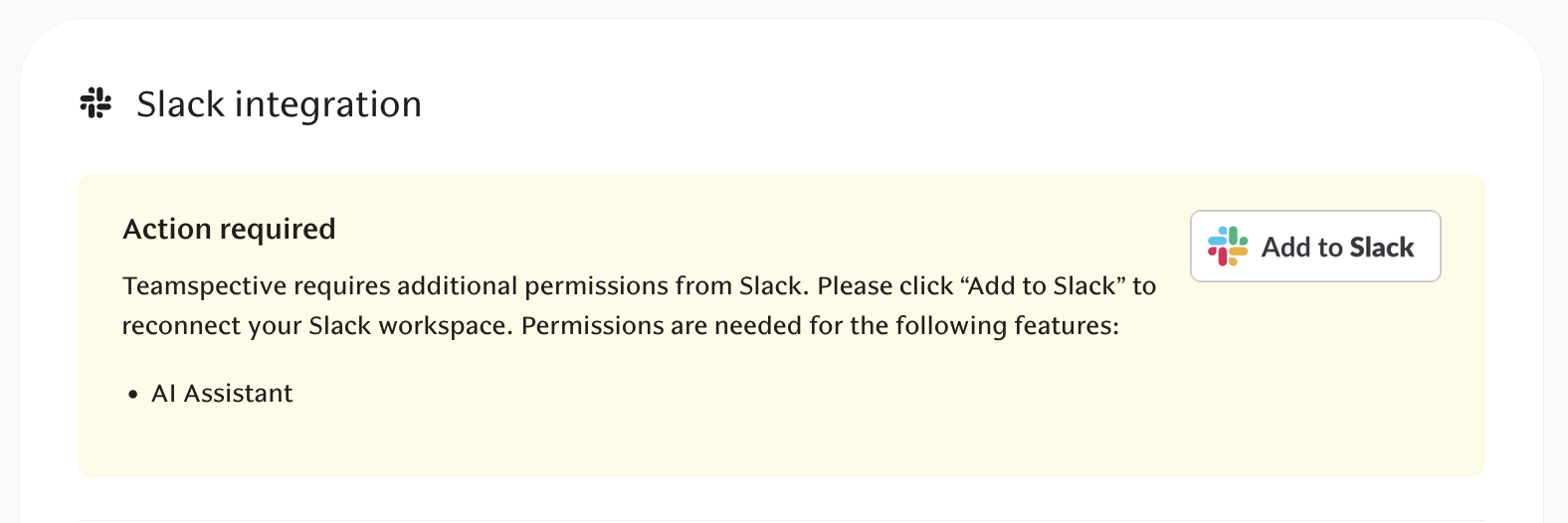
When the AI assistant becomes available, you will see a banner on the Teamspective home page and on the AI Chat page prompting you to re-authorize Slack.

Click the Add to Slack button on the banner, or navigate to Workspace Settings > Slack integration and click Add to Slack there.
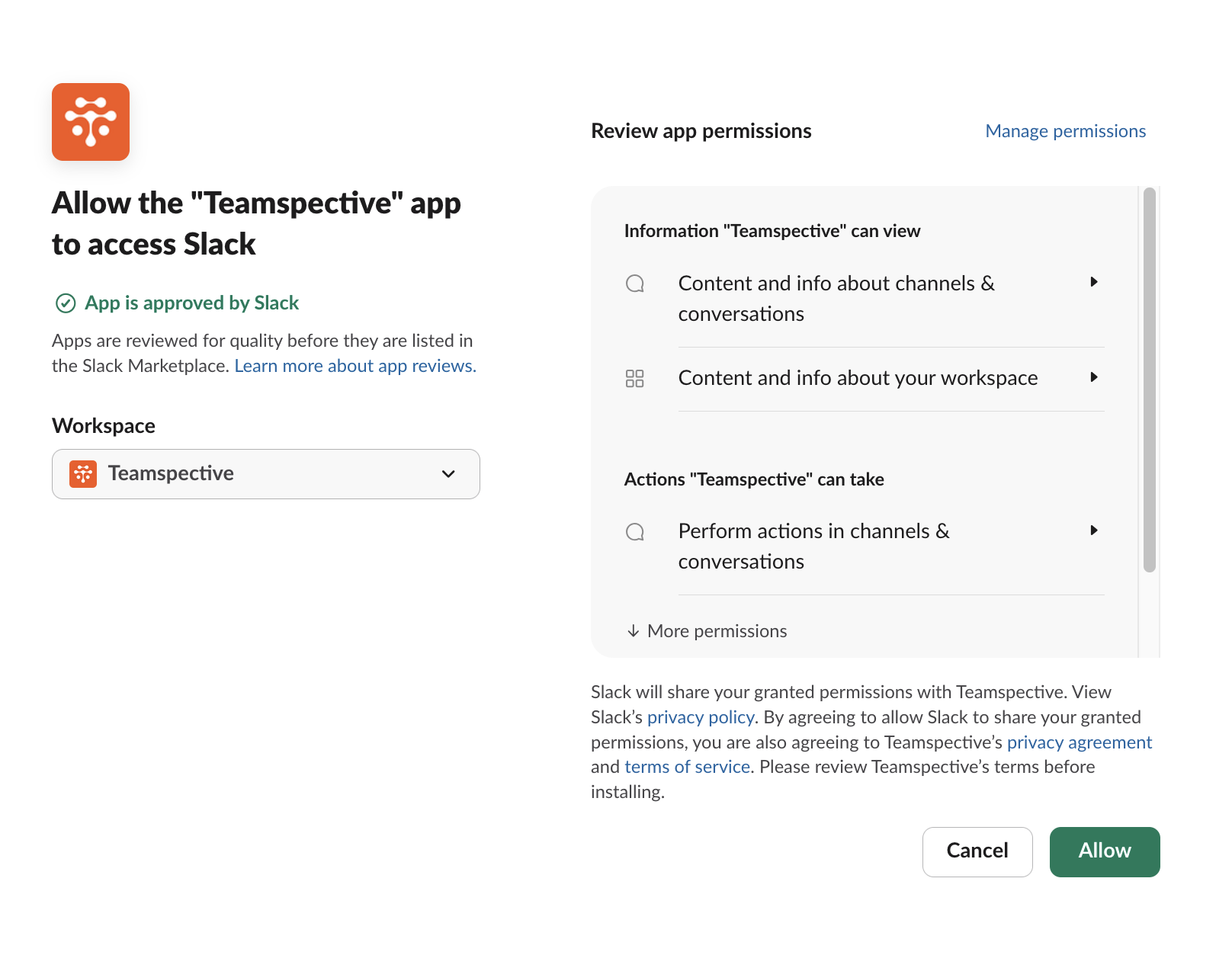
You will be redirected to Slack's OAuth authorization page. Review the requested permissions and click Allow.
After authorization, you will be redirected back to Teamspective. The banner will no longer appear, confirming the AI assistant scope has been granted.
Step 2: Manage the AI assistant visibility in Slack
After re-authorization, the Teamspective AI assistant will appear for all workspace members in Slack. As a Slack workspace owner or admin, you can control its visibility from Slack's admin settings.
Open Slack on your desktop.
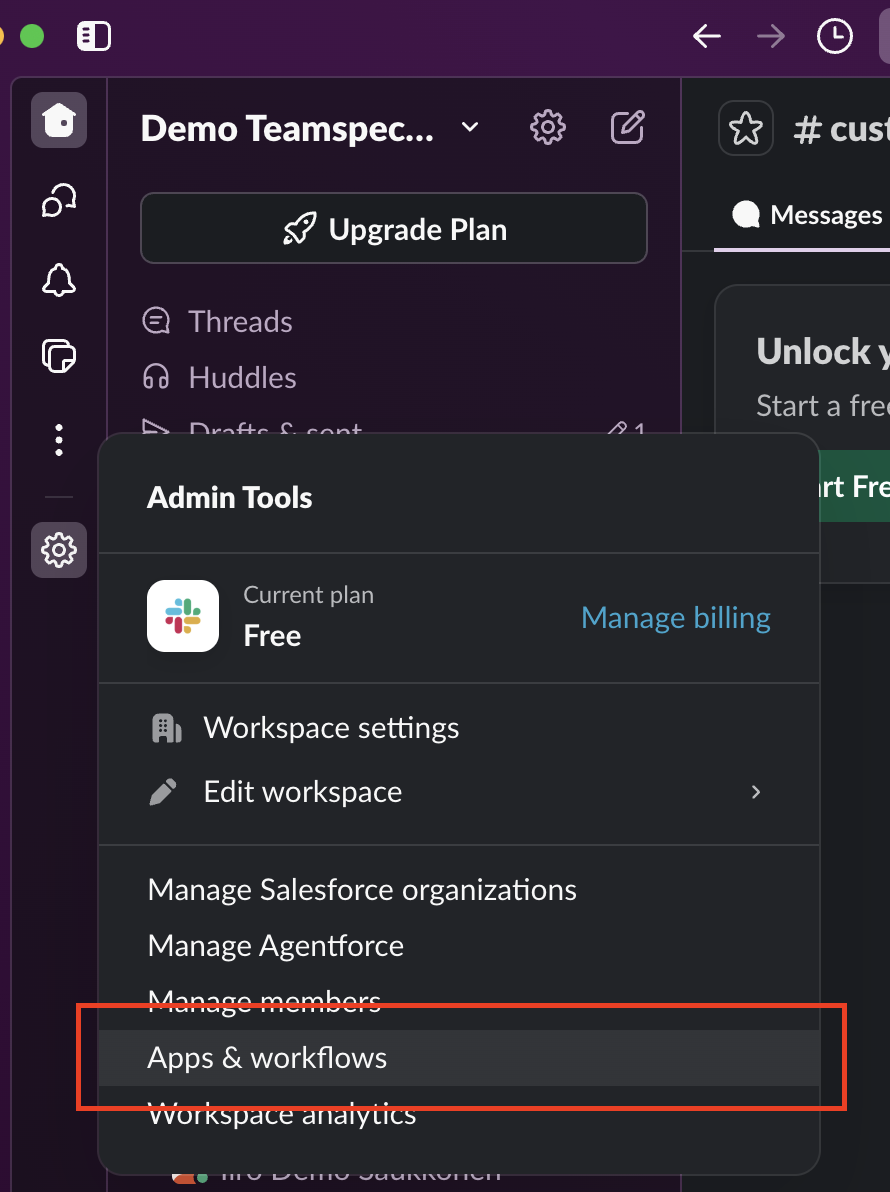
Click your Admin tools in the left sidebar, then select Apps & Workflows.
On the Installed apps page, find Teamspective (use the search bar if needed).
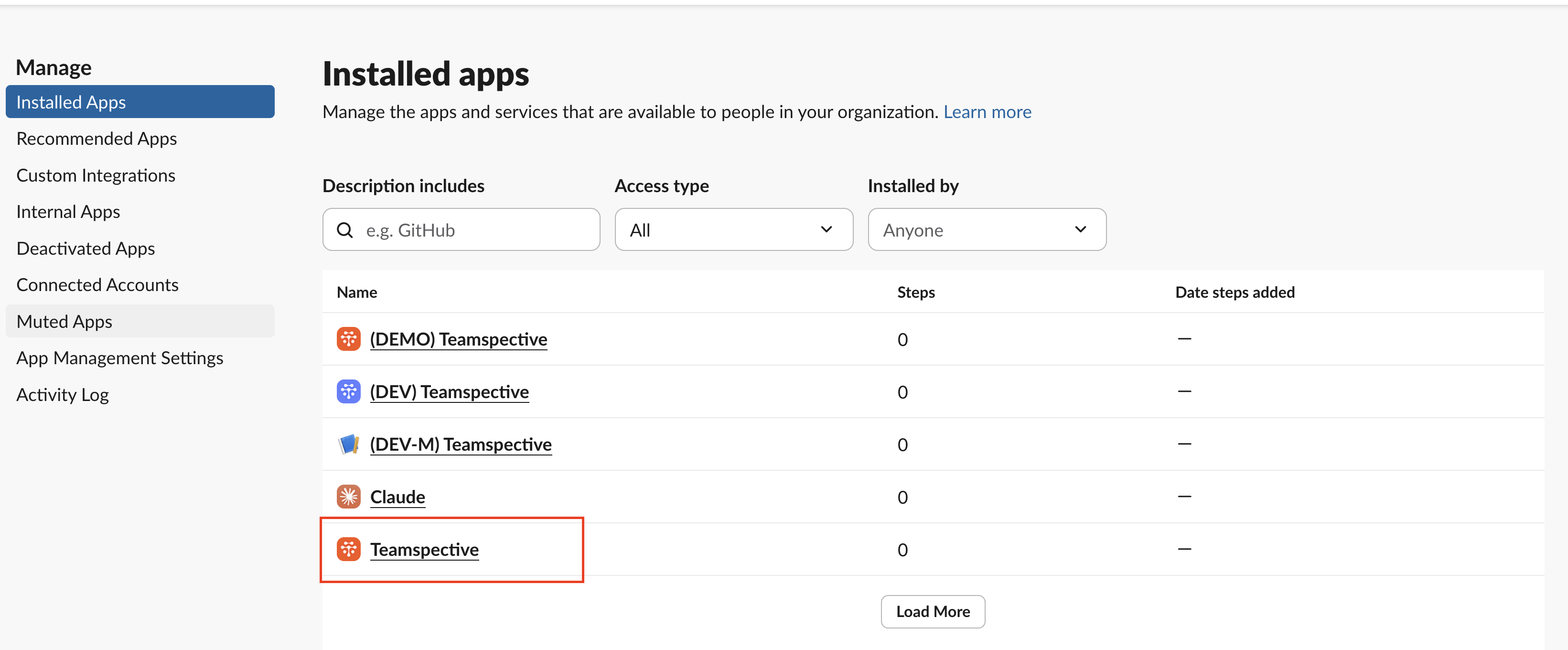
Click on the Teamspective app, then open the App Settings tab.
Find the AI assistant experience section and click Edit.
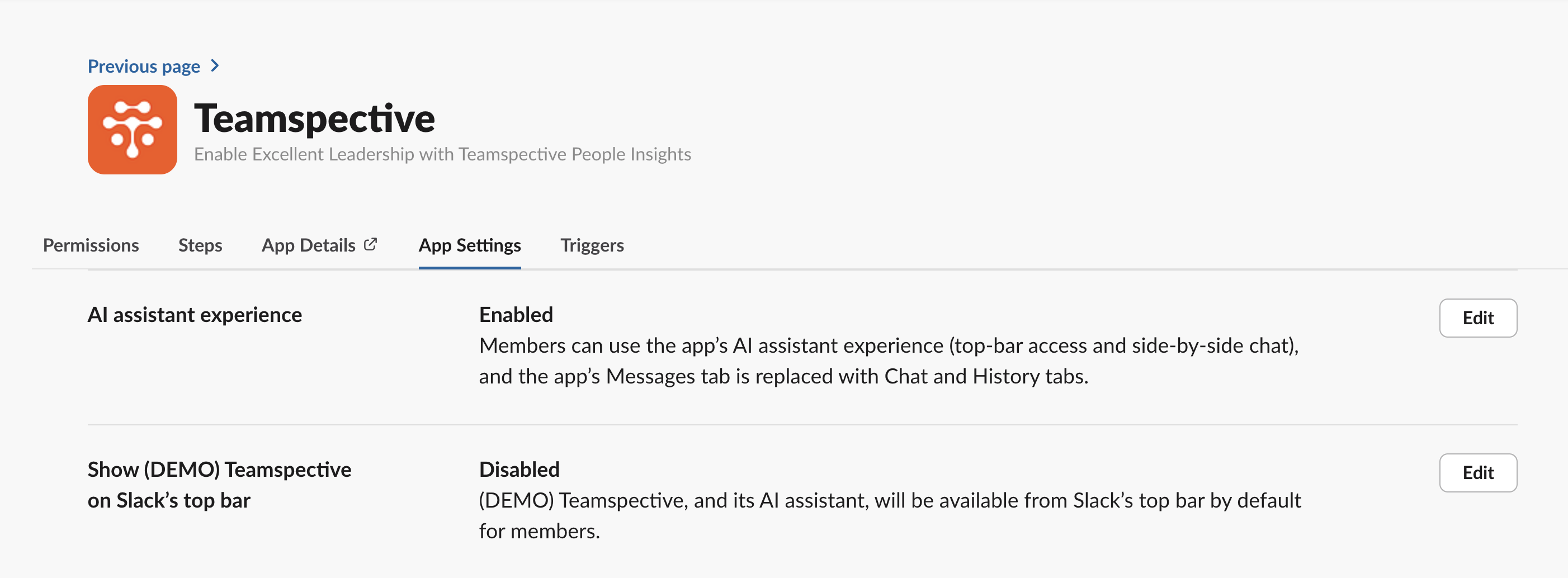
Choose Enabled or Disabled, then click Save.
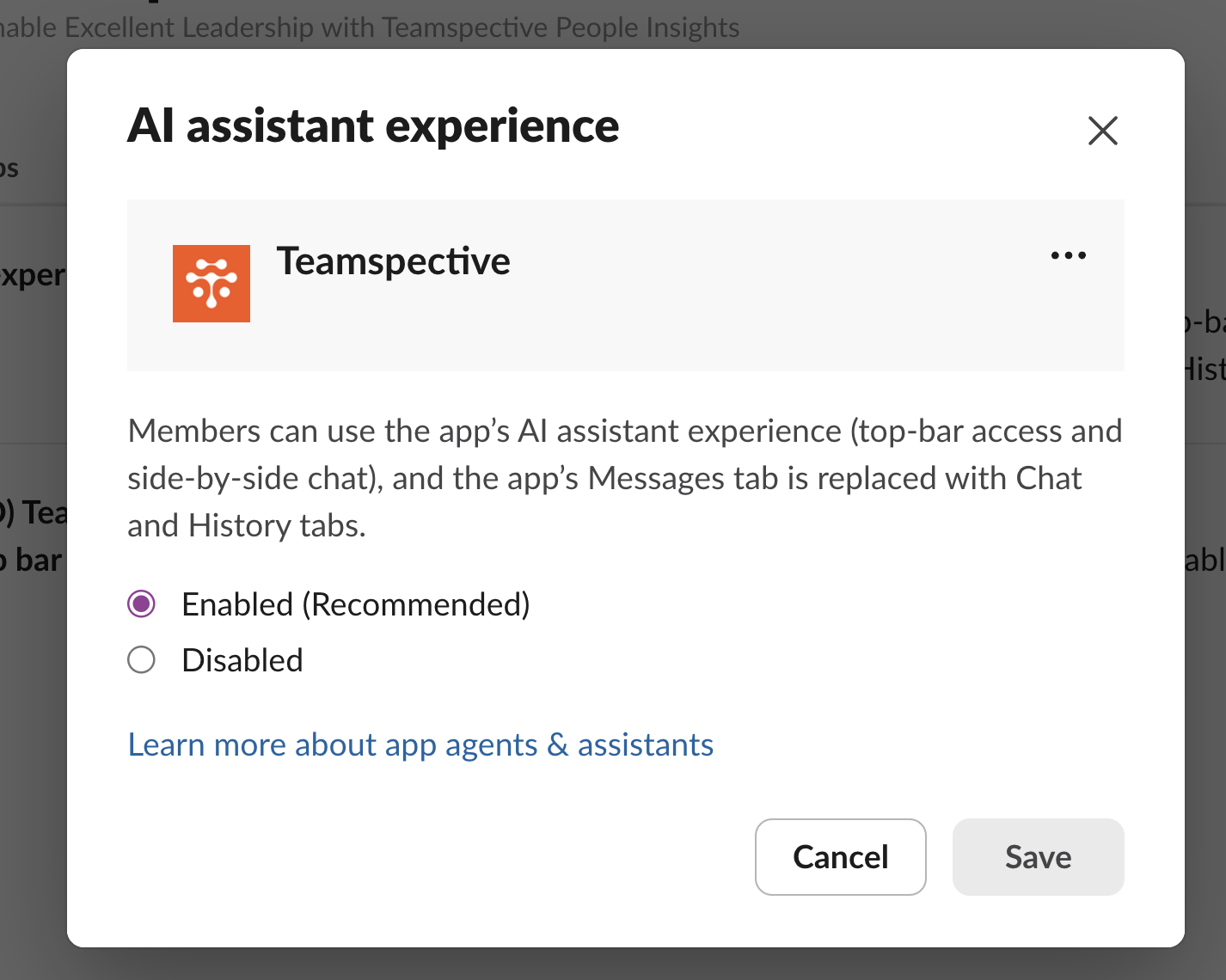
When disabled, the assistant will no longer appear for workspace members in Slack. Members can still use the Teamspective AI chat through the web interface.
Reverting to the previous experience
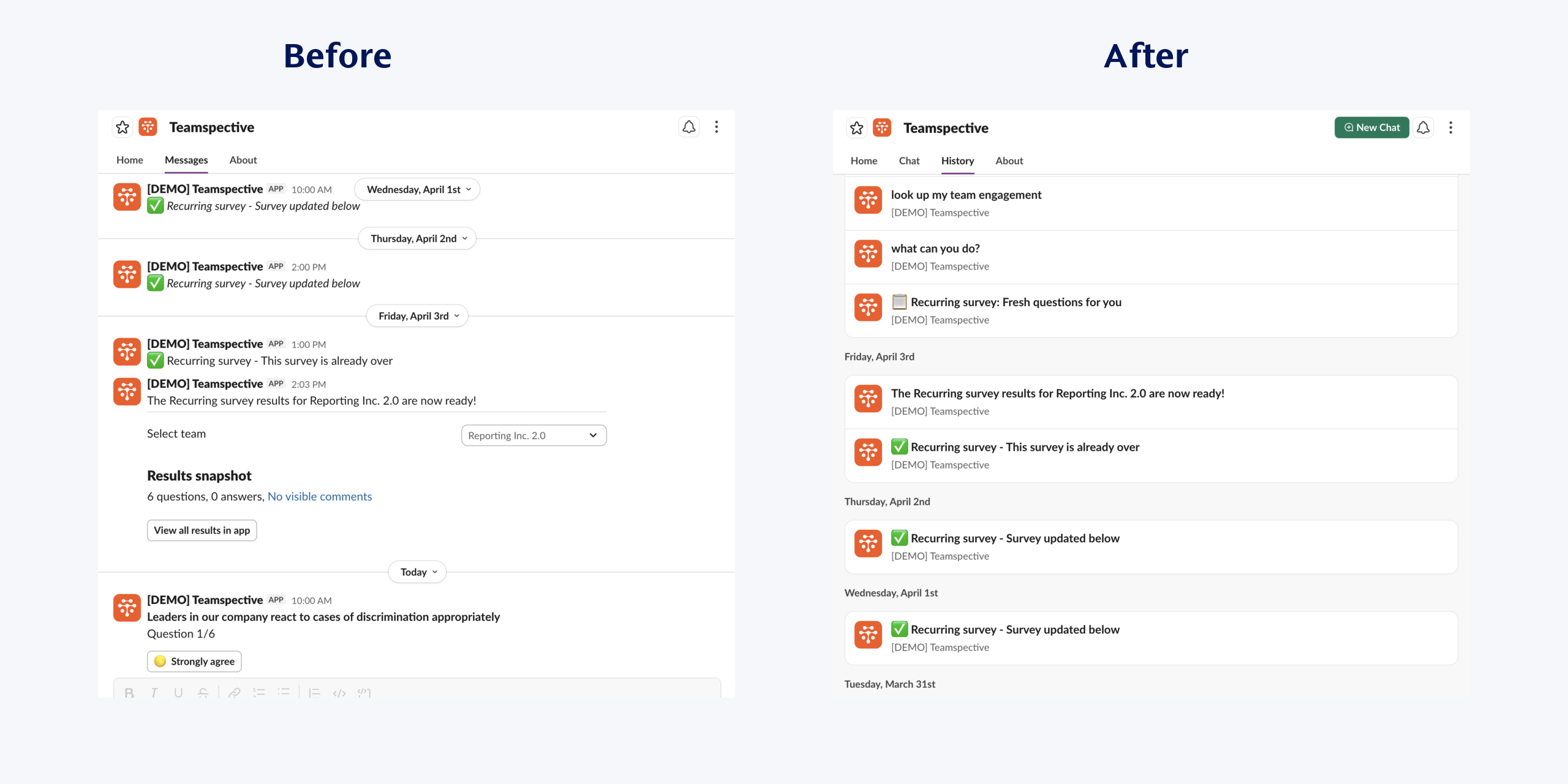
To turn off the Slack AI assistant and return to the previous experience:
Follow Step 2 above and set the AI assistant experience to Disabled in Slack's admin settings.
This only affects the Slack-side assistant. The Teamspective web AI chat remains available regardless of this setting.
Troubleshooting
IssueSolution | |
Banner does not appear | Confirm that AI Chat is enabled for your workspace and that Slack is connected. The banner only shows for workspace admins. |
"Add to Slack" redirects but nothing changes | Check that you authorized with a Slack account that has permissions in the connected Slack workspace. |
AI assistant does not appear in Slack after re-authorization | It may take a few minutes for the assistant to become visible. If it still does not appear, check the visibility toggle in Slack's admin settings (Step 2). |
Want to re-authorize again | Navigate to Workspace Settings > Slack integration and click Add to Slack. |