Growth Feedback quick start guide
Last updated: October 15, 2025
In this quick start guide you can find an overview of all the main elements related to the Growth Feedback solution in Teamspective:
Adjusting your Focus Areas
Asking for Growth feedback
Responding to a feedback request
Sending praise
Viewing you Growth feedback
People who receive feedback monthly are 3x more likely to feel engaged and developing at work.
Teamspective encourages you to ask for feedback on a regular basis. This allows you to maintain a healthy understanding of how you are progressing towards your goals and how effective you are at collaborating with colleagues.
Adjusting your Focus Areas
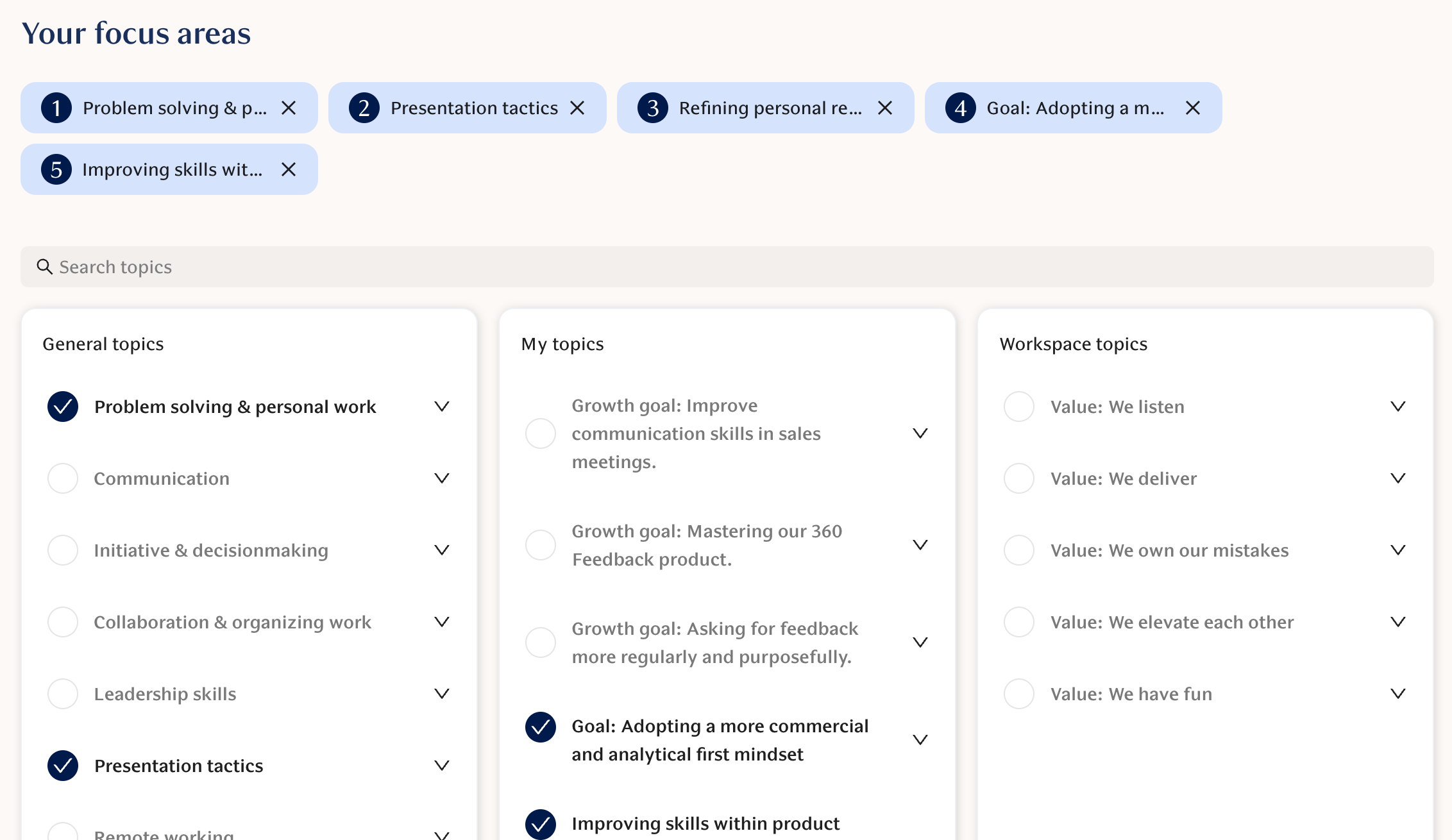
Focus Areas are at the core of your Growth feedback. They are usually wider areas of development or concrete personal development goals that you have identified for yourself. Each Growth feedback request uses Focus areas to help scope the request and ensure it collects relevant feedback for the recipient.
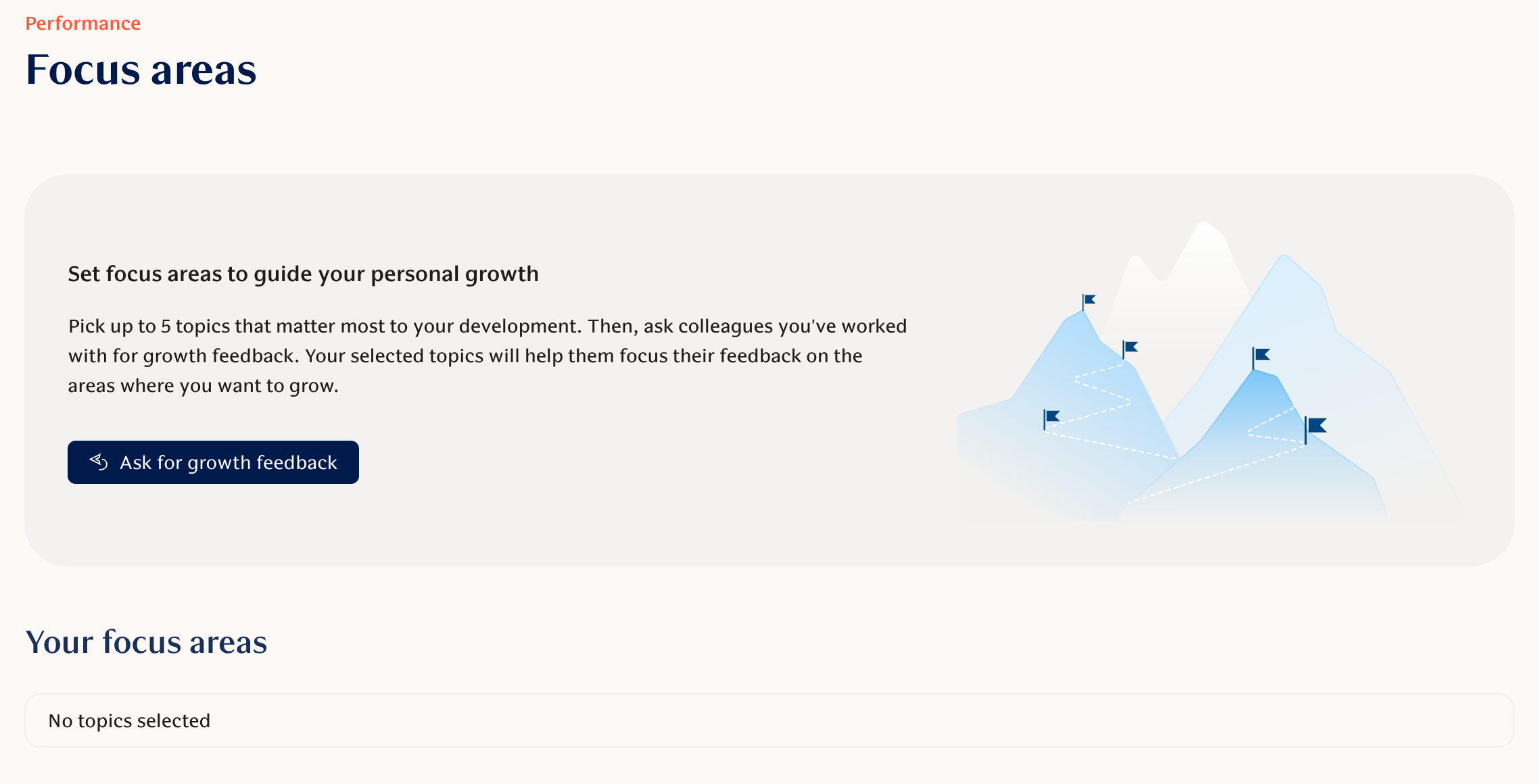
You can view our library of topics and add custom topics on the Focus areas page.
Pick up to 5 topics that matter most to your development. Then, ask colleagues you've worked with for growth feedback. Your selected topics will help them focus their feedback on the areas where you want to grow.
Asking for Growth feedback
Teamspective encourages you to ask for feedback on a regular basis. If enabled, you will also receive automated nudges from time to time to help you remember.
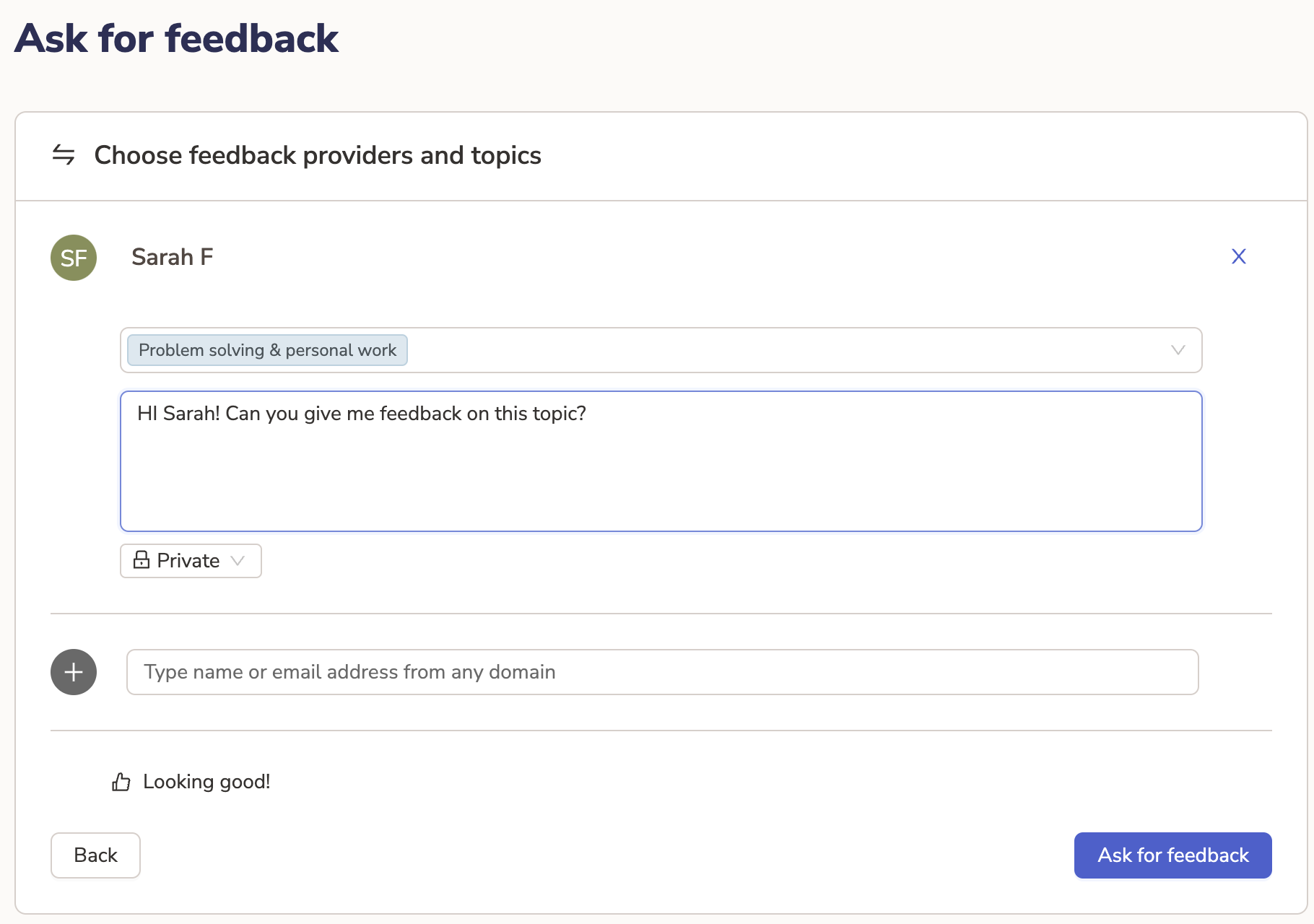
The main workflow for sending a feedback request is:
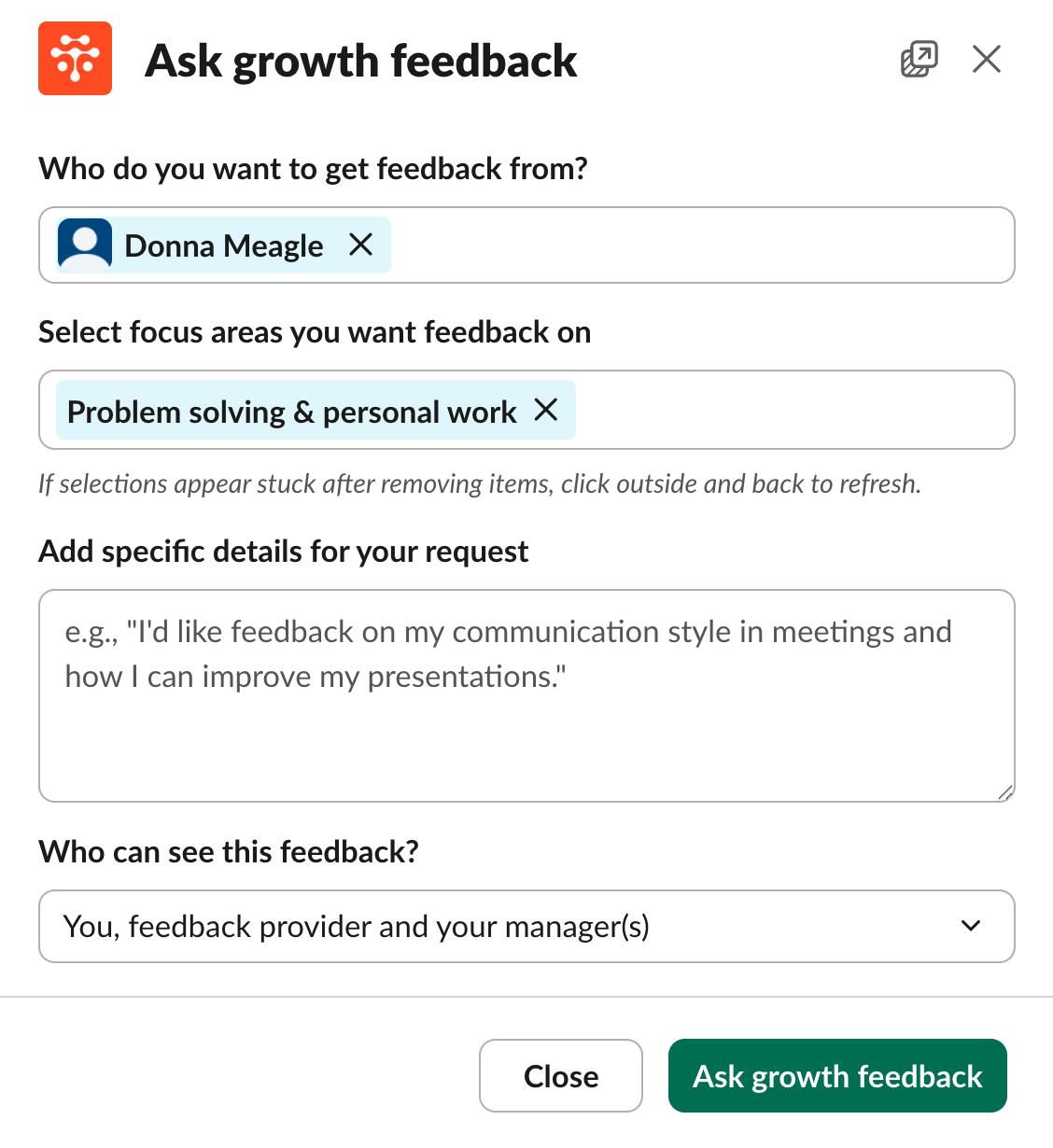
Select who you want feedback from.
Select Focus areas which scope your feedback request.
Add a personal message to give more context.
Select the visibility of the feedback:
Private will keep it between you.
Limited will share it with people who have been granted access to your shared feedback. Usually this is a manager or HR.
Below we show how requests are sent in different platforms:
In Slack
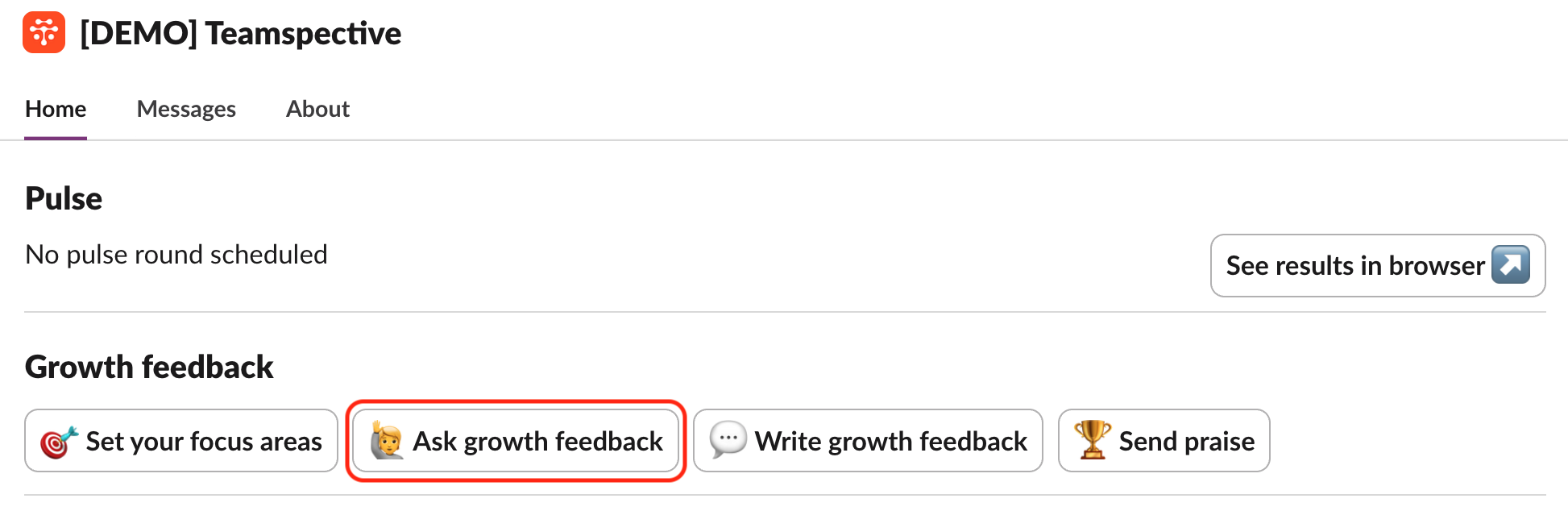
Go to the Home tab in the Teamspective app and click Ask growth feedback.
2. Fill in the feedback request and click Submit.
In MS Teams
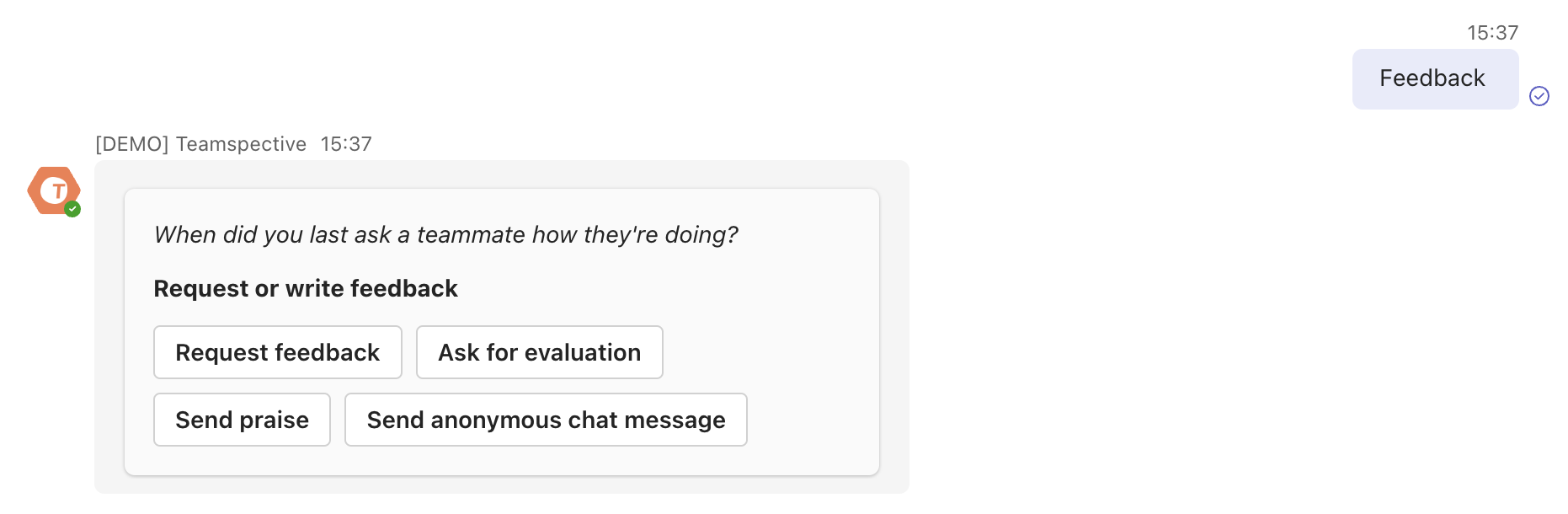
Type feedback into the message field and you will receive a selection of actions from the Teamspective app. Select Request feedback from the list and start filling in the request.
Teamspective web app
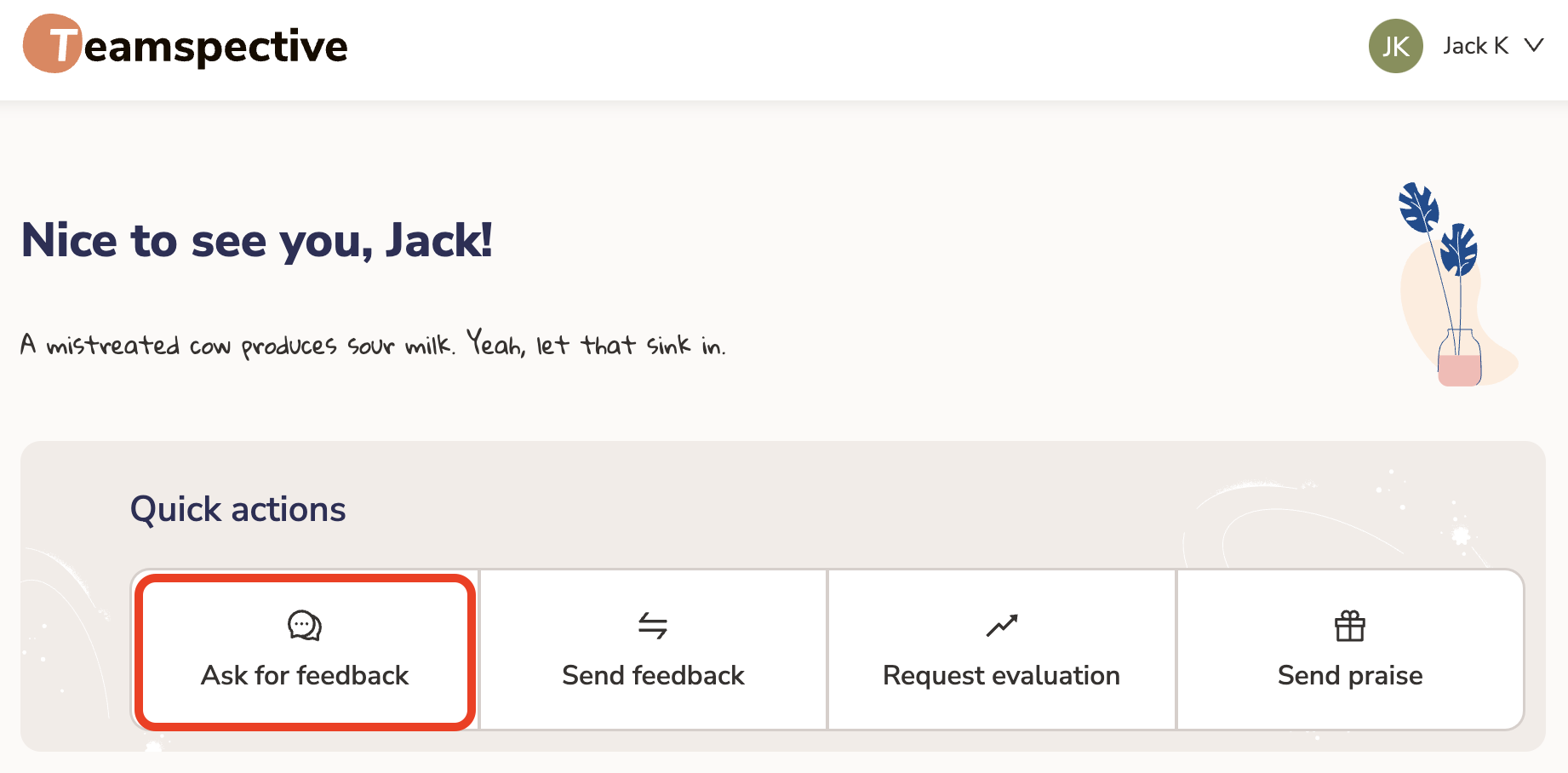
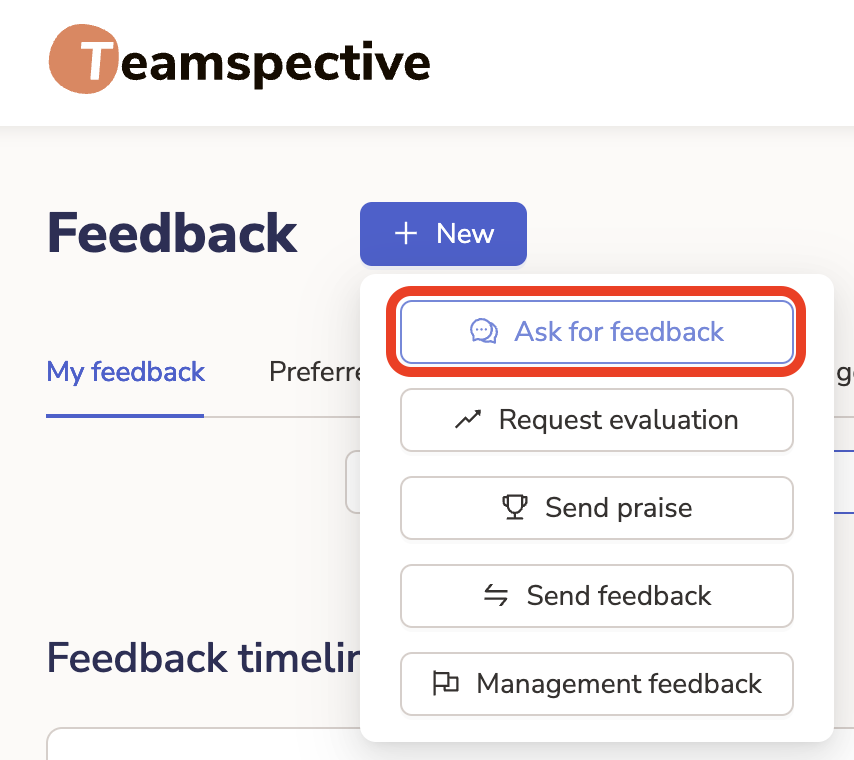
Select Ask for Feedback from the Home page or My Activity pages and start filling in your request.
📝 Responding to a Feedback request
You will receive requests both into Slack / Teams and the web app. Responding to these can be done in both platforms.
Responding in Slack
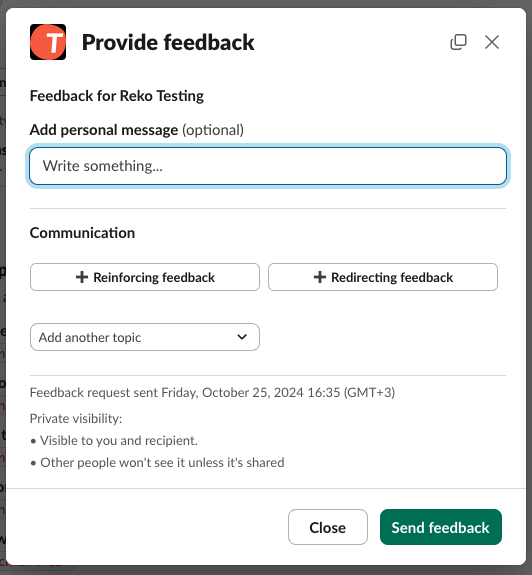
You will receive all requests directly into the Teamspective app in Slack / Teams and can respond to them within Slack:

Responding in the Web app
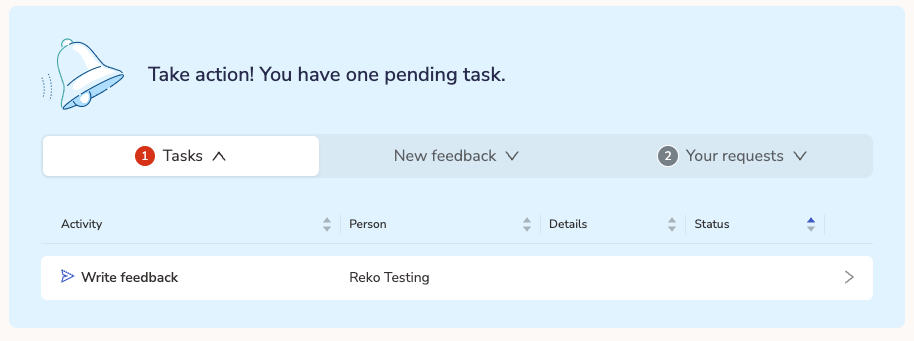
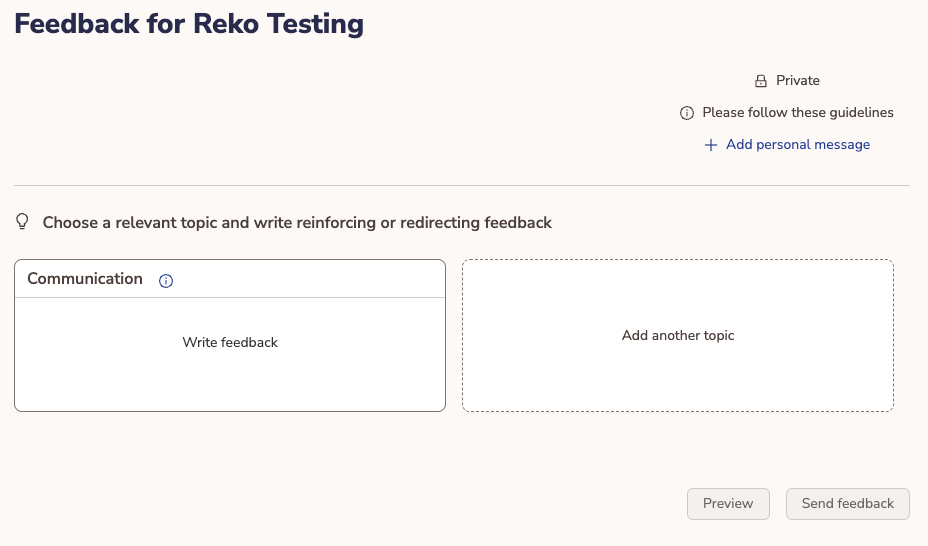
Evaluation and Feedback requests can be found directly on the Home page or My Activity page:
Sending Praise
Praise is quick positive feedback which lets your colleague(s) know they have done a great job. Getting praise regular helps to reinforce your sense of competence and confidence in what you do. Also it tells you that your work is meaningful and impactful for the company.
Teamspective encourages sending praise often and that's why we've wanted to make it as simple as possible.
Sending Praise in Slack
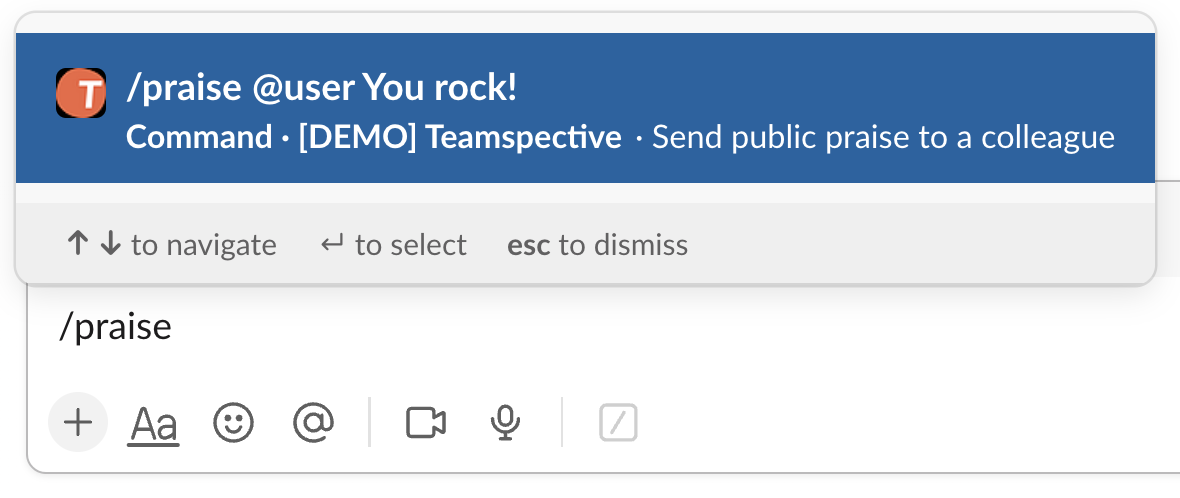
You can send Praise directly in Slack by typing /praise @user [your praise] in any channel:
Sending Praise in MS Teams
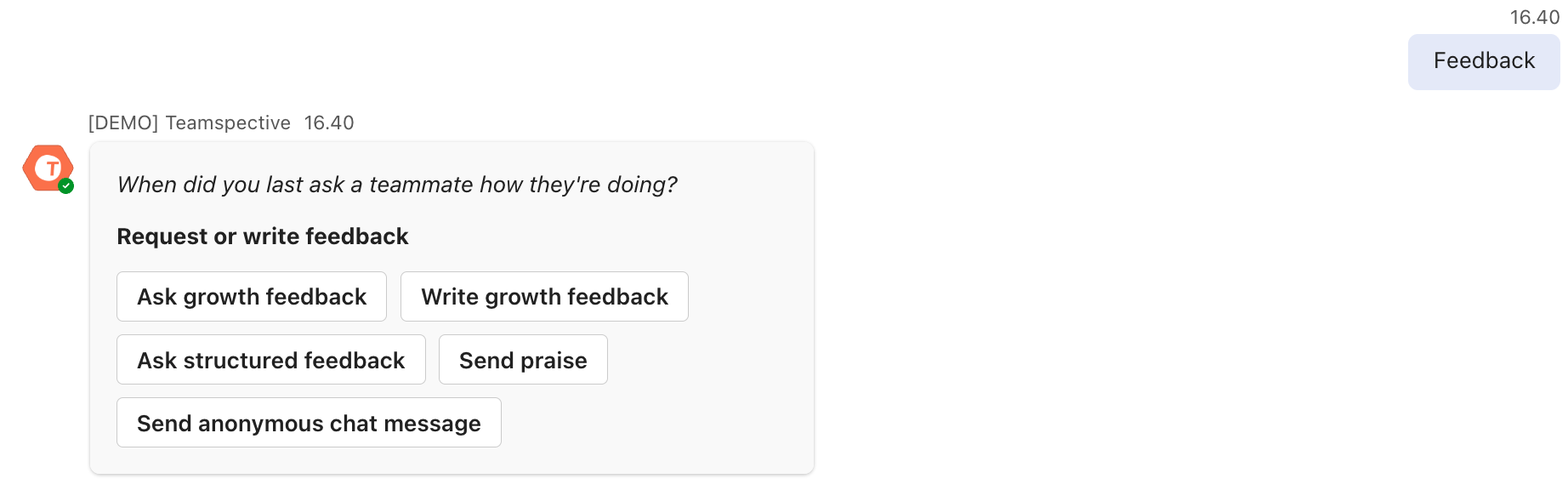
Type feedback into the message field and you will receive a selection of actions from the Teamspective app. Select Send praise from the list.
Sending Praise in the Web app
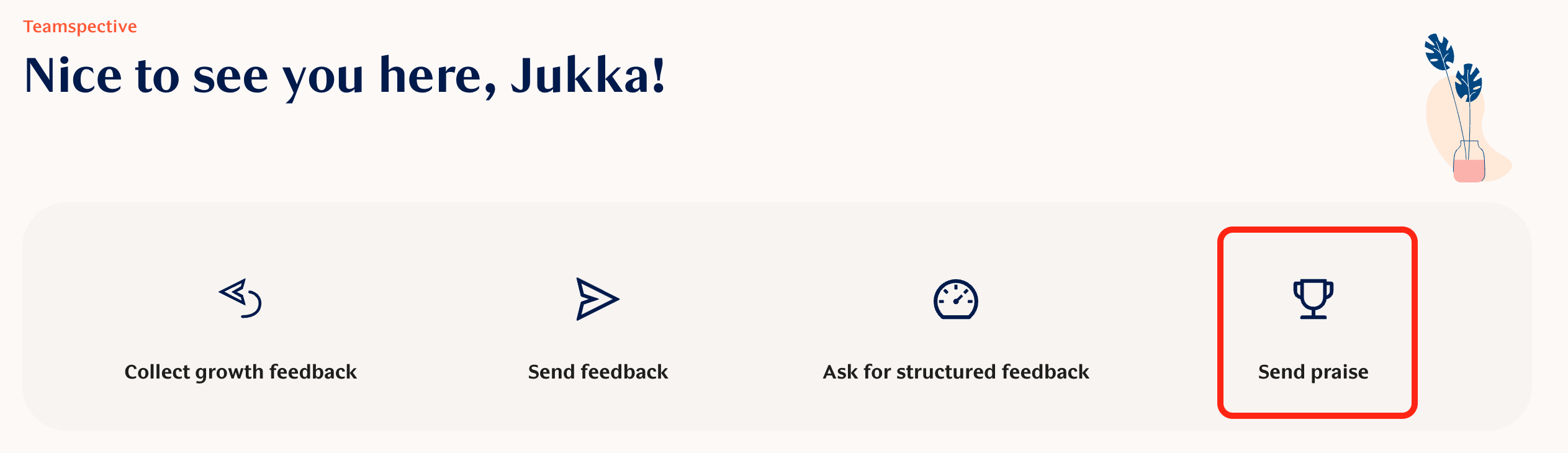
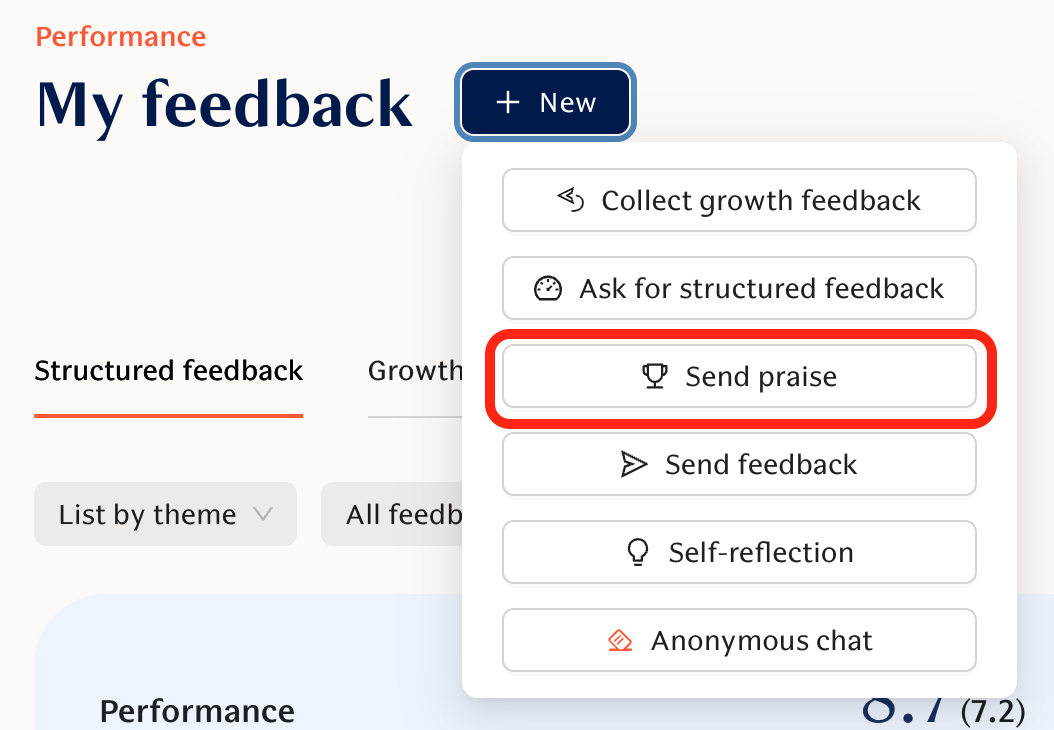
You can send Praise directly from the Home page or from the My Activity page:
👀 Viewing your Growth feedback
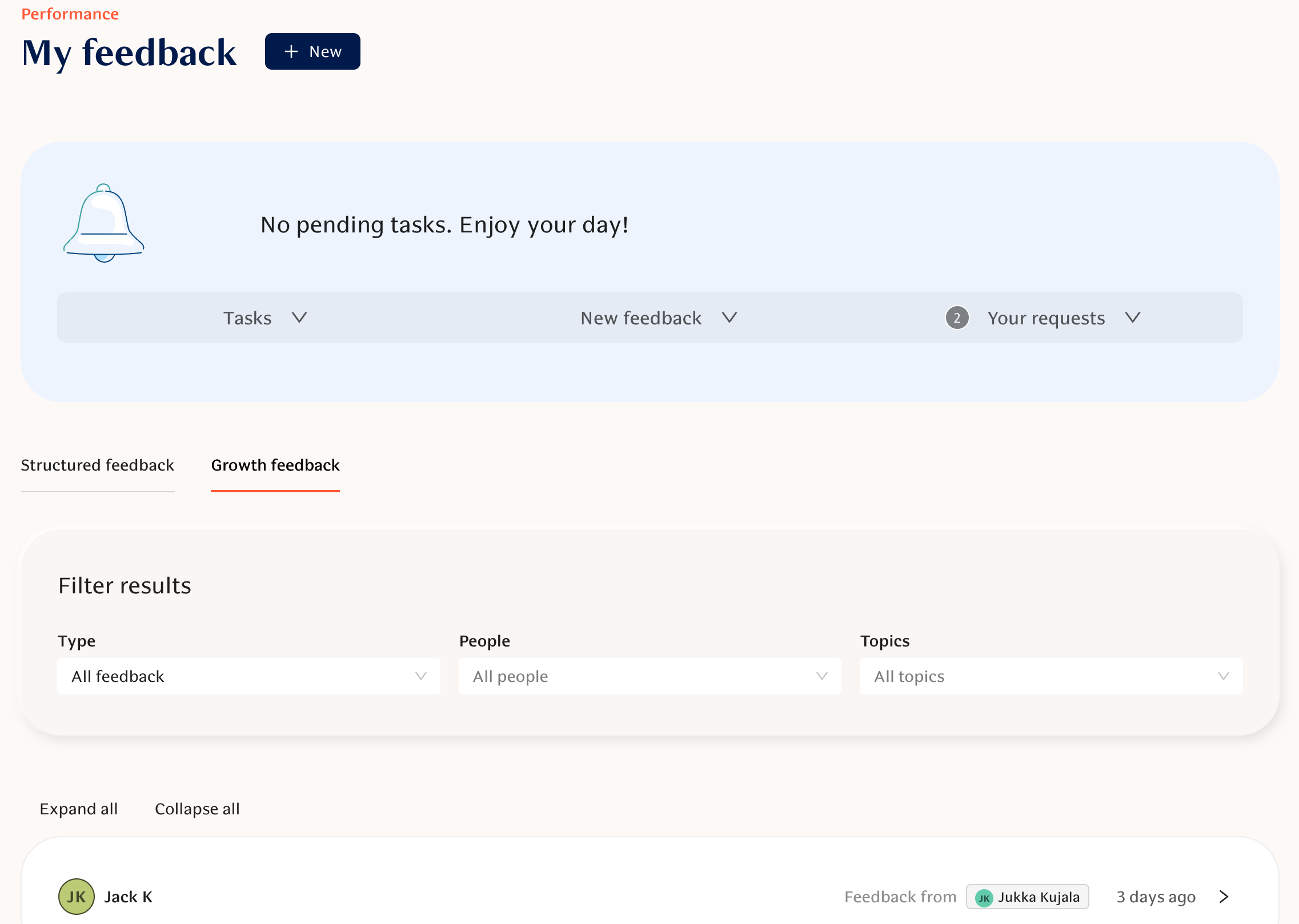
All received feedback can be viewed on the My Feedback page.
View your Feedback timeline by selecting Growth feedback:
Still haven't found what your looking for?
Checkout our Performance FAQ or search the Knowledge Base for a more detailed article!