AI Chat - Admin implementation guide
Last updated: April 8, 2026
What is AI Chat in Teamspective?
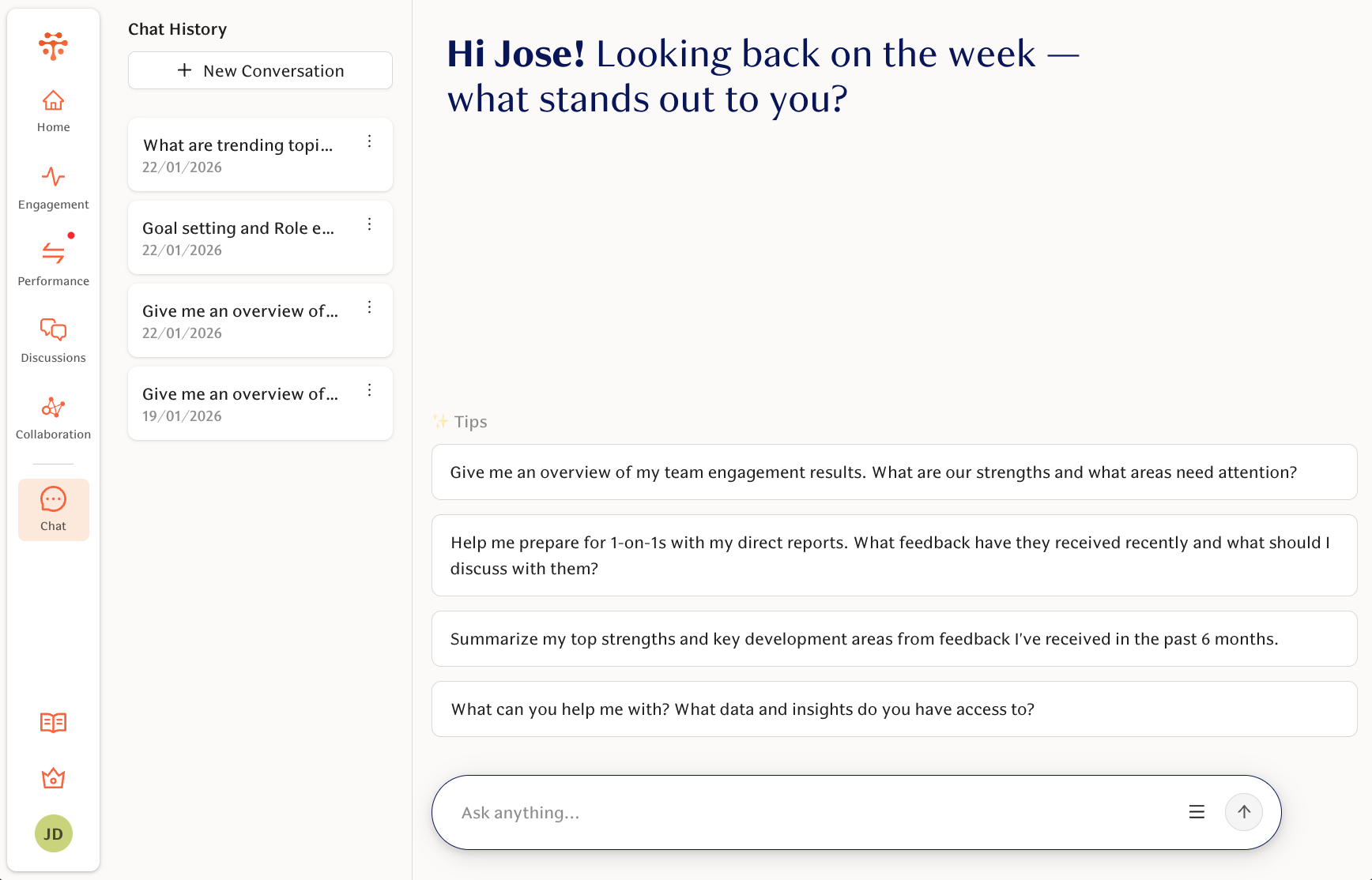
AI Chat is a personal assistant built into the Teamspective platform.
It helps users understand people insights, summarize results, and turn data into clear plans, actions and communication.
Instead of digging through dashboards and reports, you can ask questions in plain language and get structured, easy-to-understand answers based on your Teamspective data.
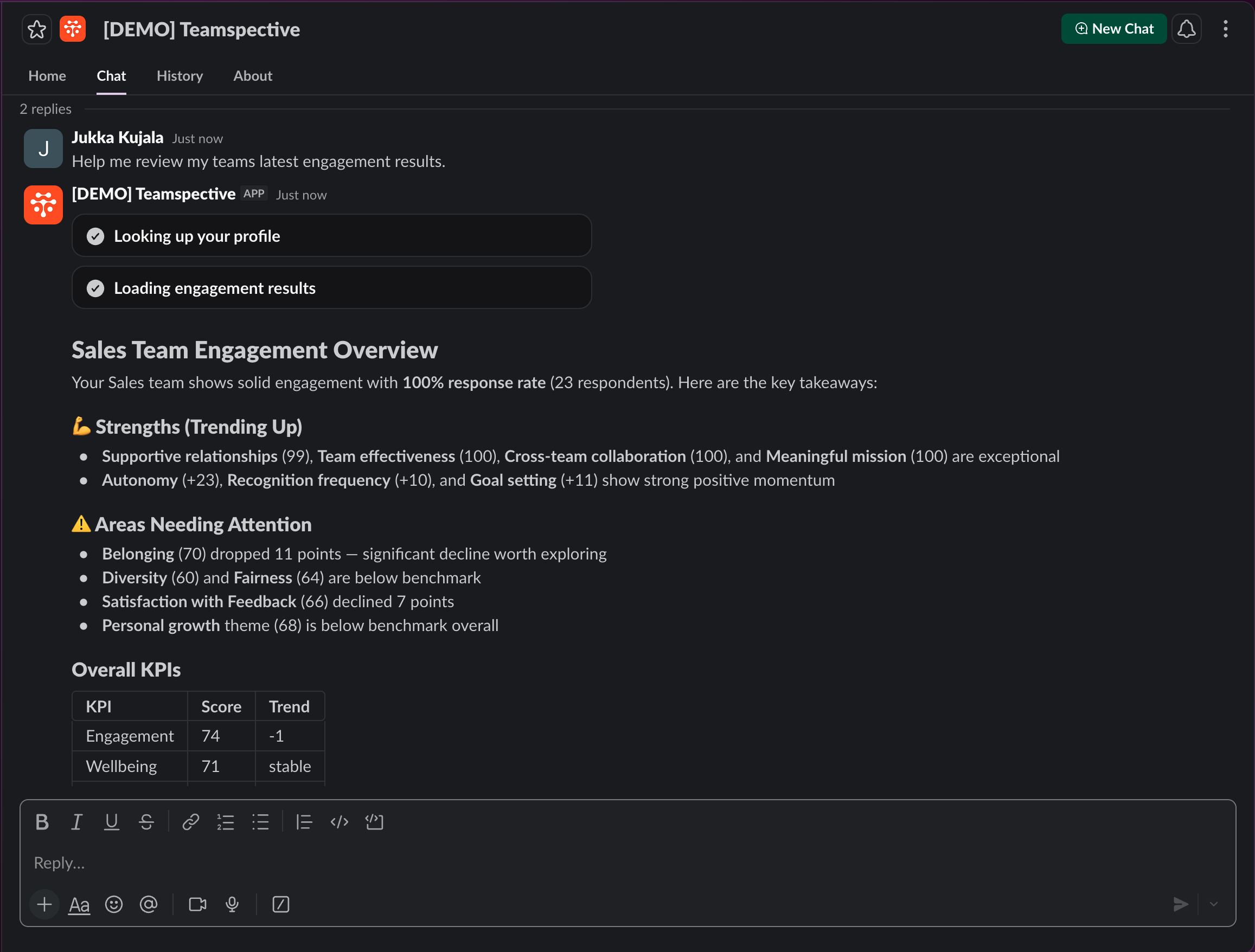
AI Chat is available inside the Teamspective web app and will be rolled out to additional platforms (such as Slack, Copilot, ChatGPT, Gemini) over time.
Read this article for answers to common questions, and for:
What problem does AI Chat solve?
People insights are often:
hard to interpret,
time-consuming to summarize,
difficult to turn into concrete actions or messages.
AI Chat helps by:
summarizing key insights and trends,
combining multiple data sources,
suggesting actions and next steps,
helping you draft communication based on insights.
Use it just like any other AI language model - just this time it understands your people insight data!
How AI Chat works in Teamspective?
AI Chat uses the data available in your Teamspective account.
It only has access to data you are already allowed to see.
Responses are generated only when you ask a question.
The AI is instructed not to guess, fill in gaps, or invent information.
If there isn’t enough data to answer a question, it will say so.
AI Chat can summarize, analyze, and help draft content, but it does not take actions on your behalf or change data in Teamspective.
What data does AI Chat use?
AI Chat can use both company-level and user-specific data, depending on your role and permissions.
Examples of data it may use:
Employee survey results (typically anonymized, group-level)
Personal feedback (aggregated or detailed, anonymized or named depending on access)
Performance reviews
Meeting agendas
Company culture and values
Organizational structure and reporting lines
Access is always permission-based:
Managers see the same level of detail they have in reporting views.
Survey data is usually anonymized at group level.
Personal feedback visibility depends on how feedback is shared in your organization.
AI Chat also relies on general public knowledge used by large language models, but it does not use data from other customers.
What AI Chat does not do?
It does not bypass Teamspective permissions.
It does not reveal confidential or restricted data.
It does not make assumptions or “fill in the blanks.”
It is not a source of truth for management, HR or legal decisions.
It does not replace human judgment.
👑 Admin use cases
Admins typically use AI Chat to work at a high level across data sets and audiences.
Examples:
Surface key highlights and trends across surveys and feedback
Analyze combined data sets without exporting reports
Draft internal or leadership communication based on insights
Brainstorm initiatives or action points
Prepare summaries for executive or leadership team meetings
Example questions:
“What are the top engagement trends in [department X] this quarter?”
“Summarize key risks and strengths across departments.”
“Draft a leadership update based on the latest survey results.”
"Draft a message I can send to Engineering, to get their development initiatives mapped."
🧭 Manager use cases
Managers use AI Chat to understand their team’s insights and move quickly from data to action.
Examples:
Analyze survey and feedback results via chat instead of dashboards
Identify priority actions and draft action plans
Prepare communication to their manager or leadership
Draft team meeting agendas based on insights
Reflect on and coach themselves using feedback they’ve received
Example questions:
“What are the main themes in my team’s latest survey results?”
“What actions should I focus on first?”
“Draft a message to my manager summarizing my team’s challenges.”
🧑💼 Individual contributor use cases
Individuals can use AI Chat to reflect on their own data and development.
Examples:
Understand survey results more easily
Brainstorm how they can personally impact results or support others
Summarize personal feedback and identify development goals
Prepare talking points about growth or development for their manager
Example questions:
“Summarize my feedback from the last review cycle.”
“What development areas should I focus on?”
“Help me explain my growth goals to my manager.”
Privacy and trust
AI Chat only uses data available to the current user.
Survey results are typically anonymized. Feedback is anonymous or named, depending on your organization's settings.
AI responses are generated on demand and not precomputed.
The AI is designed to respect data boundaries and transparency.
If something feels unclear or incomplete, users should always verify insights using standard Teamspective reports.
Data processing information:
AI Chat conversations may be processed by Claude AI models on servers located outside the European Union.
Per Anthropic's Commercial Terms, conversation data is not used to train AI models.
Enabling the AI Chat applies it into use for all users in your workspace.
Chats created or documents uploaded into your workspace are never shared or available in another workspace.
Review the relevant policies:
How do I enable the AI Chat?
Go to Workspace settings -> AI Chat.
Review the necessary documentation.
Click: Enable AI Chat
The AI chat is now available for all your users and can be found in the left-hand navigation bar.
How do I enable the AI Chat in Slack or Teams?
The AI Chat is available directly in Teams or Slack. Read below for further instructions.
MS Teams
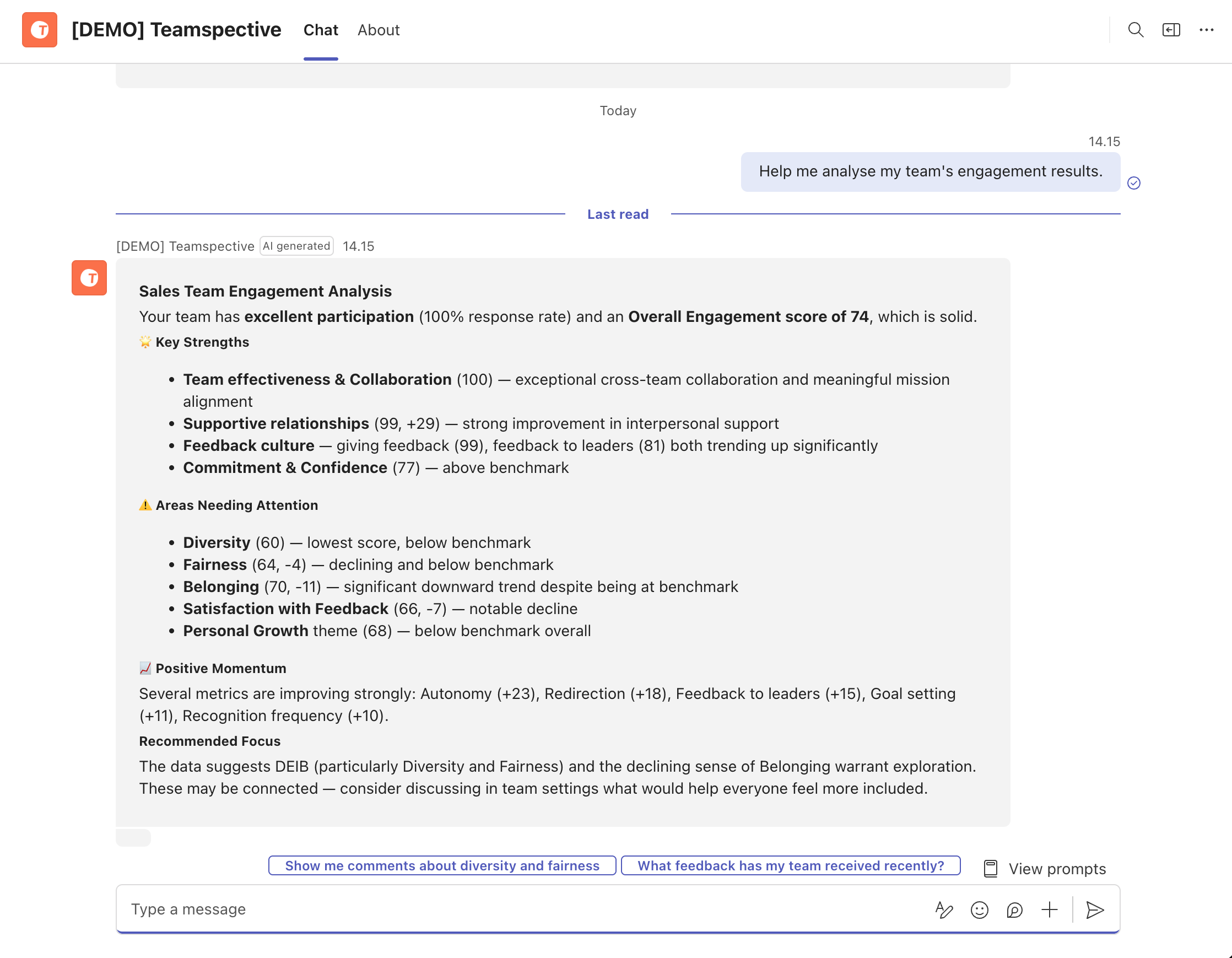
The AI Chat is immediately enabled in Teams for your employees who have added the Teamsepective Teams app and linked their accounts with Teamspective.
Employees can chat directly with the app to help analyse results or prepare for meetings.
Slack
Slack requires a successful install of the Teamspective Slack app. You might need to re-authentic the application from Teamspective if the intergration has been completed a while back. Please refer to our more extensive guide here:
📄 How do I enable the Slack AI Experience for our employees?
Employees can chat directly with the app in Slack to help analyse results or prepare for meetings.