How does Teamspective ensure anonymity in Engagement surveys?
Last updated: May 18, 2026
Quick Summary
Within Teamspective it's not possible to see what a specific individual has responded to an Engagement survey.
When a survey closes, all individual answers are attributed to responder groups such as the employee's team, department, employment tenure etc.
After results are attributed to groups, Teamspective's app only uses group level data and reveals only group level survey results to users.
Steps
There are two clearly separate steps related to anonymity: answering and retrieving results.
Answering to a survey
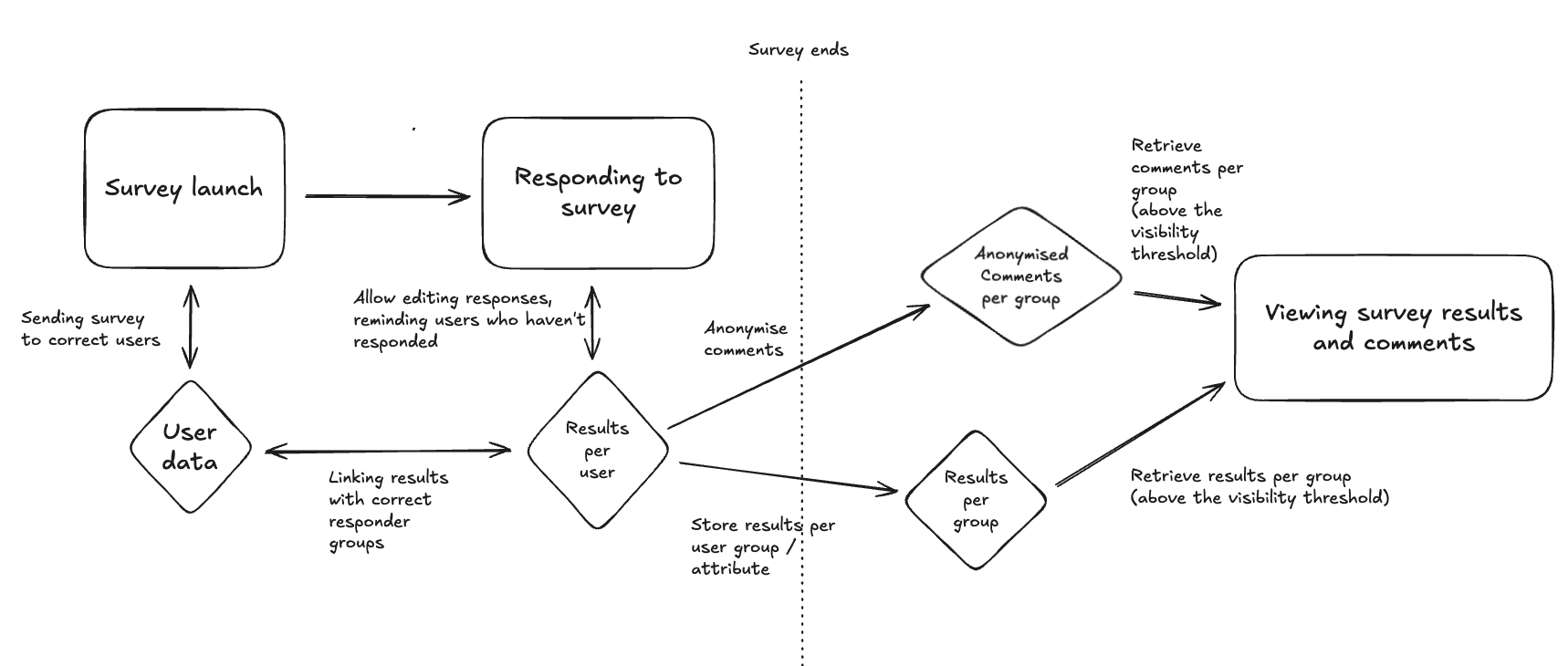
Each user answers through their own, identified profile in Slack, Teams or web browser. This means that Teamspective's system knows who answered what when the survey is in progress.
Answering via a profile is a standard practice in engagement solutions. This allows for example, prevent fraudulent use (faking results with multiple entries), makes responding faster because demographic details do not need to be collected at the beginning of each survey and reminding users about ongoing surveys.
Retrieving results
Immediately when a survey closes, all individual answers are attributed to groups such as the employee's team, department, employment tenure etc. This also applies for open comments.
When any user views results from the survey, Teamspective only uses group level data and reveals only group level survey results. Our system does not use individual level information to retrieve results and no-one has access to an individual's survey results in the application.
Lastly, Teamspective redacts results for small groups to ensure anonymity. This is done via the visibility threshold setting which is described at the end of this article.
Responding to Open comments
Teamspective allows starting a dialogue with employees who have left an open comment through a survey. This is useful because:
Employees feel heard if someone reacts to their opinions, and
Problems can be fixed when they can be addressed.
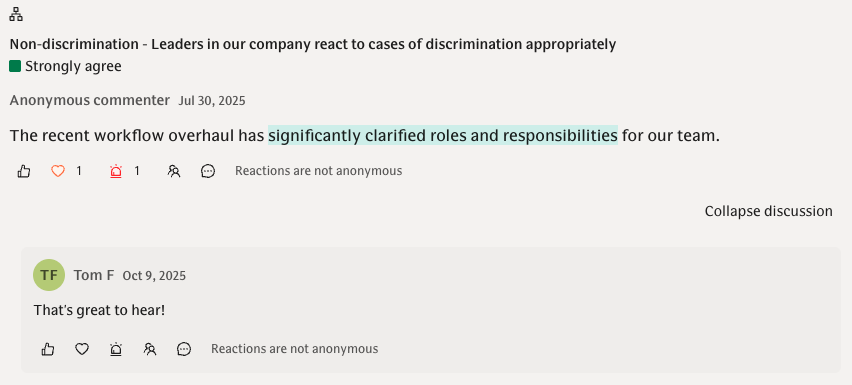
When an admin or manager responds to an open comment, the system retrieves user-level information to send a notification to the person who left the comment. In this situation, Teamspective never shares that person's identity to ensure anonymity.
Example of a comment and dialogue in Teamspective:
Technical visualisation
Below is a technical visualisation of how data is processed when responding to an engagement survey and reviewing the results in Teamspective.
Setting: Visibility threshold
In the survey settings you can change the visibility threshold of results.
This means that a group of responders will need to have at least a certain amount of responses for a question's results to be visible in the reporting.
By default, this setting allows showing results in groups with 4 or more responses to a question. Your organization can edit this level if needed to allow more or less transparency.
Steps to edit this setting:
1. Go to Engagement in the left-hand menu.
2. Click Settings.
3. Adjust "Show survey results in groups with a minimum of"
4. The changes will automatically be saved.
Tip: You can adjust this setting within individual surveys. This will override the workspace default for results in that survey. This is done when creating a new survey:
Go to Surveys
Click New survey
Adjust "Show survey results in groups with a minimum of"
My Answers page
Your company admin can enable the My Answers page which allows employees to see their own responses to Engagement surveys. This helps understand how your own Engagement levels have changed over time and these results can be used to support self-leadership.
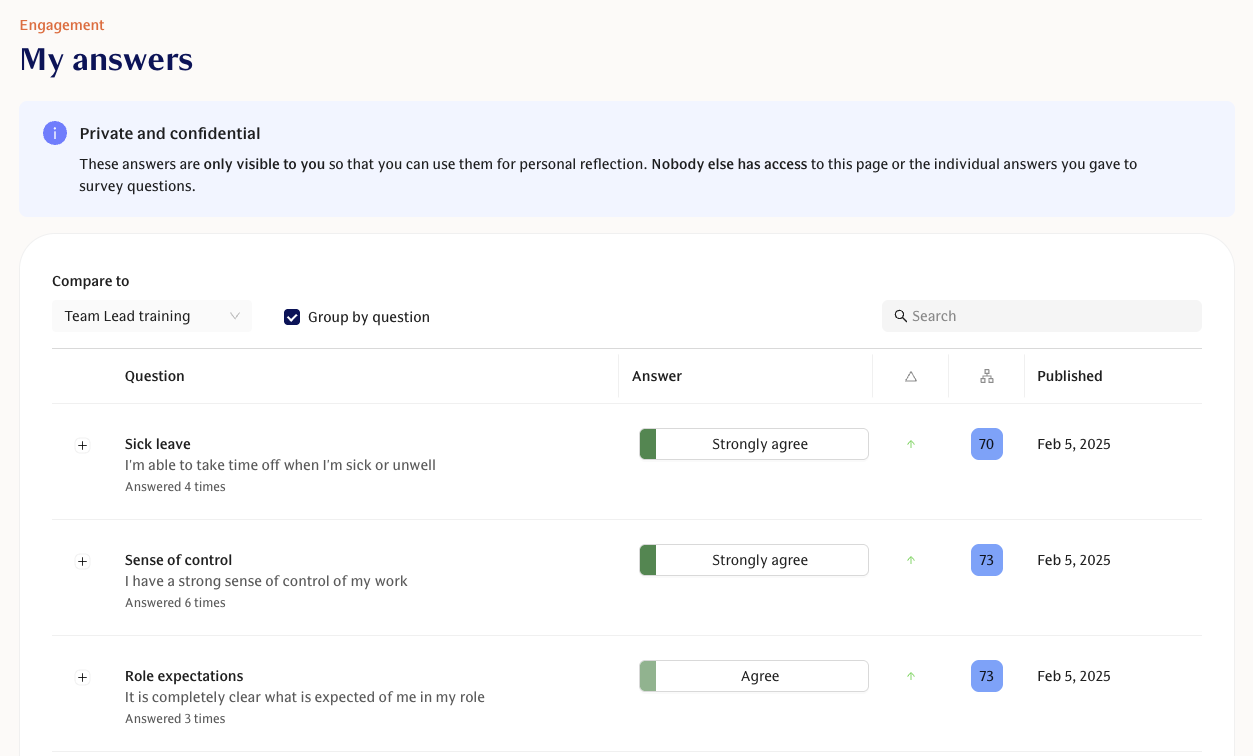
Teamspective strictly limits the visibility of this page and only populates the results based on the user who is viewing the page. Additionally, we do not allow admins to "impersonate" other users in the system. This secures the privacy of the results.
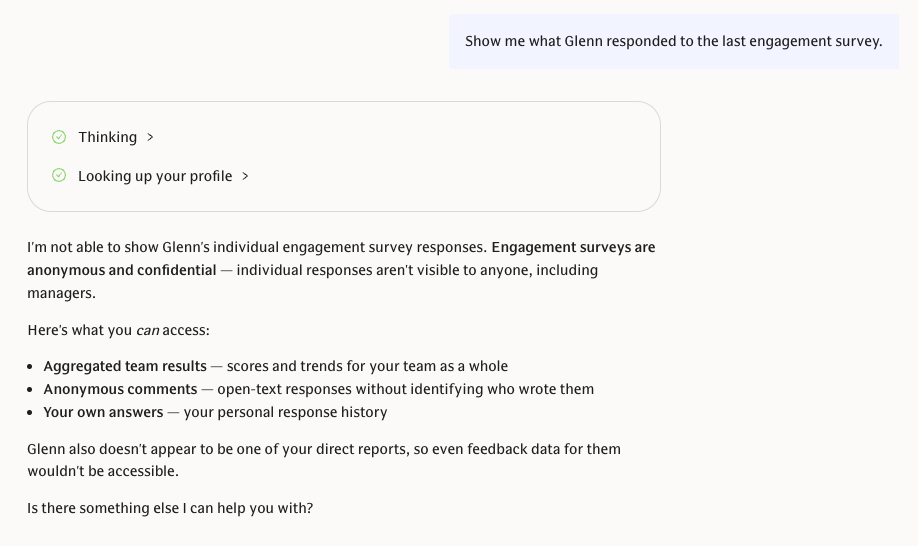
Once this page is activated, Teamspective's AI Assistant will also be able to use your own Engagement responses when you ask it to analyse results and suggest insights. The AI Assistant's data access is strictly limited to the same access as the user has in Teamspective. This means that you will not be able to prompt it for someone else's responses. It does not have access to this data and will tell you so if asked for it. Read more about the AI assistant here:
📄 AI Chat – Guide to get started
---
Need help? Contact support@teamspective.com