Understanding feedback anonymity settings in 360 feedback
Last updated: March 20, 2026
Teamspective offers flexible anonymity settings for 360 feedback that can be configured at the template level. Understanding these settings helps ensure your feedback processes meet your organization's needs while maintaining appropriate privacy levels.
How anonymity settings work
Anonymity in 360 feedback is controlled by two key settings in your feedback template:
Feedback provider name visibility to feedback recipient - Controls whether the person receiving feedback can see who gave it
Feedback provider name is visible to - Controls which administrators and managers can see feedback provider names
These settings are captured when feedback requests are created, not when results are viewed. This means changing template settings only affects new feedback requests, not existing ones.
Configuring anonymity settings
To adjust these settings:
Go to Templates & Questions
Select the feedback template you want to modify
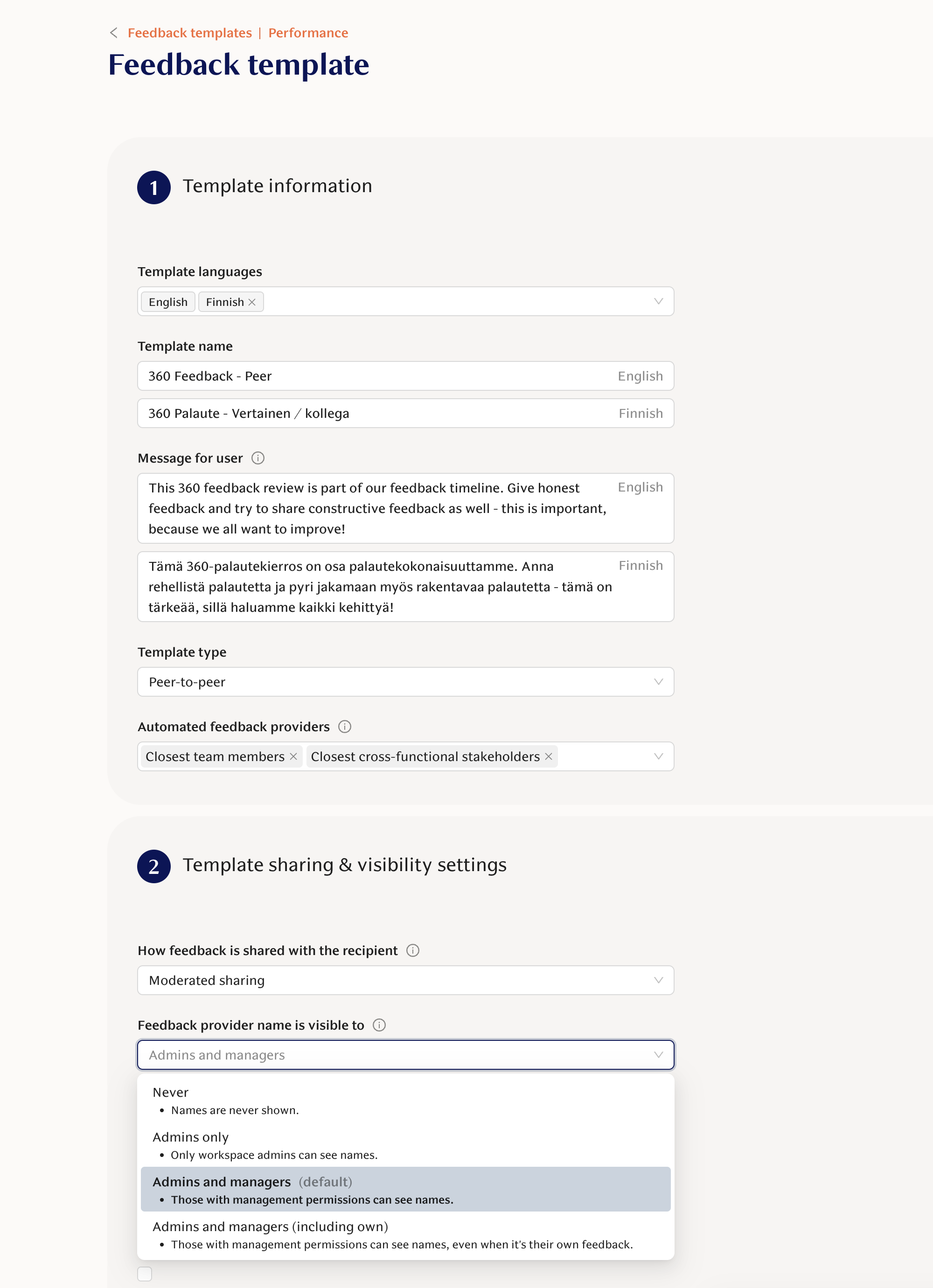
In the Template sharing & visibility settings section, configure:
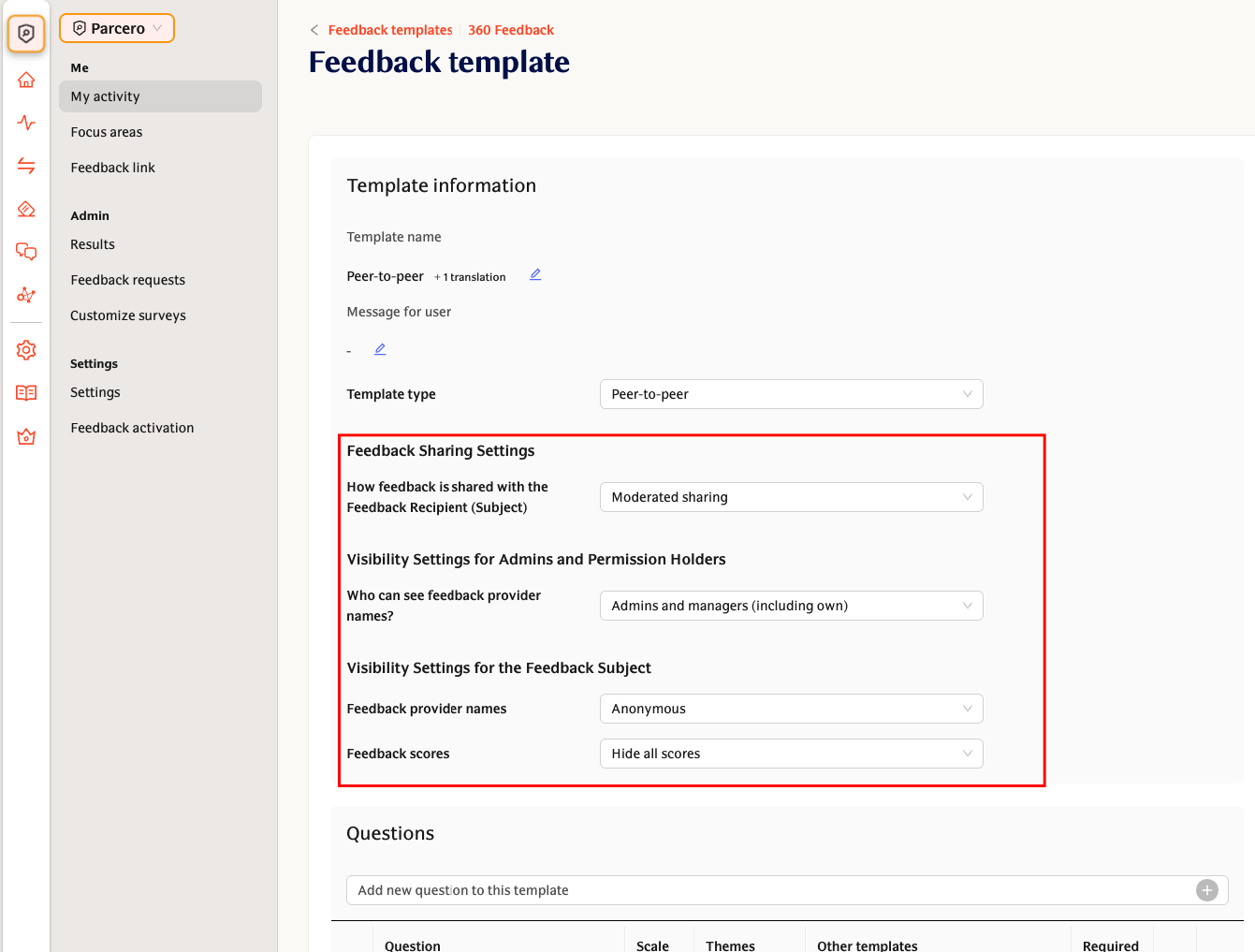
Feedback provider name visibility to feedback recipient: Choose "Anonymous" to hide names from recipients
Feedback provider name is visible to: Select who can see provider names (options include "Admins only", "Admins and managers", etc.)
Template-specific settings
You can set different anonymity levels for different types of feedback templates. For example:
Peer-to-peer feedback: Names visible to recipients and managers
Employee-to-manager feedback: Anonymous to recipients, visible only to admins
Manager-to-employee feedback: Names visible to recipients
Understanding the privacy notice
When employees give feedback, they see a privacy notice explaining how their responses will be handled. This notice clarifies:
Whether their answers will be anonymous to the feedback recipient
Who else (admins, managers) can see their name alongside their responses
The system ensures that even if a manager has administrative permissions, they cannot see evaluator names on feedback about themselves.
Viewing feedback provider names
If you have the appropriate permissions and the template allows it, you can see feedback provider names by:
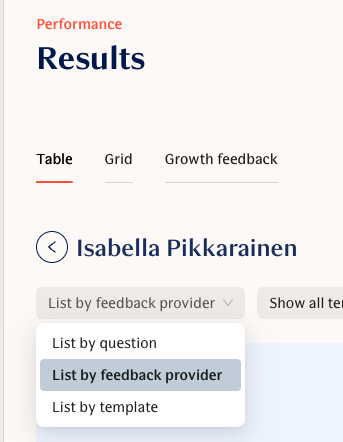
Going to the feedback results page
Using the "List by feedback provider" option in the dropdown menu
Important notes
Settings are locked at creation: Anonymity settings cannot be changed for feedback that has already been requested
Moderated sharing: If enabled, feedback must be reviewed and published by an admin before recipients can see it
View as employee: When managers use "View as employee" to see results from their team member's perspective, the system respects the anonymity settings configured in the template
If you need to change anonymity settings for feedback that has already been collected but not yet published, contact support for assistance with manual updates.