Integrate to Microsoft Teams
Last updated: October 13, 2026
Get the best possible user experience by integrating Teamspective to your Microsoft Teams workspace. It brings all the important actions directly to where your employees already work, removing the need to separately remember to log into Teamspective.
Your employees most enjoy the tools that require minimal effort from them. With the Teams integration in place, your employees can answer pulse surveys, network surveys and send feedback directly in those tools, on laptop or mobile.
They also get notified of new results and feedback, making them easy to notice and go check the results with just one click.
Microsoft Teams integration
To activate MS Teams integration, you have 2 options:
1) Auto-install and pin the Teamspective app in Teams (Recommended)
Auto-install Teamspective for employees
Automatically installing Teamspective to employees' Teams makes it super easy to take into use. Instead of needing to instruct and chase employees to do this, everyone will automatically have Teamspective app as part of their Teams environment.
Microsoft's guide to setting this up can be found via this link.
Pin Teamspective app to employees' side bar
Pinning Teamspective makes the notifications easier to notice, as Teamspective will be visible on the side bar. This supports active feedback culture and higher pulse response rates.
Microsoft's guide to pinning apps can be found via this link.
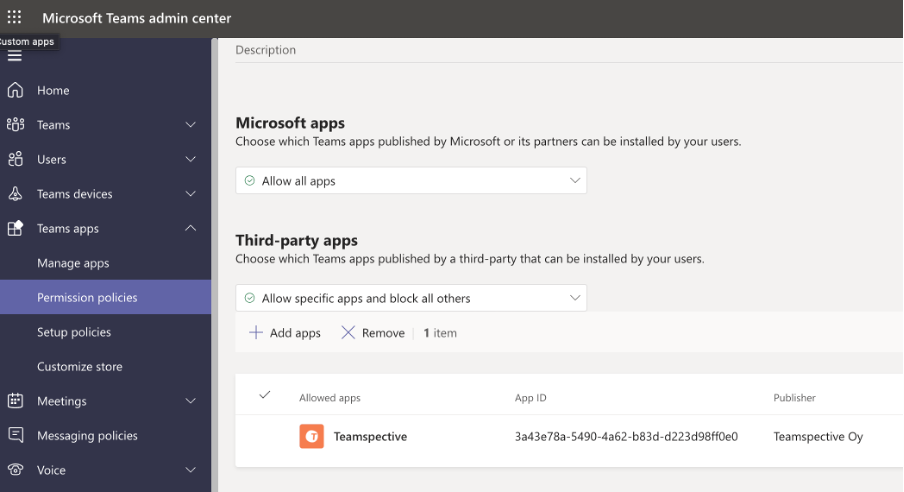
2) Allow all 3rd party apps or whitelist Teamspective app (Alternative)
Your organization can allow use of 3rd party apps by adjusting the settings in MS Teams. You can also whitelist just the Teamspective app. Microsoft's guide to enabling this can be found via this link. This is the more safe approach if the company wants to retain control over what 3rd party tools are used.
Once available, your employees can search and add the Teamspective app from the Teams app page. You can share this guide to your employees: Guide to link Teamspective user account into Microsoft Teams.
Advanced integration
This integration is necessary for our Collaboration module and some 360 Feedback module functionality such as public praise channel.
Invite an admin of your MS Teams to your Teamspective workspace, and give them workspace administrator permissions in the members page.
The admin person should go to workspace Settings and connect Teams from there. The permissions flow will only ask for permissions that are important (see table below) for Teamspective to work properly, so you should grant all the permissions it is asking.
In the last step the admin person has to choose to which Team in Microsoft Teams you want to connect Teamspective. This Team should include all the users which will be using Teamspective.
Microsoft Teams access rights needed by Teamspective
Title | Access type | Technical permission code | Why we ask for this permission |
Get a list of all teams | API | Team.ReadBasic.All | Listing your teams so you can choose the team to connect and import users from |
Read the names and descriptions of all channels | API | Channel.ReadBasic.All | Listing a team's channels so you can choose the channel for public praise |
Read the members of all teams | API | TeamMember.Read.All | Importing users from Teams and linking their Teams and Teamspective accounts by email |
Manage Teams apps for all teams | API | TeamsAppInstallation.ReadWriteForTeam.All | Installing the Teamspective app into the team you connect |
Manage Teams apps for all users | API | TeamsAppInstallation.ReadWriteForUser.All | Installing the Teamspective app for individual users, so the bot can message them directly |
Allow the app to manage itself for all users | API | TeamsAppInstallation.ReadWriteSelfForUser.All | Installing the Teamspective app for individual users, so the bot can message them directly |
Read channel messages | API | Channel.Message.Read.All | Create a network graph based on channel interactions |
Message users in team | Bot permissions | - | Sending surveys and notifications to users |
Find identity of user | Bot permissions | - | Identify user when they interact with the bot |
FAQ
The employee isn't receiving notifications into the Teamspective Teams app.
Try sending any message (such as "test") to the Teamspective app in Teams. This should relink your accounts. If the issue persists please reach out to support@teamspective.com.
Teamspective's Teams app claims that the employee's account is not linked with a Teamspective account.
A Teamspective workspace admin should check that the email address used in Teams and in Teamspective are the same. Any recent changes to your email address can break the connecting. If the employee is new, it might be that they haven't been added to the Teamspective workspace yet. Once this is done, their account will automatically link to Teams if your organization has enabled auto-install for all employees.