Engagement quick start guide
Last updated: May 8, 2026
This brief article helps you understand the basics of Teamspective Pulse.
Get familiar with the Teamspective web app
We keep the app as simple and intuitive as possible so you can focus on your work instead of learning a complex platform.
Answering engagement surveys
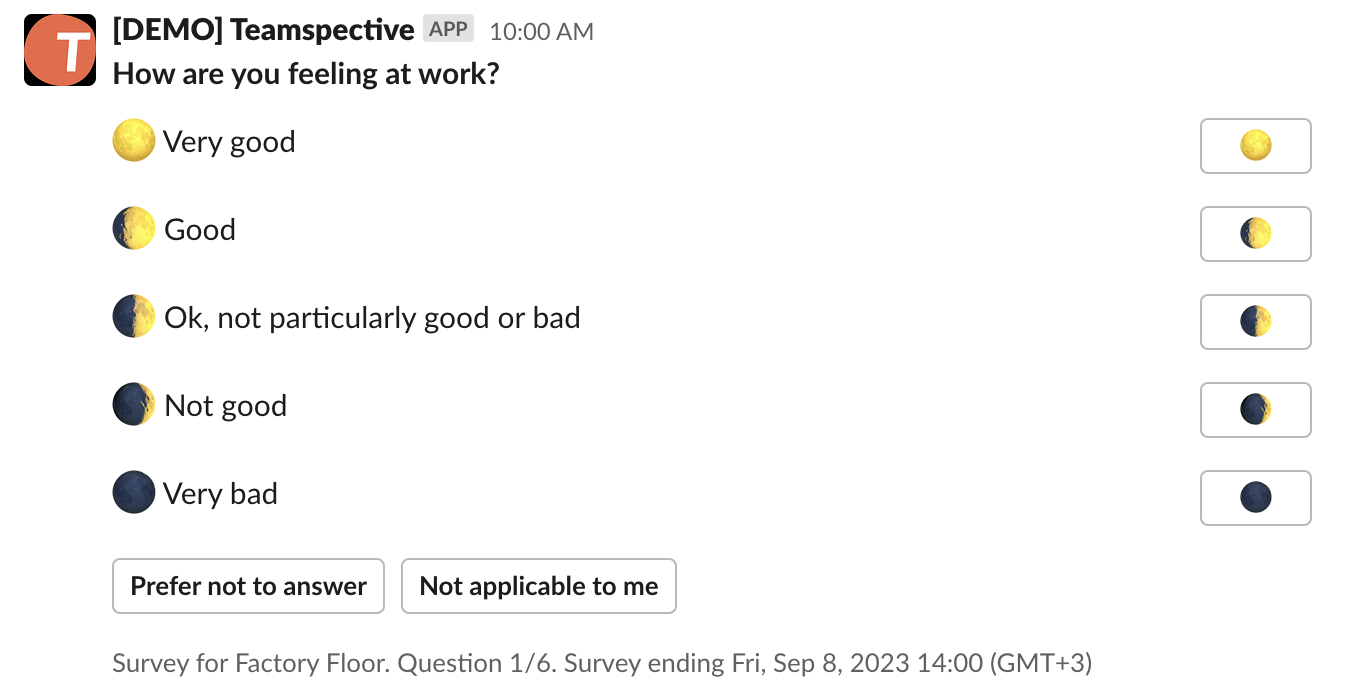
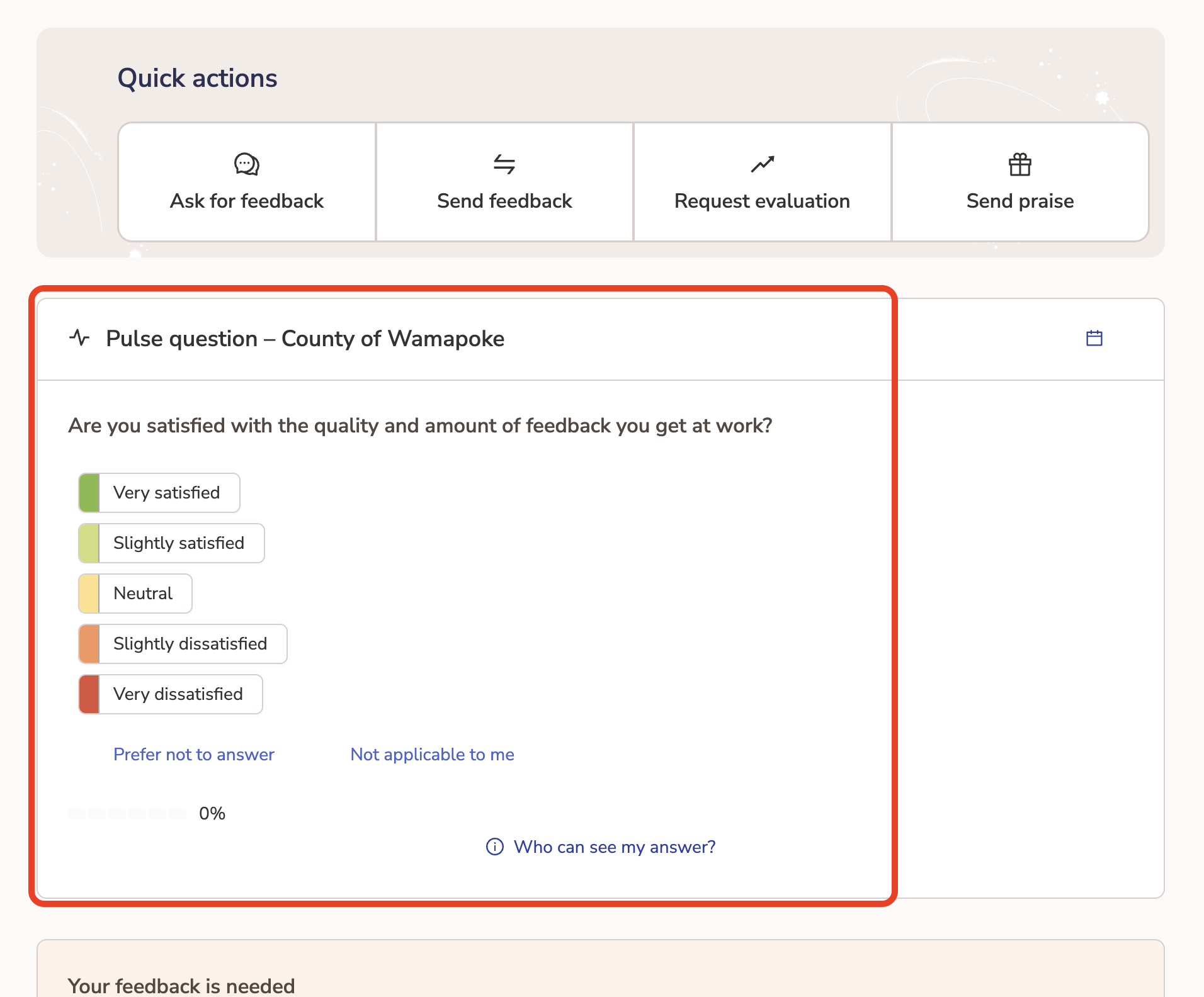
When a survey round is active questions can be answered in 2 ways:
1. Directly in Slack or MS Teams via the Teamspective app:
2. On the Home page via the link in the email notification:
❗ All survey answers are completely anonymous. No-one else well be able to see your specific responses.
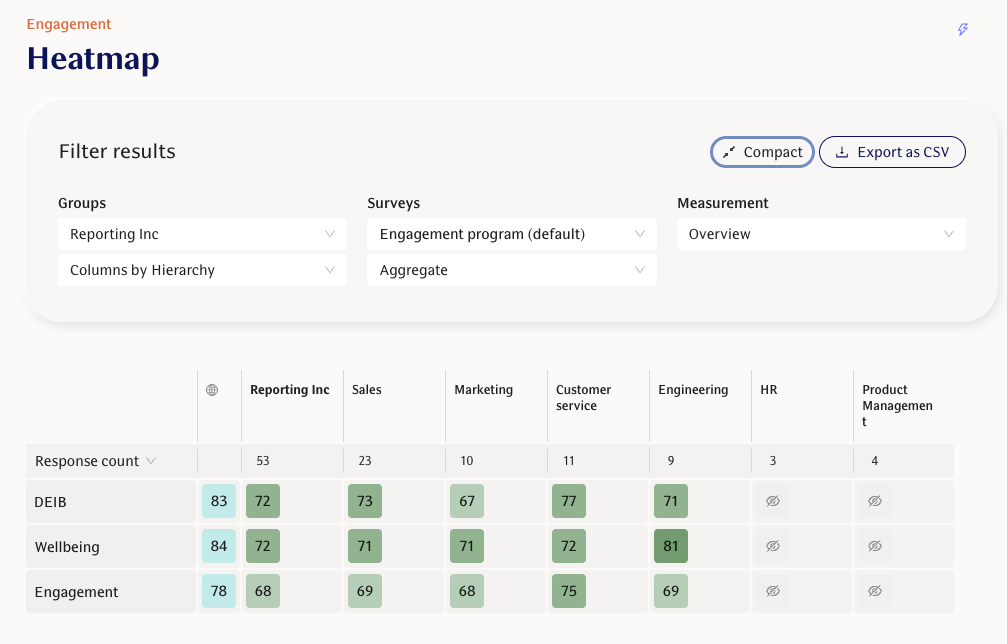
Results will be hidden for responder groups with a small amount of responses. Your organization can decide how many responses are need per question to make the results visible. Teamspective's default is 4 responses.
Open Comments
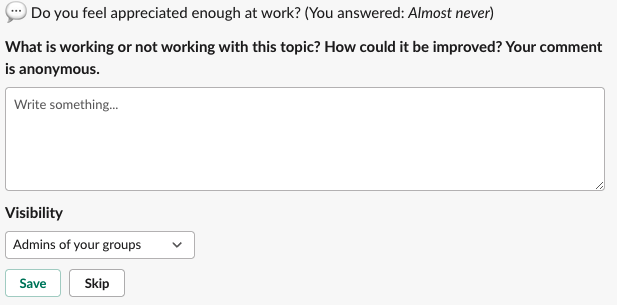
Teamspective strongly encourages you to leave comments when responding to the surveys. This gives more context to your responses and you are also to immediately share development ideas.
The survey always prompts you to leave at least 1 comment. Feel free to share your thought regarding the question and the response you selected.
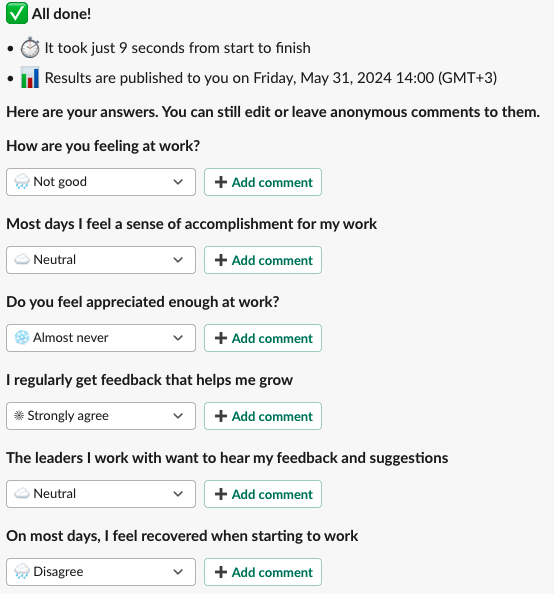
At the end of the survey, you can review and edit all your responses and leave further comments.
Reading survey results
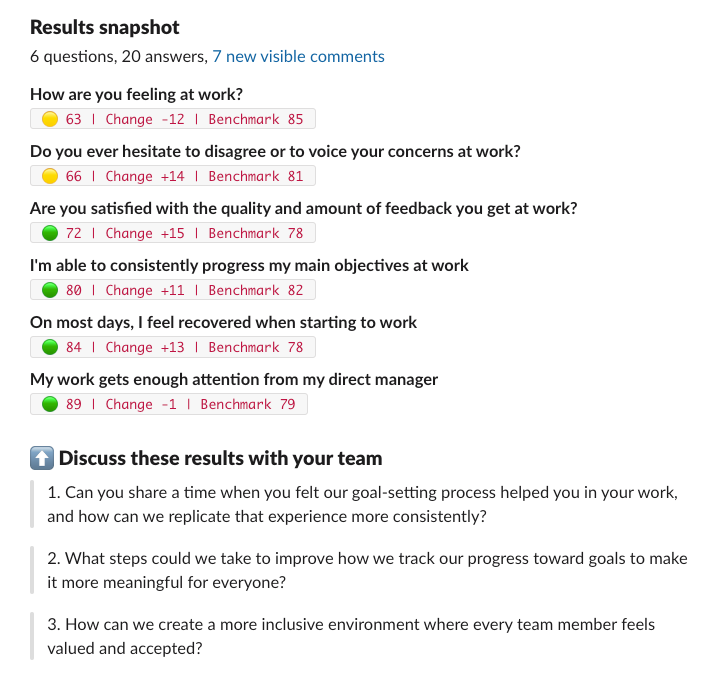
First, all managers get a snapshot of results directly in their Slack or Teams. The snapshot presents overview of response amounts, a summary of results, and some suggested actions:
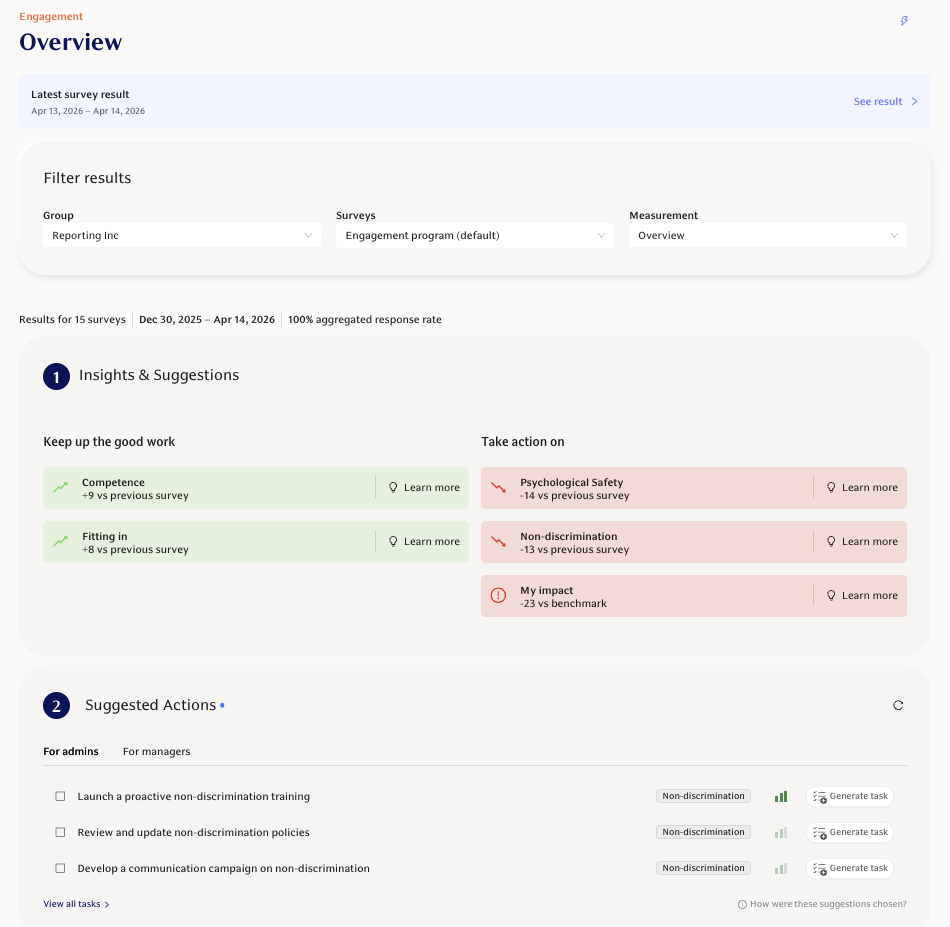
Survey results are published with automated Insights and Action tips on the Overview page:
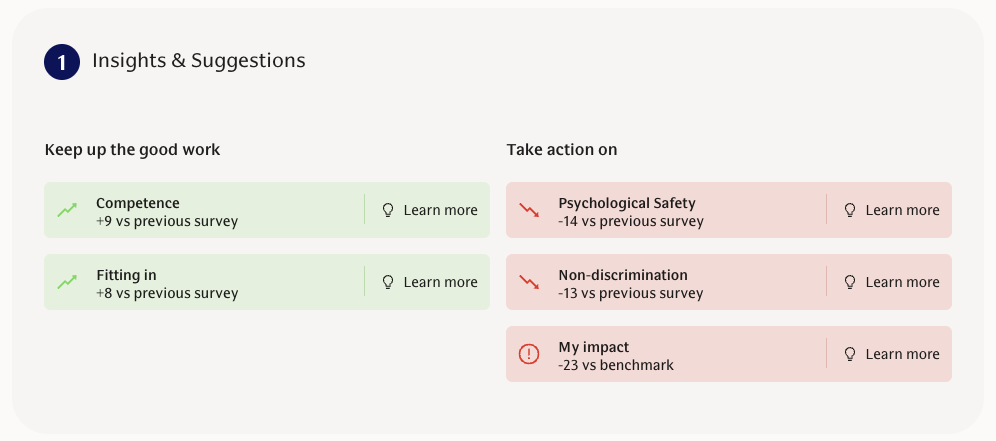
Once Teamspective has enough data we start to publish our Insights to help you focus on the most important topics:
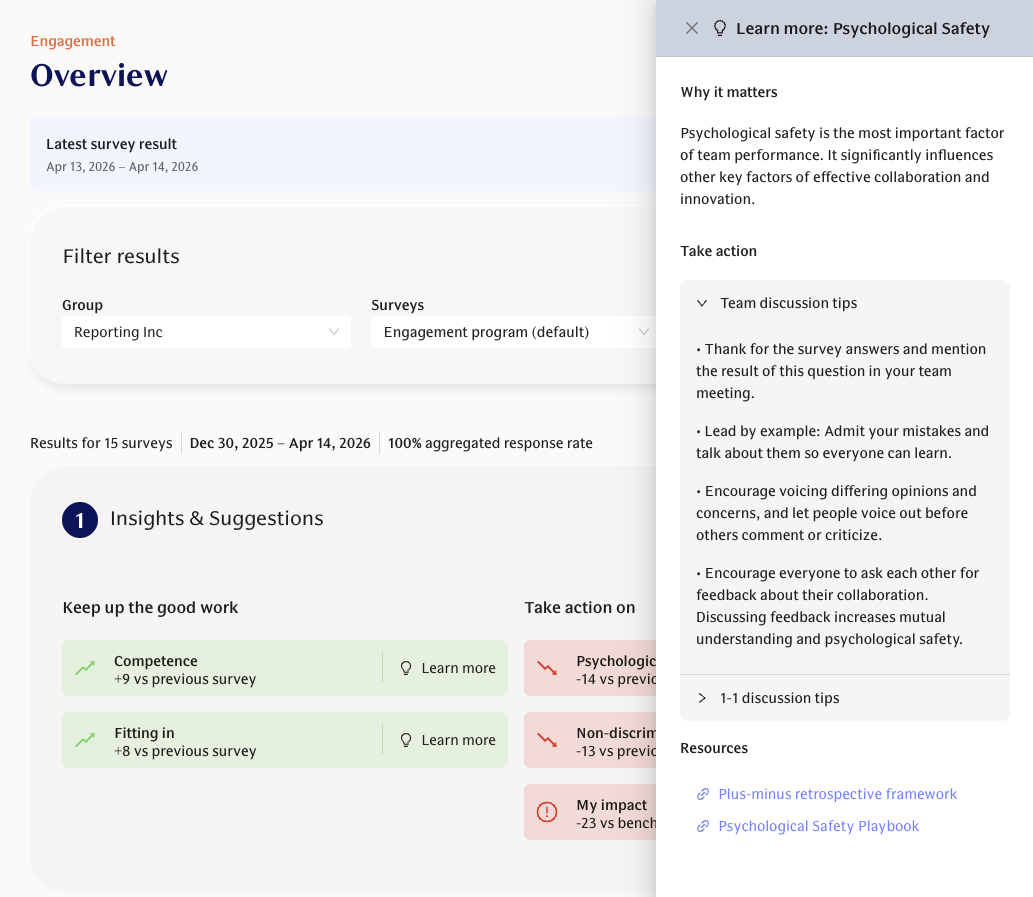
Clicking Learn More gives you suggestions on why a specific question score is important and what actions to start taking:
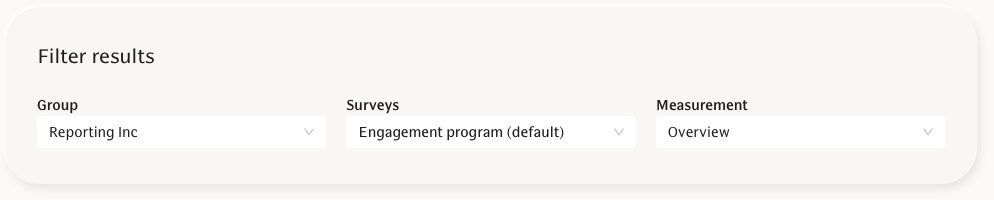
Use the filters to select a specific team, survey or measurement:
The Heatmaps page is great for comparing scores across different teams or points in time:
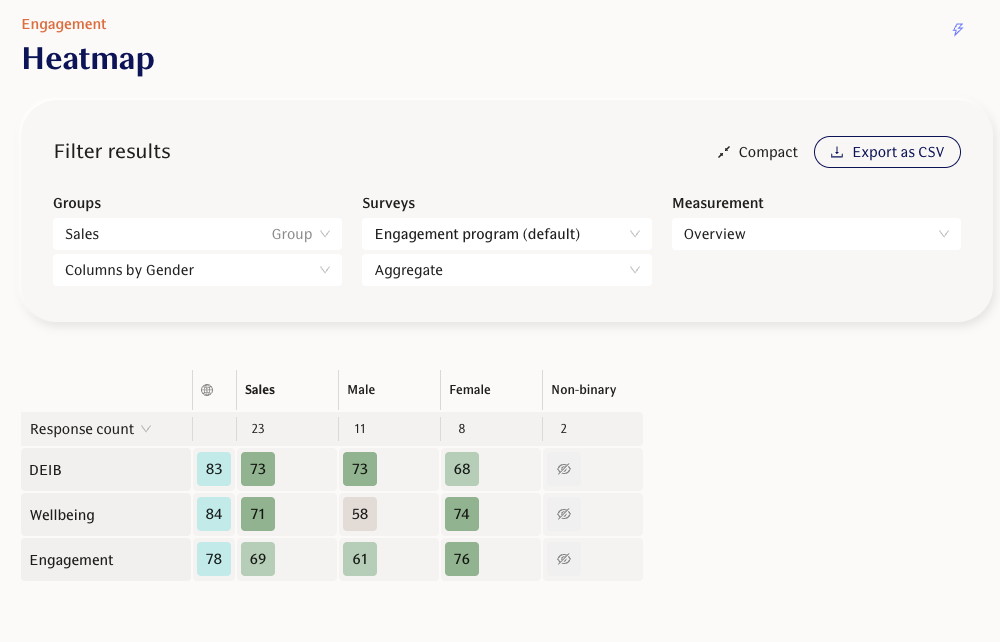
Use the Groups filters to filter and pivot (requires separate permissions) the results based on your needs. Export the data as CSV for further analysis or preparing visual graphs.
Responding or reacting to Comments
If a Comment is made visible to you, this will be mentioned in the survey end notification. By clicking the link you will be directed to the Comments page in Teamspective's web app where you are able to reply or react to the comment. This will send a notification to the original commentator who will always remain anonymous.

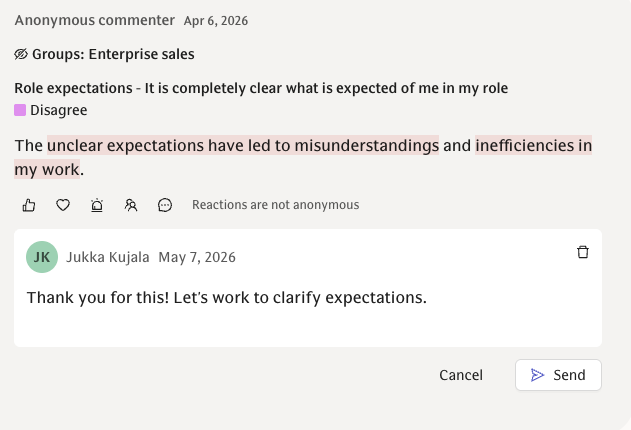
Reply to your comment
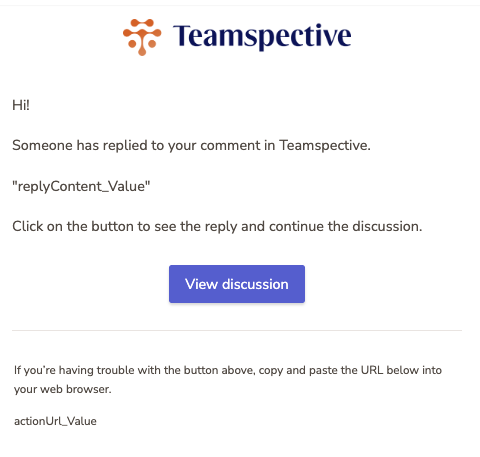
If someone has replied or reacted to your comment, you will receive a notification about this into Slack/Teams or Email. Click the link to view the reaction of reply.
My Answers page
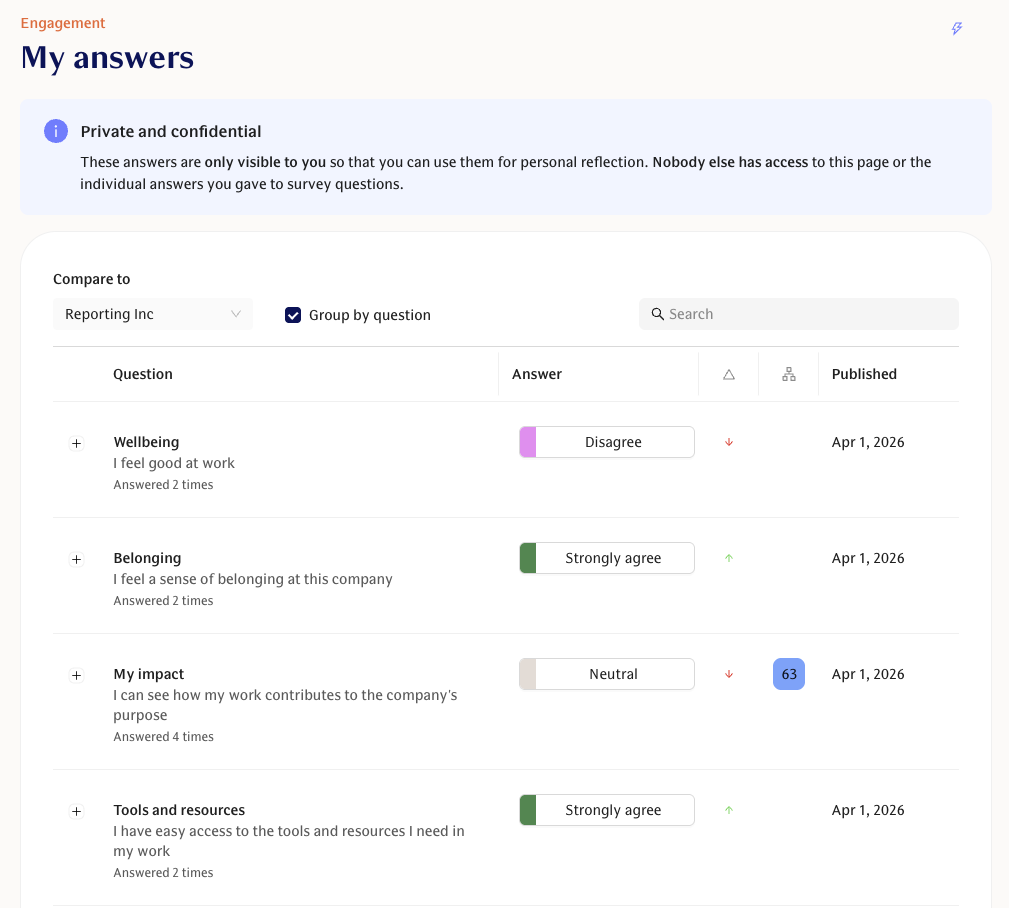
If enabled in your organisation, you can also see your own survey responses from the My Answers page.
These answers are only visible to you so that you can use them for personal reflection. Nobody else has access to this page or the individual answers you gave to survey questions.
If you have any feedback on the features or user experience, we'd be curious to hear! You can reach us via the support chat or email at support@teamspective.com.